
View modes
There are four ways to look at the same folder: details, icons, columns, and gallery. This page covers what each one suits, and how to change the list's sorting, grouping, and what it shows.
Switching is instant, and each tab remembers its own choice for next time. Views are switched in the footer, bottom right: click the pill and a panel opens above it, then click the view you want.
The four views
| View | Good for |
|---|---|
| Details | Type, size, modification time and age; folders expand in place |
| Icons | Flipping through pictures and folder thumbnails; icon size is adjustable |
| Columns | Going down one level at a time, with a preview right beside it |
| Gallery | One big image with a strip of small ones below for flipping through |
The same folder in all four views (D:\Demo\Photos):
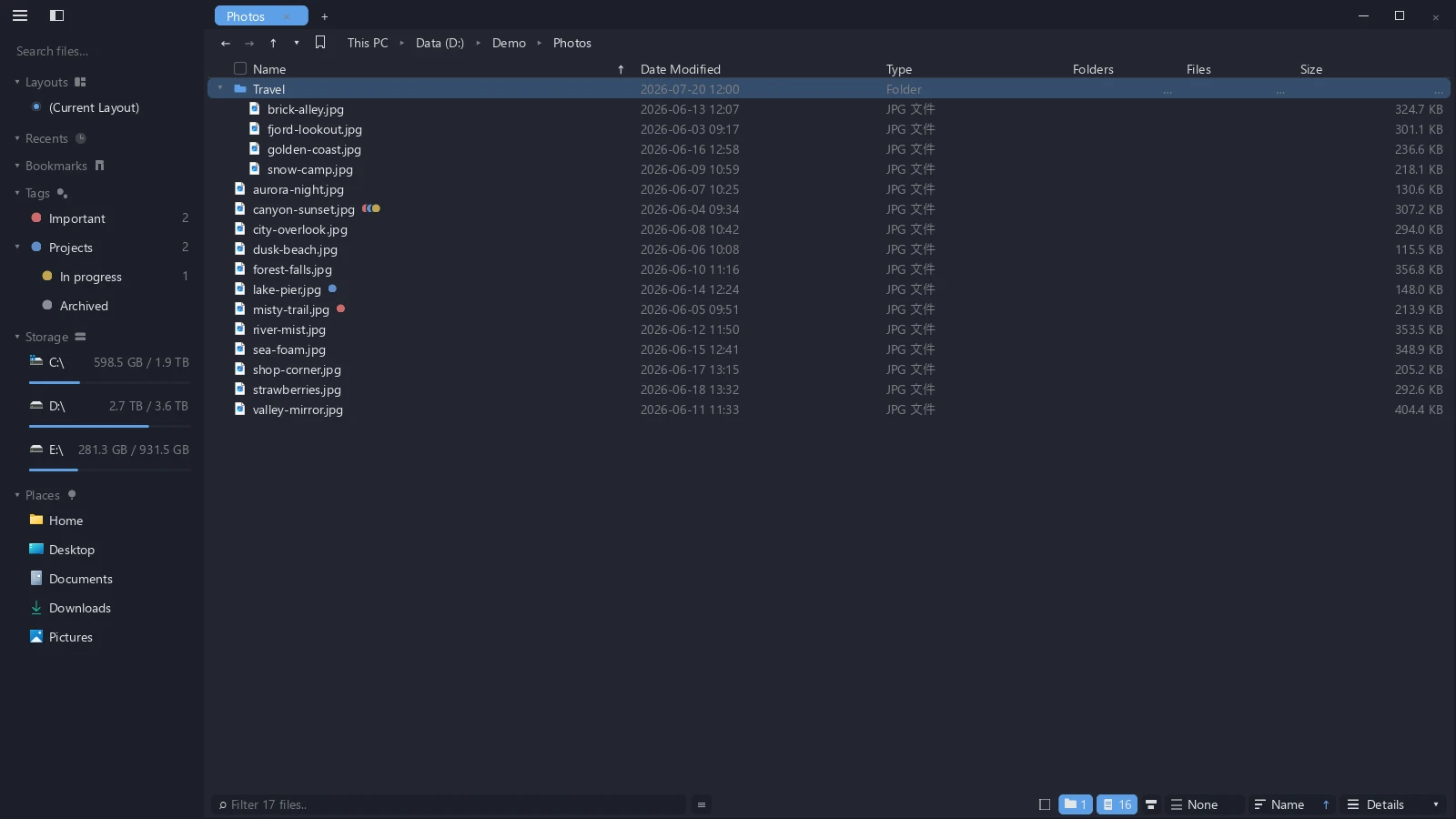
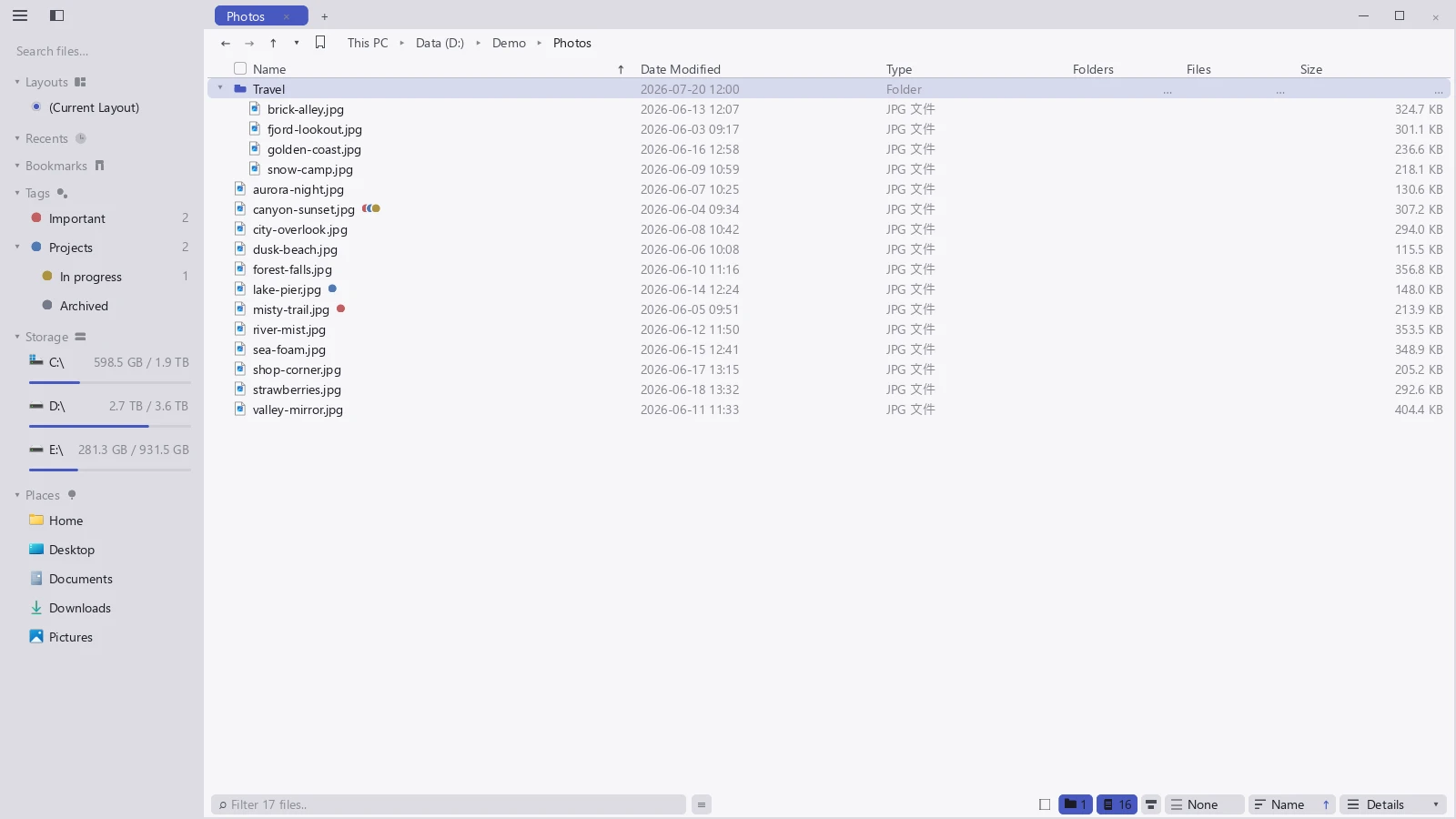
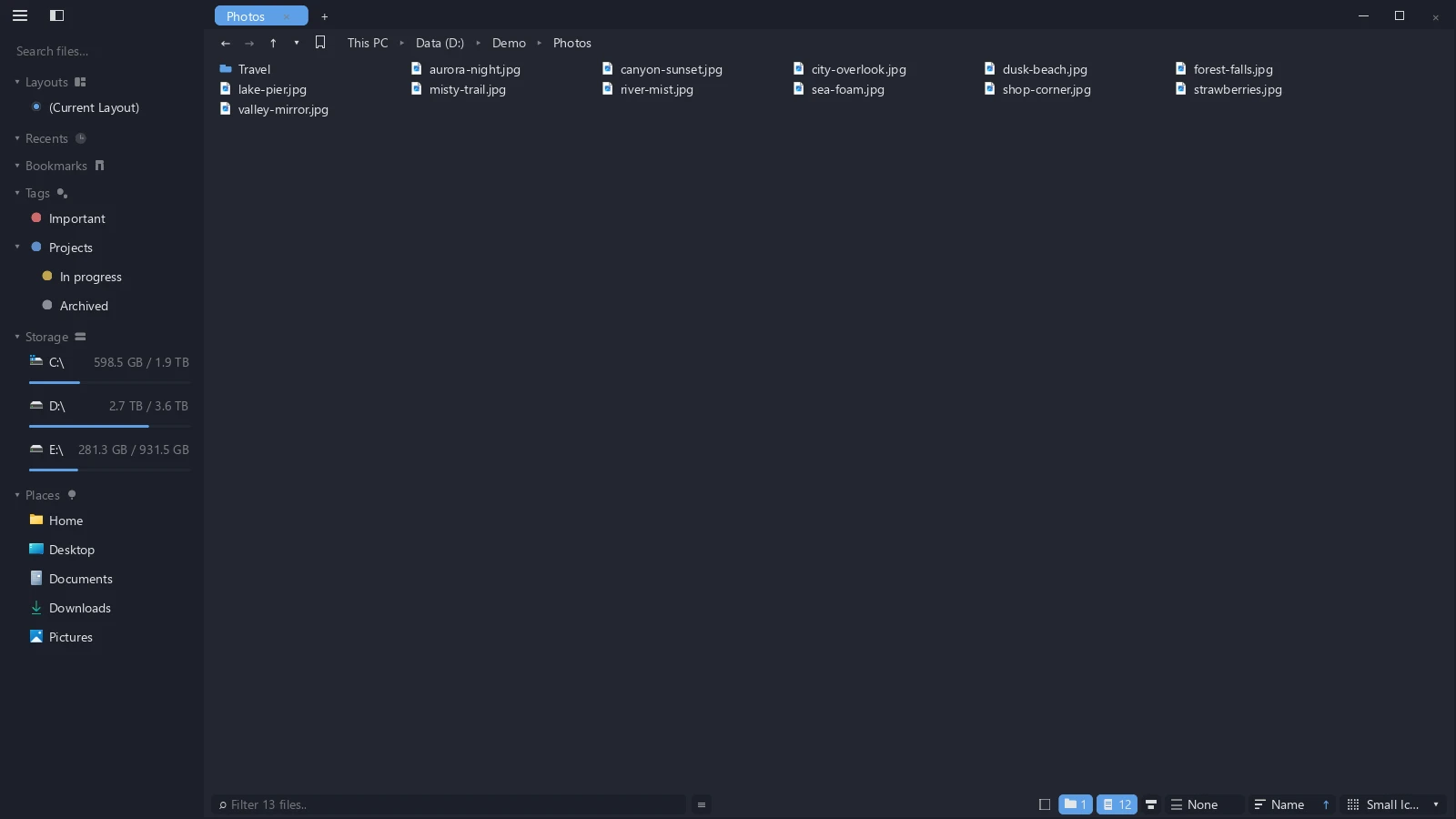
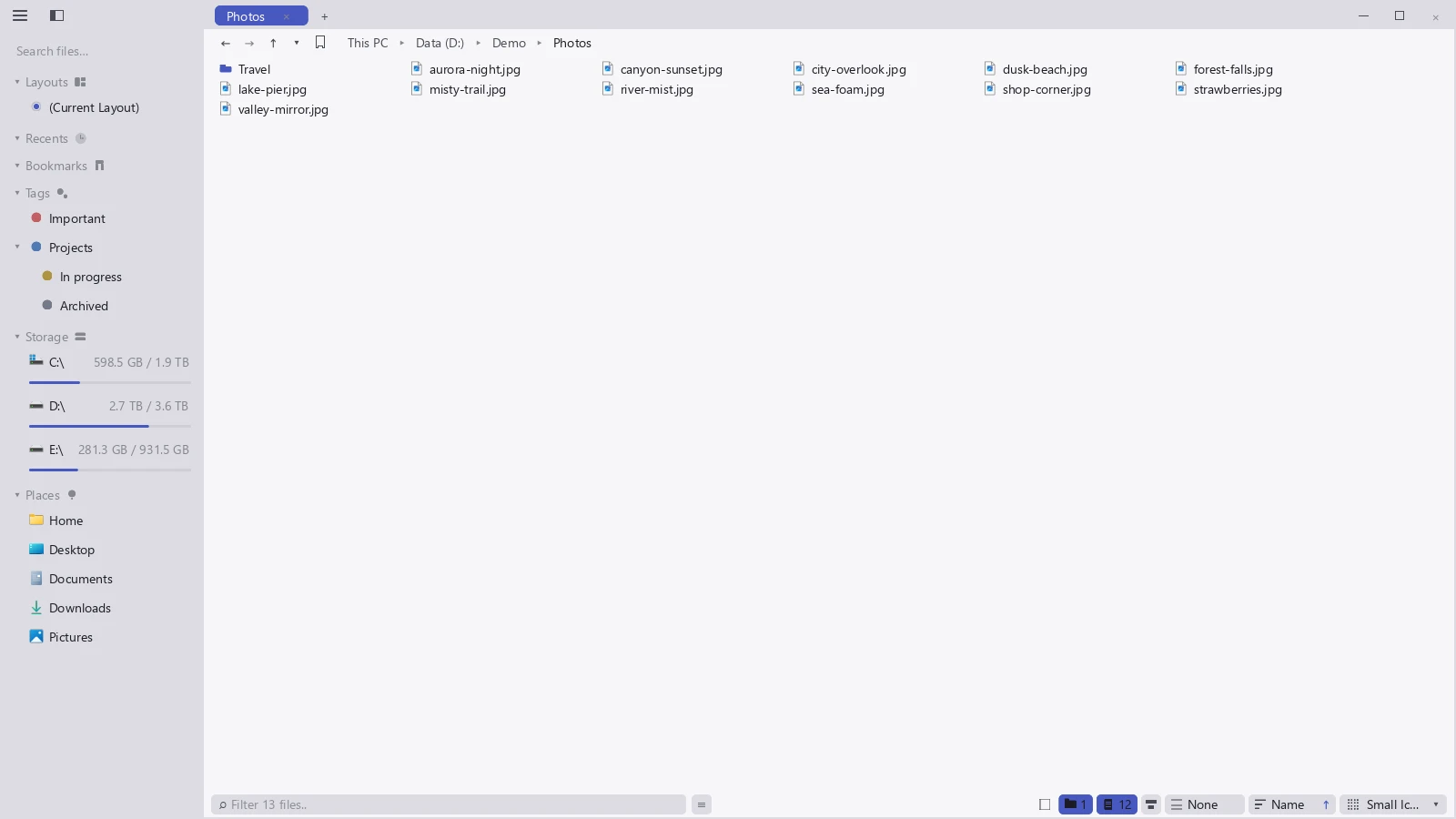
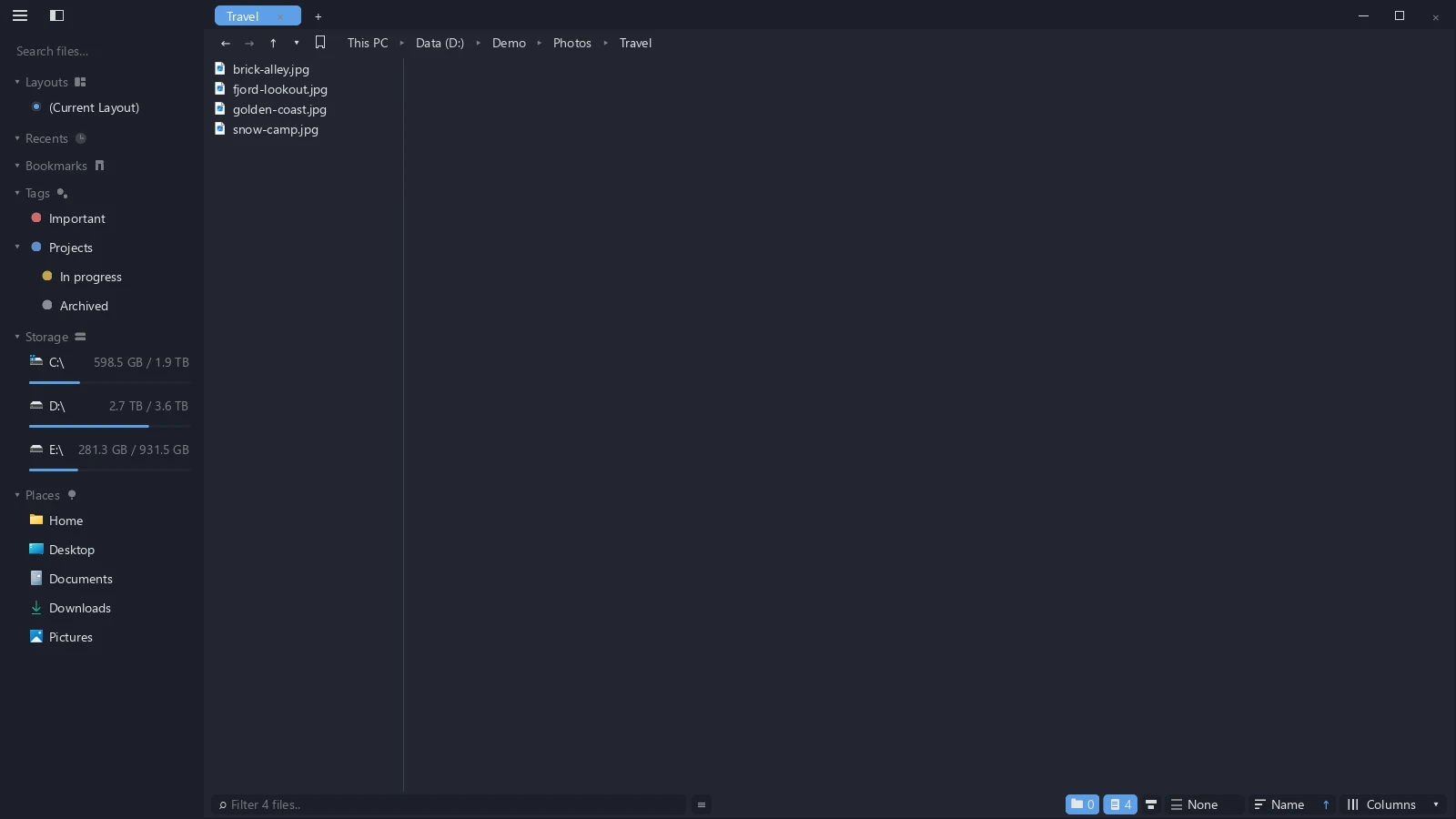
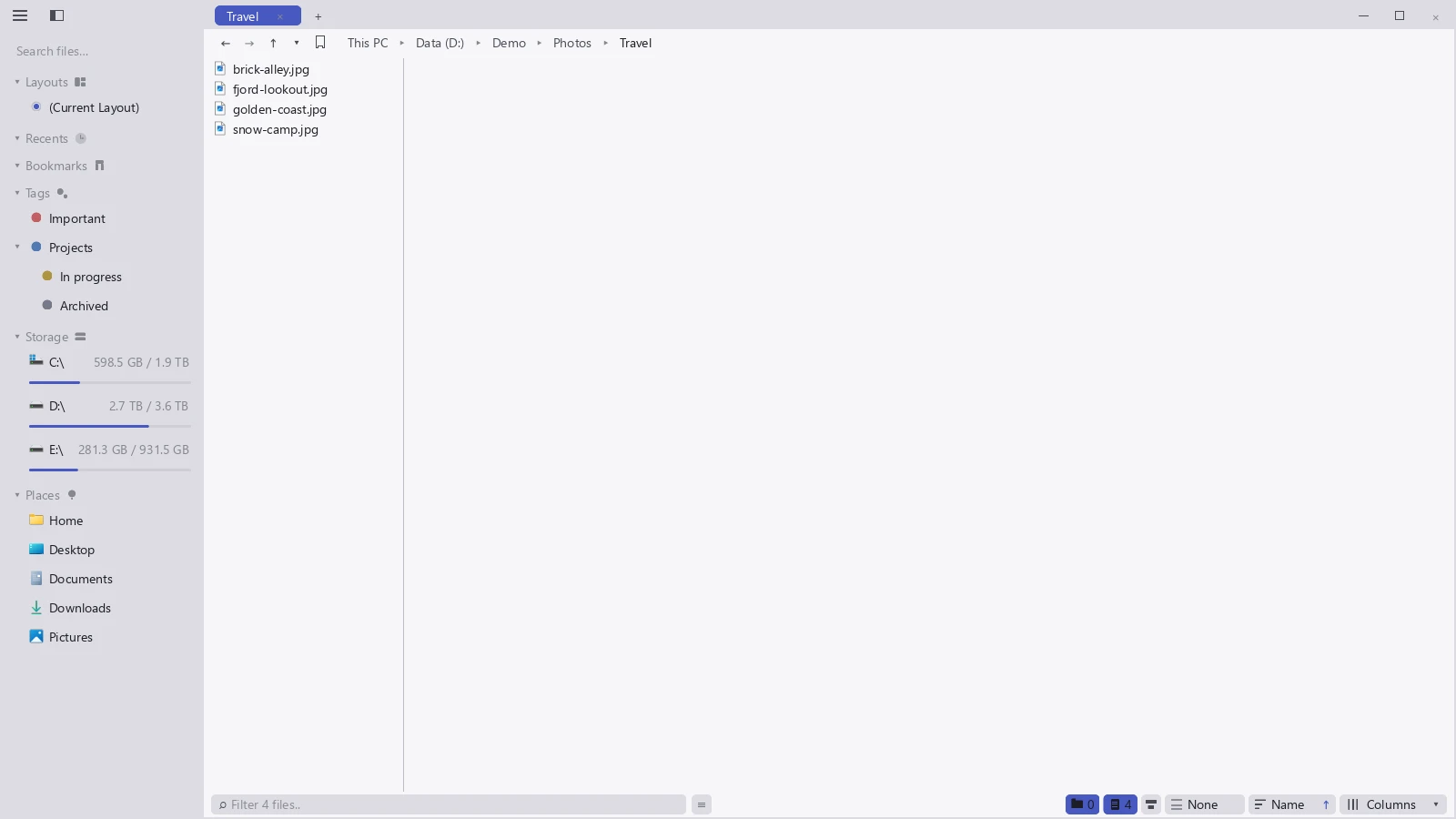
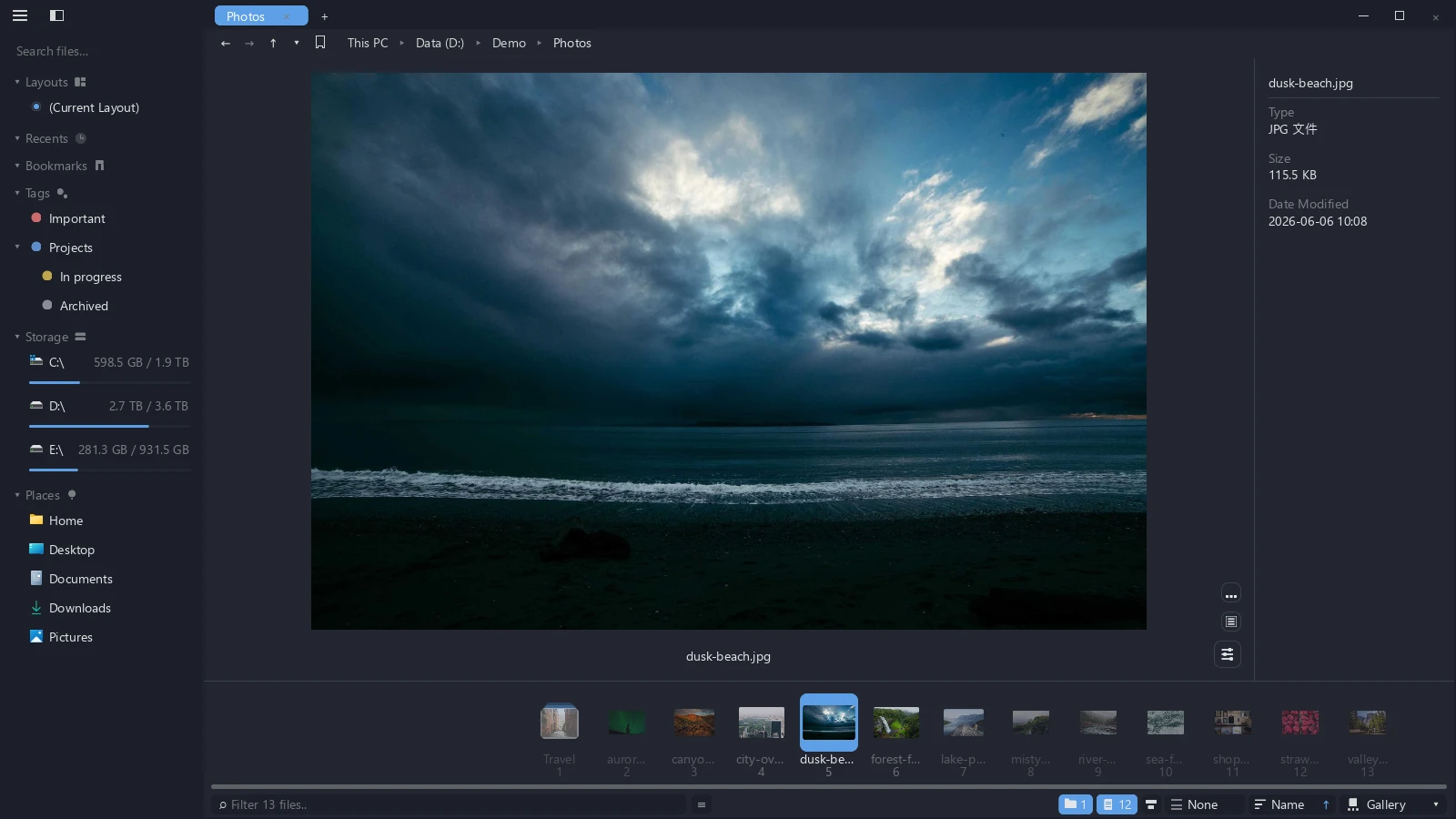
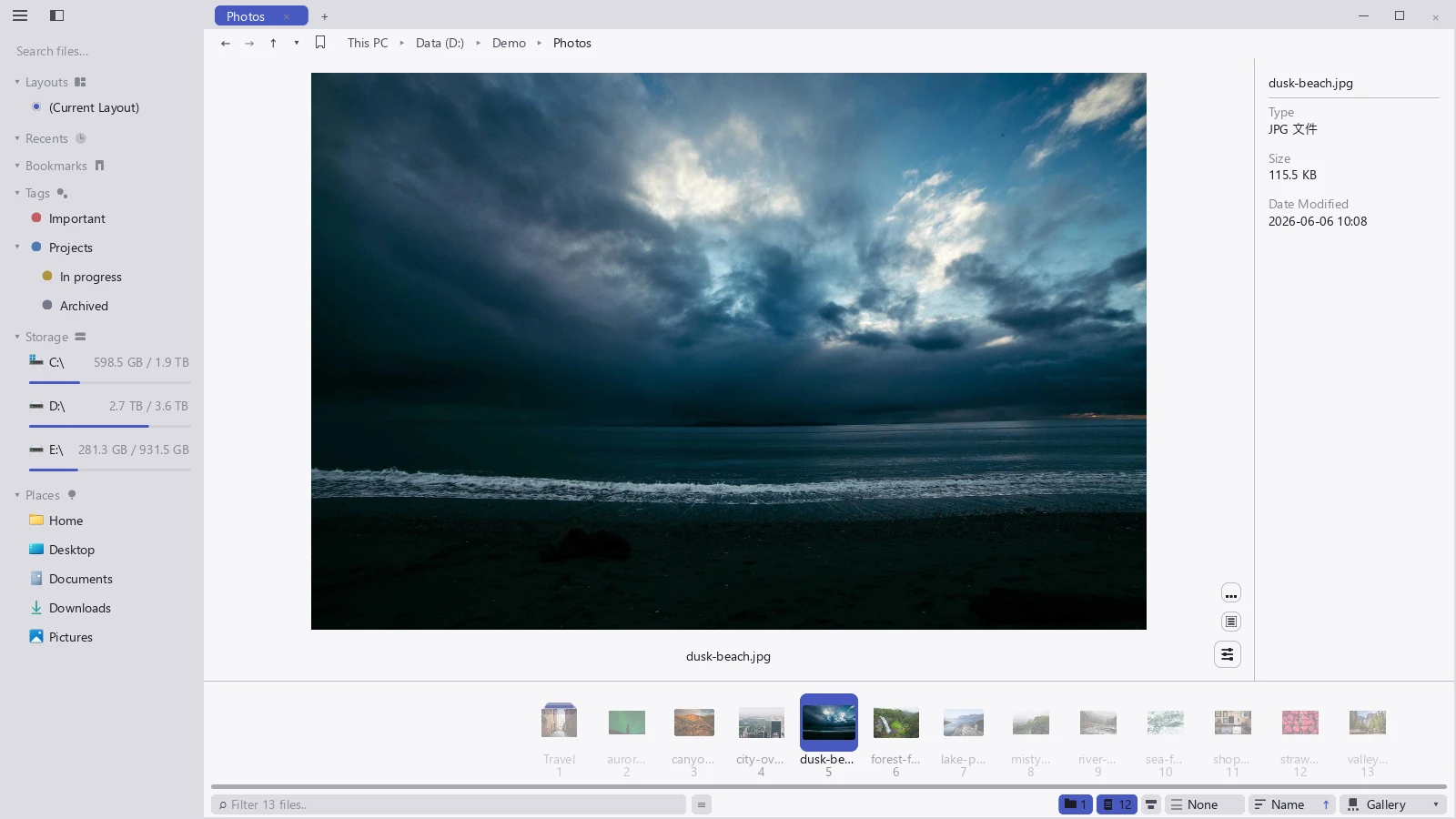
Hold a modifier and scroll to switch views or resize icons. Hold the modifier key and scroll the mouse wheel over the file list to move between views or make the icons bigger and smaller. Whether that lands on this tab, this group, all groups or this folder is set by View Settings Belong To, see Who view settings belong to.
Details
- The seven default columns are Name, Age, Date Modified, Type, Folders, Files, and Size; click a column header to sort by it, and click again to flip the direction.
- Both the order and the width of the columns are yours to change, and every column except Name can be hidden — right-click the header row to tick them, see Arrange the interface.
- Age uses text and color to show how long ago a file was modified. It shares sorting with Date Modified, where the sort arrow appears. When upgrading with an existing column configuration, the new column is appended at the end. See Age badges for color and style settings.
- Folders expand in place so you can see inside them.
- Colored tag dots appear to the right of the filename.
- With Calculate Folder Sizes Automatically on, the Folders, Files, and Size columns fill in for folder rows once the background scan finishes. Folders that are gated off read Not calculated; click that cell to scan just that one.
In This PC, columns show drive information: Name, Type, File System, Free Space, Size, and % Used, plus Drive on Windows. Age is not shown. Type distinguishes local disks, removable disks, network locations and other storage; see Storage locations.
Icons
The view panel in the footer does not label this one "Icons": it shows the current step, Small Icons, Medium Icons, Large Icons, or Extra Large Icons. Only the New Tab View setting calls the four of them together Icons.
- Those four steps are the sizes; at the larger ones, folders show a thumbnail of what is inside.
- With the cells set large, images can be decoded at full resolution instead of drawing an upscaled 256 px thumbnail. It is a checkbox per step, and only the largest one is ticked out of the box, see Settings reference.
- Hover a folder that has thumbnails and the stack fans out for a look. How it fans is the Folder hover spread setting: Arc, Deal, Row, Stair, or Off.
- Good for flipping through pictures and sorting through material.
Layout
Layout decides how the cells in the icons view are arranged. The four layouts change the size and position of the cells and nothing else — same files, same checked set, and a double-click still enters a folder:
| Layout | What the cells look like | Good for |
|---|---|---|
| Grid | Squares all the same size; the default | Folders of mixed file types; rows and columns line up, which scans best |
| Justified rows | Every row the same height, each cell as wide as the picture's own proportions make it, flush to the right edge | A batch of photos in mixed proportions, portrait and landscape alike, none of them cropped |
| Masonry | Columns of equal width, each cell as tall as its picture, filling the shortest column next | Folders full of portrait shots, scrolled straight down |
| Mosaic | Large and small cells interleaved, with a double-size cell every few pictures | A big pile of images where a few should stand out |


There are three ways to switch:
- Right-click empty space → Layout and pick one. The entry only appears in the icons view.
- Click the layout badge in the footer (to the left of the grouping badge) to flip between Grid and whichever one you used last.
- Hover that badge and scroll to cycle through all four; hover without moving and it opens a panel, where clicking a row switches as well.
Layout and icon size are separate and combine freely. The single exception is the smallest step — that one is a horizontal text list with no picture proportions to speak of, so it always draws as Grid. Zoom back out and your layout returns.
Layout and grouping do not interfere either. Group by Date modified and add Mosaic and you get a photo wall cut into stretches of time; changing the layout never changes your grouping along the way.
A cell whose thumbnail has not arrived yet holds a square. The last three layouts place each cell by its picture's proportions, and thumbnails are produced as you scroll to them. Until one arrives the cell is a 1:1 square, and the page adjusts once when the real proportions come in; the cell you are looking at stays put rather than jumping away. In a folder with no images at all, Justified rows looks the same as Grid, which is correct.
Columns
- Go down one level at a time, left to right, and you can always see where you are.
- Select a file and the preview appears right beside it: images, text, PDFs. When you would rather not have that column, close it with the details panel toggle in the footer — the same button the details and icons views use.
- Each column has its own scrollbar, so a long level scrolls on its own and the other columns stay put.
- Go deep enough that the row of columns overflows the pane and a horizontal scrollbar appears below, to drag back to the earlier levels.
- The keyboard acts on the column you last clicked in, not always the first one. Arrow keys, paging and jumping all move within that column.
- You can drag files onto any row of any column, and the drop highlight is drawn precisely on that row. Releasing in place within the source column changes nothing.
- The footer filter box and Ctrl+A work here as well, applying to the current column.
"Single-Click to Open Folders" does not affect columns. Columns have always been single-click — that is how the view works, not something the setting turns on.
Gallery
- One big image, with a strip of small ones underneath.
- Good for going through pictures one by one; drag the strip to move quickly.
- Two small controls sit at the bottom right of the preview: one toggles the filmstrip between docked and floating, the other opens and closes the info panel.
Sorting
Sorting has two independent parts: which column orders the list, and whether folders come before files.
| To change | Do this |
|---|---|
| Which column sorts | Click a column header, or right-click empty space → Sort by |
| Ascending or descending | Click the same header again; the right-click menu also has Ascending / Descending |
| Folders versus files | Click the footer's sort button to cycle Mixed, Folders first, Files first |
Three conventions apply when sorting by name:
- Chinese names sort as one block after English, matching File Explorer and Finder. Within a folder the order runs digits → English → Chinese, three blocks that never interleave.
- Inside the Chinese block, names sort by pinyin, not by stroke count or code point order.
- Runs of digits inside a name sort by value. So it is
chapter2,chapter10,chapter11, notchapter10,chapter11,chapter2. Leading zeros make no difference;001and1are equal.
The first of the three changed in 0.23 and has no switch. Chinese characters used to be spread through the alphabet by pinyin one position at a time, so 阿里巴巴 flattened to a… and sat next to apple. The order of files in a folder therefore changes after upgrading.
Grouping
Grouping splits the current list into sections, each with a collapsible header and a divider to the right of its name. Right-click empty space → Group by:
| Value | Sections you get |
|---|---|
| None | Grouping off |
| Type | Folders in one section, everything else by file type |
| Date modified | Today / Yesterday / Past 7 days / Past 30 days / Past 6 months / Older / Unknown date |
| Size | Empty / Tiny · <10 KB / Small · <1 MB / Medium · <128 MB / Large · <1 GB / Huge · ≥1 GB |
| Name | By first character. Chinese characters go into A–Z by the first letter of their pinyin, digits go to 0–9, the rest to Other |
| Extension | By extension, with No extension for the rest |
Grouping by Type, Size, or Extension puts every folder in the Folders section: folder sizes are computed in the background, and letting them take part in the bucketing would make rows jump around on their own.
A grouping badge sits in the footer at all times, naming the key in use, or None when grouping is off. It takes three gestures: hover it and the key panel opens so you can pick one; scroll the wheel while hovering to cycle through the keys; click it to toggle between None and the key you last used.
A three-state checkbox at the left end of each group header checks the whole section at once: an empty box when nothing in it is checked, a small square inside the box when some of it is, a tick when all of it is. Clicking fills in the rest of the section, or clears it if everything was already checked. The box is only drawn while the pointer is over the header, and collapsed sections do not get one — none of their rows are visible, and checking only ever applies to visible items.
Click a group header to collapse or expand that section; the content below moves to follow it. The right-click menu also has Collapse all groups and Expand all groups, which act on every group at once and skip the animation.
Grouping and "folders first" are different things: the first cuts the list into sections, the second only decides who comes first within a section.
Expanding folders while grouped
With grouping on you can still click the arrow at the start of a row and expand a folder in place. Grouping applies to the current folder's direct children only: expanded children sit right under their parent, join no group, and are not counted in the group header. So "group by type" answers "what kinds of thing are on this level", and the expand arrow answers "what is inside this folder" — one axis each.


If you would rather not have it, turn off Keep Folder Expansion While Grouped in the View group in Settings: no expand arrows are drawn while grouped, as before.
Expand All Subfolders (the button right of the footer's filter box) works together with grouping too, and grouping then applies to everything the expansion brought in — Expand All Subfolders + group by Type means "every PNG under this tree, together".
The footer switches
The footer carries a set of controls at each end. They all change what this list shows; none of them touch anything on disk.
Two at the left end, left to right:
| Button | What it does |
|---|---|
| Filter box | Type to filter the current folder; the box shows how many files are left, see Search and filtering |
| Recursive expand | Sits right beside the filter box; expands every subfolder under the current one at once, and collapses them when pressed again |
A cluster at the right end, also left to right:
| Button | What it does |
|---|---|
| Details panel toggle | Clicking cycles panel open with attributes, panel open without them, and panel closed. In the details and icons views it governs the details panel at the side, in columns the rightmost preview column; switching to the gallery fades it out. See Preview |
| Folder visibility | Hides folders from the list, or brings them back; the button carries the current folder count |
| File visibility | Hides files, or brings them back; the button carries the current file count |
| N hidden | Present only while your rules are keeping something out of this folder. Click it to go straight to the Visibility page with this folder's rules highlighted |
| Sort mode | Cycles Mixed, Folders first, Files first — the same button as the third row of the sorting table above |
| Layout badge | Icons view only, see Layout |
| Grouping badge | See the section above |
| Sort badge | Names the column in use; click to flip ascending and descending |
| View switcher | Click for the panel, then pick one of the four views |
As the pane gets narrower the right-hand cluster drops its counts and view name down to bare icons, and narrower still the filter box shrinks to a magnifier square — but every button stays put, none of them fold away into an overflow menu.
Every one of these takes the wheel: scroll over whichever one the pointer is on. Scrolling up turns it on, scrolling down turns it off, and scrolling past the end does not wrap around. Over the view switcher the wheel cycles through the four views. The wheel acts on the pane the pointer is in and does not move the keyboard focus.
On "This PC" and the Start Page there are no subfolders to recurse into, so the recursive expand button is greyed out and hovering it says Not available here — open a drive first. While it is greyed out the wheel does not act on it, and passes through to scroll the list.
Who view settings belong to
Switching views, changing the sort, holding a modifier and scrolling to zoom: whose view those change is decided by one setting. Open the View group in Settings, go to the View Configuration page, and it is the first row, View Settings Belong To:
| Value | Reaches |
|---|---|
| Current Folder | This folder. It is recorded and reapplied the next time you come back |
| Current Tab | Only the tab you are looking at (the default) |
| Group Tabs | Every tab in this pane |
| All Groups | Every tab in every pane |
The four values are mutually exclusive; only one applies at a time.
Remembering each folder's view
With Current Folder chosen, the view you set in a folder (the four views, the zoom step, the icon arrangement) and its sorting (sort key, direction, folders first, grouping) are recorded under that folder and reapplied the next time you go there. Use Details for a music folder and large icons for a photo library, and walking between the two leaves each one as you set it.
This memory has a few boundaries:
- Only folders you changed are recorded. Walking through leaves nothing behind, so when you later adjust your default view, every folder you never set by hand follows it as usual.
- A remembered view wins over New Tab View. A new tab opening on a folder that was recorded uses what was recorded.
- Choosing another value does not delete what is recorded. Pick Current Folder again and it is all still there.
- View switching inside the folder picker has nothing to do with this memory; it is one-off and ends with the dialog.
- Renaming or moving a folder outside tessoa makes its entry stale.
To clear these records, click Clear Folder View Memory on the same page. With nothing recorded, that row does not appear.
Default view preferences
Several settings relate to views. Open Settings with Ctrl+Shift+P:
| Setting | What it does |
|---|---|
| New Tab View | Which view a tab opened with Ctrl+T starts in |
| New Tab Icon Size | Only shown when the above is Icons: how big icons start out |
| Folder hover spread | How a folder's thumbnails fan out under the pointer |
| View Configuration | A page of its own: the View Settings Belong To row, and the zoom-step tables for each of the four views, see Who view settings belong to |
These settings are kept and still apply after a restart.