
Activity
Activity records every copy, move, delete and rename you make in tessoa, one entry at a time, so you can look back at them later. This page covers how to open it, what you can do with an entry, and who decides how long entries are kept.
A toast stays on screen for a few seconds, but the question "where did I paste that batch of files?" usually comes up after the toast is gone. Activity is what catches that.
Open activity
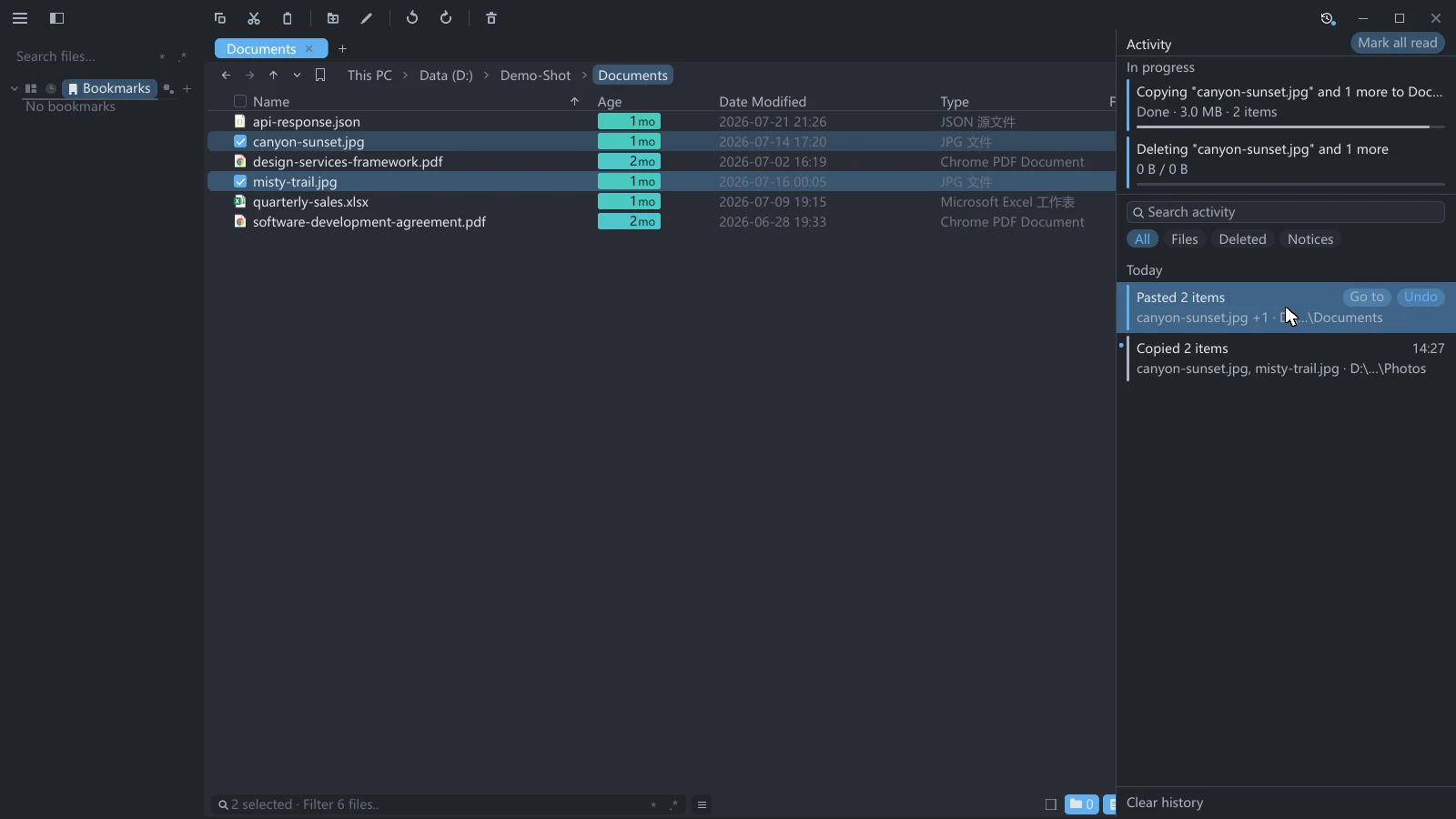
There is a clock button in the top-right corner of the window; hover it and it reads Activity. Click it and the panel slides in from the right edge of the window. Click it again, or press Esc, to put it away.
The panel covers the right side of the window; it does not squeeze the list underneath. Drag its left edge to change its width. That width is global, so your other windows follow.
Click outside the panel, or switch to another program, and the panel puts itself away. To keep it open while you work in the file list beside it, turn off Activity Panel: Auto-Collapse When Unfocused in the Notifications group in Settings.
Two kinds of unread dot
The button carries two dots, each in a fixed spot, and they mean different things:
| Dot | Position | What it means |
|---|---|---|
| Red | Top right | Something wants your attention — most often, some items in an operation failed |
| Blue | Bottom right | There are ordinary entries you have not looked at |
An entry that wants your attention lights the red dot only; it does not light the blue one as well. Both can be lit at once, and their positions are independent: whether the red dot is there or not does not move the blue one.
An entry counts as read once you have looked at it, by any of four routes: hovering the row, clicking the row, clicking its Go to or Undo, and Mark all read in the panel's title bar. Mark all read only appears while something is unread; with nothing unread it is absent rather than greyed out.
What you have read is stored on disk, so entries do not become unread again after a restart.
What is in the panel
The panel has four bands from top to bottom, and the first two only take up space when there is something to show:
| Band | When it appears |
|---|---|
| Tasks in progress | While a copy or move is running |
| Search box | Once there is at least one entry |
| Category buttons | Same |
| Timeline | Always — with a line of text when it is empty |
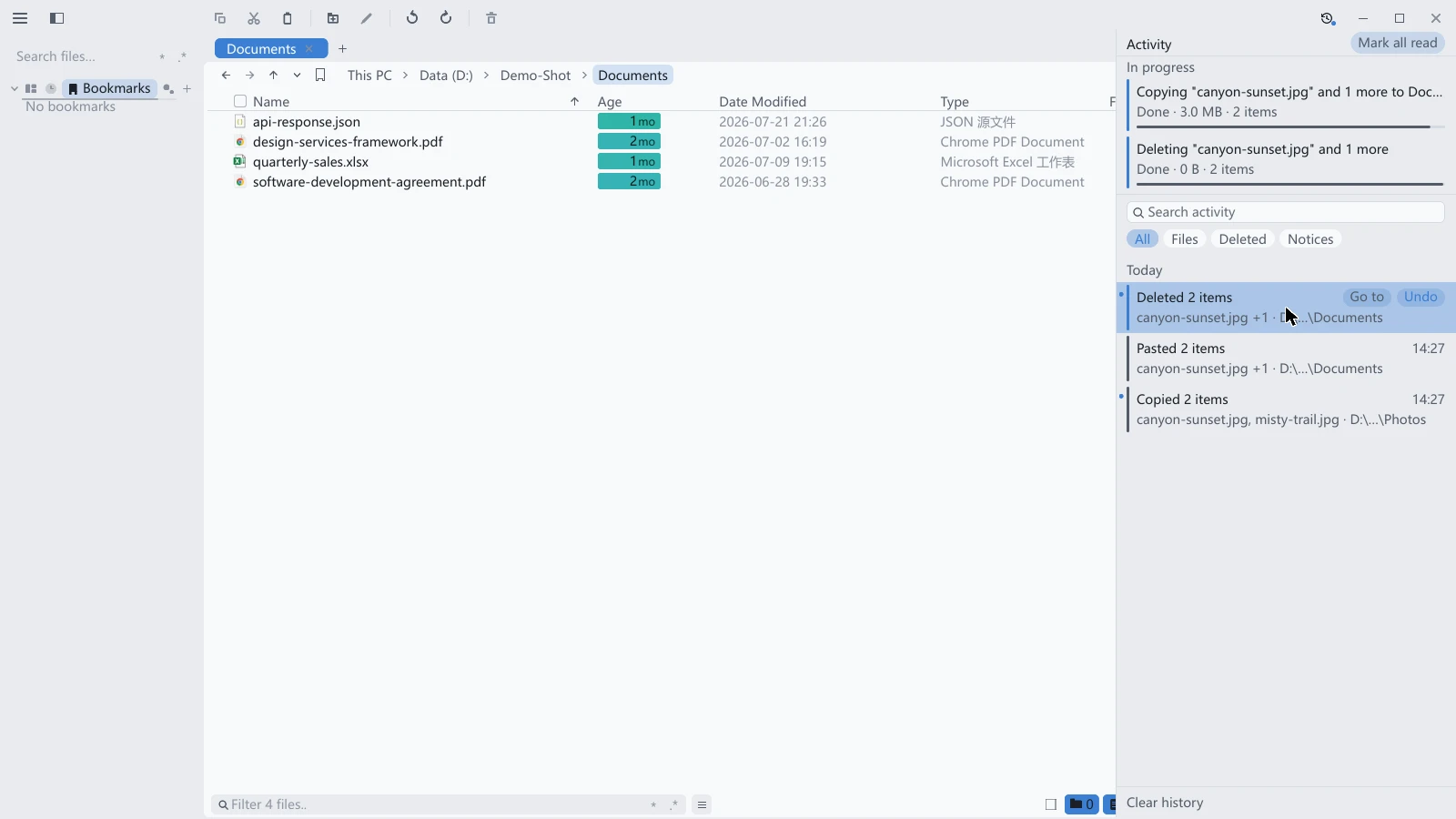
The timeline is split by day, with Today and Yesterday as headings and a date for anything older. A coloured bar on the left of each entry says which kind of change it was; the time it happened is on the right.
What you can do with an entry
Hover an entry and the time on the right makes way for two buttons:
| Button | What it does |
|---|---|
| Go to | Opens the folder these files ended up in, in a new tab, and selects them. Middle-click opens it in the background instead, so your view stays put |
| Undo | Reverses that operation |
| Undo to here | What the button says when other operations are stacked on top of this one: it reverses every step from the top down to this one |
| Open settings | What a notice entry offers instead — a cache running out of budget, say — taking you straight to the setting it is about |
Where Go to lands depends on the kind of change: copy, paste and new folder land in the destination, a delete lands in the folder the files came from (their path inside the Recycle Bin means nothing to you), and an undo lands wherever things were restored to.
There is no such thing as undoing only a middle step. Reversing a step is only correct when every step after it is still in place; picking one out of the middle means moving files by old coordinates through a tree that has since changed shape. That is why the button on an older entry reads Undo to here, and why hovering it lights up every step it will take with it.
An entry you have undone stays in the list. It gets an Undone badge and stops offering buttons. A permanent delete carries Not undoable instead. An extraction carries no badge and offers no Undo either: any file replaced along the way is already gone.
Undo reports the number of items actually completed. A partial result lists both undone and failed counts; a total failure reports its cause and does not mark the original operation Undone. A partially undone entry may already have that badge, so check the result counts before assuming every file was restored.
The path shown in a row is trimmed to fit the panel. Hover the row and the tooltip gives you the full list for that operation — one complete path per line. When an operation touched a lot of files, an entry remembers at most 12 of them, and the tooltip says how many it left out.
Why an operation failed
When a copy, move or paste does not go through, the reason is the first thing on the entry's description line, with the folder after it:
Paste failed file exceeds the destination disk's per-file size limit ·
D:\Archive
The toast on screen at the time carries the reason too, on one line: Paste failed: not enough space on the destination disk.
tessoa recognises seven reasons:
| Reason | Where it comes up |
|---|---|
| not enough space on the destination disk | The destination disk is full |
| file exceeds the destination disk's per-file size limit | Most often a large file copied onto a FAT32 stick or external drive. It looks like a full disk, but that disk may be all but empty |
| permission denied | The destination folder will not let you write |
| the file is in use by another program | The source file is open in another application |
| the destination disk is read-only | A write-protected card, or a volume mounted read-only |
| the source no longer exists | It was moved or deleted before its turn came |
| the path is too long | The destination path that came out of the copy is past the system's limit |
A reason tessoa cannot classify is written out as it is, such as system error 112, where the number at the end is the code the system gave. Include that number when you report the problem: it is the most direct thing to go on.
A failed drag says why in the same way. A Cancel you pressed yourself is not a failure and leaves no failed entry.
On Windows, a failed deletion also reports the reason returned by the system. Failed folder creation and undo leave records and report their causes too. Moving to the Trash on macOS and Linux, and extraction, may still report failure without a specific cause.
In a normal Windows window, an operation that fails entirely with permission denied and is still available to retry offers Retry as administrator on its toast. After authorization, progress, name conflicts and results stay in the original window; see Administrator operations. A partially successful batch does not offer this button.
Find an entry again
Two ways to narrow things down, and they stack:
- The search box narrows the timeline as you type. It searches the title, the failure reason, the folder, and the full path and file name of every item, so a fragment you remember from the middle of a path (
\2026\, say) still finds it — and searching for "disk" pulls out every entry that failed because one was full. - The category buttons are All, Files, Deleted and Notices. Deleted is a separate category from Files, because what you go back for is usually what got deleted.
Anything that pops up on screen can be found here again. Besides file operations, notices such as a cache nearing its budget each get an entry, under the Notices category; pressing Reset All on a settings page leaves one too, titled Defaults restored: 〈page〉 (its undo only lives on the toast at the time — the panel row offers no button). A toast is gone in seconds, while when a cache started filling up is something you usually check afterwards.
When nothing matches, the panel tells you which case you are in: there are no entries at all, this category has nothing in it yet, or this word finds nothing. The three sentences differ, and only the last one calls for a different search term.
Tasks in progress
While a copy or move is running, a band at the top of the panel lists them with their progress. When one finishes it does not vanish immediately: the progress bar turns into a countdown bar that runs down first, so you get a chance to read it. Hovering the band pauses that countdown.
This band is read-only. To Pause, Resume or Cancel, use the transfer panel at the bottom of the window, see File operations.
How many entries are kept
This record is written to disk, and what it holds is a record of what you did, complete with full paths and file names. Whether to keep it, and how much, is yours to decide: open Settings and find Activity History in the Notifications group.
| Value | Effect |
|---|---|
| Off | Stops recording, and clears everything already recorded |
| 50 entries | |
| 200 entries | Default |
| 1000 entries |
There is also a Clear history button at the bottom of the panel. That clears what is there now; recording carries on. To stop recording entirely, use Off above.
Undo does not depend on this record. With Activity History turned off, Ctrl+Z still reverses what you just did; it simply leaves no entry behind. The two are independent.
How long toasts stay
The same group has Toast duration, which governs the short message that appears on screen: Short, Standard, Long and Very long.
The two work together: a toast covers "the thing I just did", activity covers "let me look that up again". Which is why a toast can afford to be short — nothing is lost when it goes.
Two more things hold without any setting: hovering a toast stops its timer, and when several are stacked the whole stack stops together; and while the activity panel is open no toast is raised at all — the new row in the panel flashes instead.