
Layouts & workspaces
A layout is a named working scene: how the window is split, which folder each tab has open, and which view each one uses, all kept under one name. It suits going back and forth between "one set of folders for work, another for design" without opening everything again each time.
The important part: a layout saves itself when you switch away, and coming back looks exactly like when you left. There is no "Save changes?" dialog.
Think of each layout as its own monitor: whichever one you walk up to still looks the way you left it. You never have to remember to save.
What layouts can do
- Save the current window under a name.
- Switch to another set with one click in the sidebar.
- Start a fresh blank one, or begin from one of twelve split templates.
- Rename, duplicate, delete, and drag to reorder.
- Lock one so it stops following your changes.
- Show the current layout's name in the window title, which helps in the taskbar.
The sidebar "Layouts" section
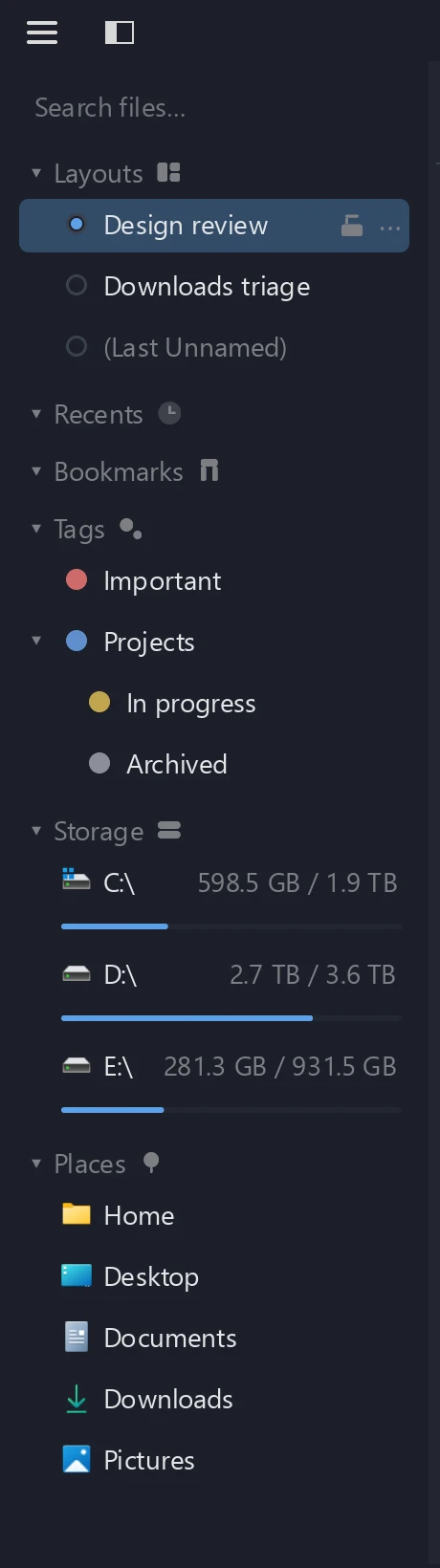
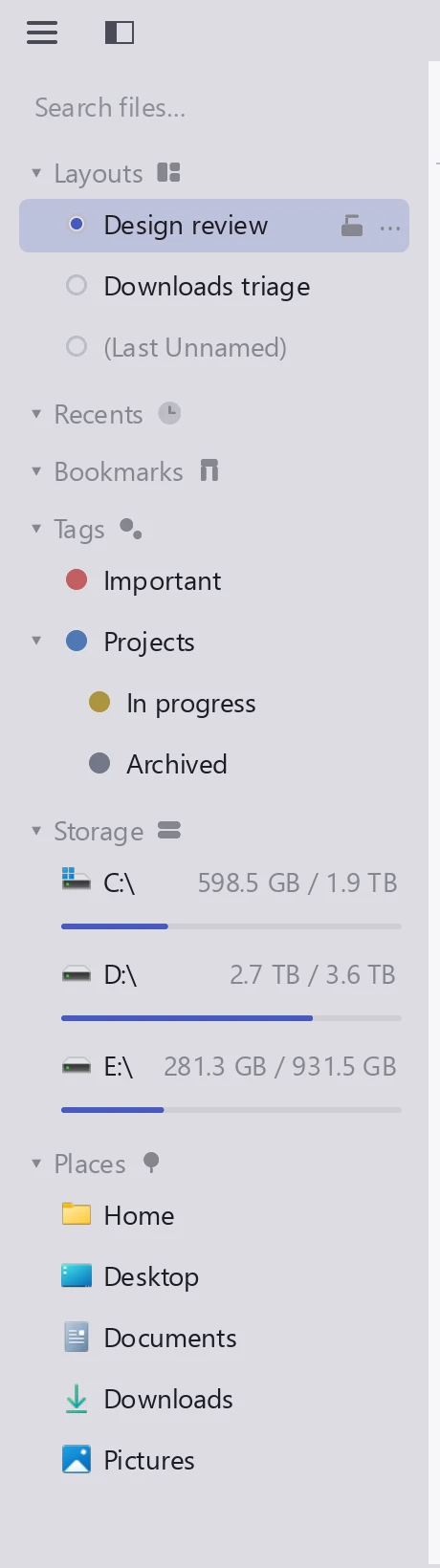
The section sits near the top of the sidebar; drag its header to reorder the sections. There are three kinds of rows:
| Row | What it means |
|---|---|
| A plain name | One you have saved; the filled dot marks the one you are in |
| (Current Layout) | Your current setup does not have a name yet. Clicking does nothing; give it a name and it is saved |
| (Last Unnamed) | Switch away before naming your setup and tessoa keeps it here, so you cannot lose it by accident |
Saving your first one
Until you name it, (Current Layout) sits at the end of the sidebar list:
- Arrange the panes and tabs the way you want them.
- Choose Rename from that row's ⋯ menu and give it a name, for example "Design review".
- The setup is now a proper layout, and the one you are in.
You can also hover the section header, click +, and choose Save Current Window as Layout.
Starting from a template
When you would rather not build the split by hand, let a template lay the panes out first:
- Hover the Layouts section header and click +.
- Choose New from Template….
- Pick an arrangement from the menu that appears.
There are twelve, grouped by pane count:
| Panes | Arrangements |
|---|---|
| One | Single pane |
| Two | Two panes · side by side, Two panes · stacked |
| Three | Three panes · columns, Three · one left, two right, Three · two left, one right, Three · one top, two bottom, Three · two top, one bottom |
| Four | Four panes · grid, Four panes · columns, Four · one left, three right, Four · one top, three bottom |
The new layout is split as you chose, with every pane sitting on the Start Page, ready for you to open a folder in each.
Switching layouts
Click another layout name in the sidebar. Three things happen:
- The one you leave: saved automatically, unless it is locked (see the next section).
- The one you go to: the whole window turns into how you last left it.
- If the one you leave has no name yet: it goes into (Last Unnamed), and you can click back into it later.
Locking a layout
Saving on the way out is convenient most of the time, but some layouts you want left exactly as they are — a carefully tuned three-pane comparison, say. Lock those:
- Hover the row; an open padlock appears at its right edge.
- Click the padlock, or choose Lock Layout from the ⋯ menu.
A locked row shows a closed padlock at all times, and clicking it again unlocks. Locking changes exactly one thing: switching away from that layout no longer saves your changes into it.
Those changes are not lost. They go into (Last Unnamed), and one click on that row brings them back.
A locked layout cannot be deleted or overwritten with Save Current Window Here; both entries are greyed out in the menu. Unlock it first.
Other actions
The ⋯ menu on a row and the + menu on the section header hold the rest:
| Action | What happens |
|---|---|
| Save Current Window as Layout | + menu: saves the window as a new layout and switches into it |
| New Blank Layout | + menu: your current setup is saved first, then the window goes back to the Start Page |
| Save Current Window Here | Overwrites the layout you opened the menu on with the window as it is now. A message with an undo button follows |
| Duplicate Layout | Puts a copy right below the original and drops straight into renaming it |
| Rename | Double-clicking the name does the same thing |
| Delete Layout | If you delete the one you are in, nothing in the window closes; you simply go back to being unnamed |
| Reorder | Drag the row where you want it and let go |
How this differs from "restore last session"
These two get mixed up often, so here is the difference:
- Restore last session: quit and reopen, and you are back where you were. It happens automatically.
- Layouts: several named setups that you switch between yourself.
The two do not conflict. Your current layout is also saved on quit, so switching back and forth after a restart will not lose the changes you made before closing.