
Extracting archives
Extracting writes the contents of an archive back to disk, giving you ordinary files you can edit. This page covers where each of the three destinations puts things, how encrypted archives ask for a password, why RAR needs a separate tool installed, and what happens both during an extraction and after it.
If you only want to look inside an archive and never write anything to disk, just step into it, see Browsing archives.
Three destinations
Select one archive, right-click, and the menu offers three entries right after Tags ▸:
| Menu entry | Where the contents land |
|---|---|
| Extract Here | The folder the archive sits in. If the archive holds loose files, they land directly in that folder |
| Extract to Subfolder | A new folder next to the archive, named after it with the extension dropped |
| Extract to… | Opens the folder picker so you choose a folder yourself |
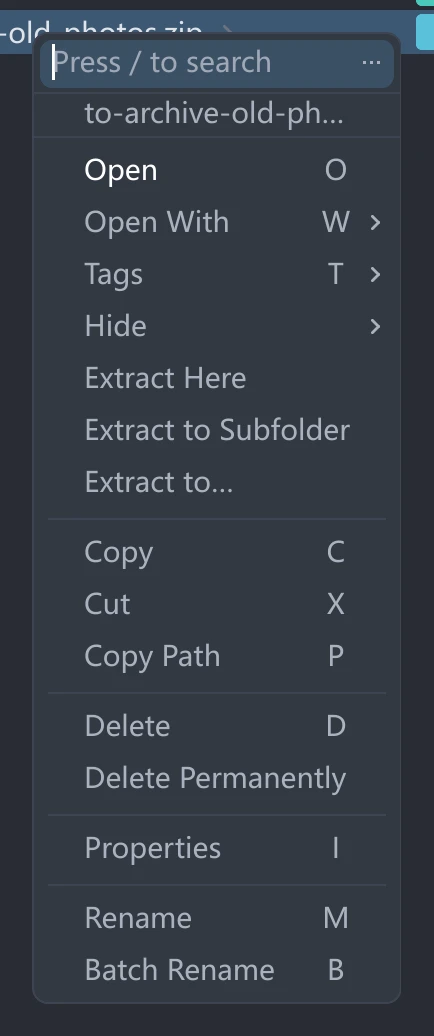
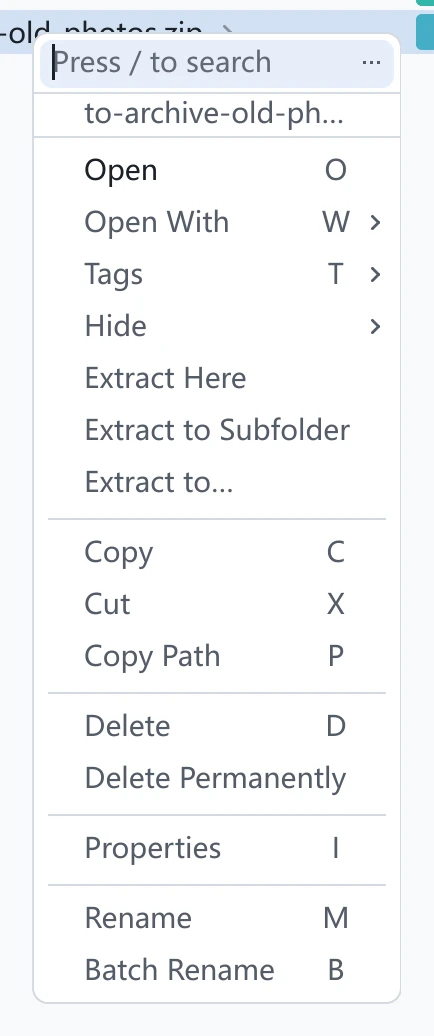
These three only appear when you right-click a single archive file. They are absent for multiple selections, for folders, and once you have stepped inside an archive — to extract an archive nested in another one, extract the outer one first.
None of the three gets a menu accelerator key, which matches how Delete Permanently is handled: extracting cannot be undone.
"Extract to…" does not add a folder named after the archive. Whatever folder you pick in the picker is where the contents land. If you want that extra folder, use Extract to Subfolder. The three entries each extract to one place and do not overlap.
Encrypted archives
When an archive is encrypted, tessoa first raises an Enter Password dialog. Type the password and press Enter, or click Extract. If the password is wrong, the field's border turns red, Wrong password — try again appears below it, and what you typed is selected in full so the next keystroke replaces it.
The small line under the field reads The password is kept for this run only and never saved. The password stays in memory for this run, is never written to a file, does not survive tessoa closing, and never reaches the clipboard.
Clicking outside the dialog cancels it and nothing is extracted.
Some 7z and RAR archives encrypt the contents but not the list of file names. For those there is nothing to check the password against, so tessoa lets you through and the failure only surfaces when the contents are actually being read — reported as Extract failed. Extract again and the password dialog comes back.
Name clashes
Extracting and pasting share one set of rules: by default tessoa stops and asks you once. The question and its four answers are described in File operations. The Name conflicts setting in the General group governs extraction too.
The folder that Extract to Subfolder creates counts as a destination in its own right. If a folder of that name is already next to the archive, that is the first thing you are asked about, and you can answer Merge, Skip or Keep both.
Extracting RAR
tessoa does not unpack .rar itself; it hands the job to 7-Zip or WinRAR, whichever is already installed on your machine. Right-click a .rar and each of the three entries carries a dimmed label saying which one will do the work.
With neither installed, the three entries are greyed out rather than hidden, and hovering one reads 7-Zip or WinRAR not found, with Install either to extract RAR archives on the line below. Install one, come back to tessoa, right-click again, and they work; no restart needed.
For a multi-volume RAR (.part1.rar, .part2.rar, …) pick the first volume; the tool follows on to the rest by itself.
RAR can be extracted, but not browsed. Double-clicking a .rar does not step into it the way a zip does, and the preview area does not list its contents. To see what is inside, extract it first.
Progress and cancelling
Extracting uses the same transfer panel as copying: a row floats up on the window saying which archive is being extracted and where to, and you can Cancel it at any point, see File operations.
Pause has no effect on a RAR extraction: that work happens inside 7-Zip's or WinRAR's own process, which never sees tessoa's pause. Cancel works throughout.
After an extraction
When it finishes a toast says how many items came out, or Extracted N, M failed when some entries did not make it. The extraction is also written to Activity; click Go to on that entry to land in the destination folder.
Extracting cannot be undone. The entry appears in activity but offers no Undo button: any file you chose to replace along the way is already gone and nothing brings it back. When you are unsure about the destination, use Extract to Subfolder; if it was the wrong choice, delete that one folder.
After a failure, whatever already came out stays where it is, and tessoa does not remove it.
Cancelling goes two ways. For the built-in formats (zip, 7z, the tar family) what already landed likewise stays. RAR goes through an external tool, and there a cancel or a wrong password removes what this run produced — those top-level folders did not exist before and were created by this run.
Either way, the folder Extract to Subfolder had just created is one exception: if not a single item came out of the archive, that folder is removed rather than left behind empty.
Symbolic-link and hard-link entries inside an archive are always skipped; everything else is extracted as usual. Entries whose names contain .., a drive letter, or control characters are rejected the same way and counted as failures, since those entries could write files outside the folder you picked.
Browsing archives · Name conflicts · Activity · Folder picker