
Administrator operations
Administrator operations let you work with protected files and folders on Windows. tessoa can retry an operation that failed for lack of permission in the current window, or open a separate administrator window for further work.
Both entry points appear only in a normal, non-elevated Windows window. macOS and Linux do not offer them.
Retrying as administrator
When a copy, move, deletion, new folder or undo fails entirely because permission was denied, the toast may offer Retry as administrator.
- Click Retry as administrator on the failure toast.
- Approve the Windows User Account Control prompt.
- Check the result in the original window; if a name conflict appears, choose how to handle it there.
Retry runs the original batch again without asking you to select the files again. Progress and results for copies, moves, deletions and undo stay in the original window, and the results are also available in Activity. Creating a folder has no progress bar; a toast reports the result.
The button appears under these conditions:
| Situation | Is retry offered? |
|---|---|
| Nothing in the batch succeeded, permission was denied, and the operation is still available to retry | Retry as administrator appears |
| Some items succeeded and others failed | No retry of the whole batch; check which items remain unfinished first |
| Another cause, such as a full disk, a file in use or a read-only disk | No administrator retry; address the reported cause |
| The administrator retry itself failed | No further retry button for that same attempt |
Each system authorization requires your confirmation. Cancelling the system prompt leaves the current window open and does not continue the operation.
Opening an administrator window
Open a separate administrator window when you need to enter a folder inaccessible to the normal window, or work through several batches of protected files:
- Click the menu button in the top-left corner of the window.
- Choose Open New Window as Administrator.
- Approve the Windows User Account Control prompt.
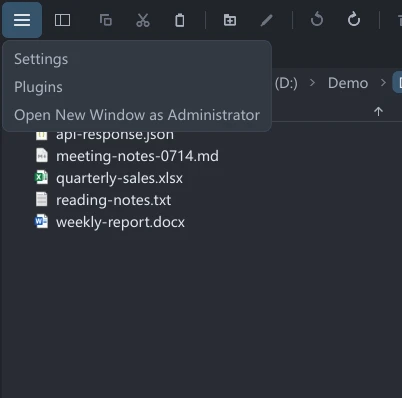
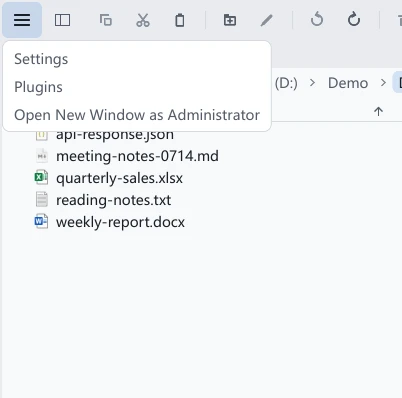
The new window opens the folder you are currently working in. In Columns view this is the active column; locations without an ordinary folder to pass along, such as the Start Page and Recycle Bin, use the default location instead.
The new window's title includes Administrator. The original normal window stays open; close the administrator window when the file operations are finished.
Settings, tags, layouts and session changes made in the administrator window are not saved. It reads your existing preferences but does not save changes to them when it closes. Copies, moves, deletions and other changes to files still take effect; make interface changes you want to keep in a normal window.
When retry or folder access still fails
Administrator permission does not remove every access restriction. If the retry still fails, check the reason in the toast and Activity; a system authorization prompt does not mean the operation completed.
Undo also reports the number of items actually completed: a total failure is reported as a failure, while a partial result lists both undone and failed counts. If nothing was undone, the original operation is not marked Undone.
On macOS, permission messages for ordinary folders point to System Settings → Privacy & Security → Files and Folders. Restricted access to the Trash requires checking Full Disk Access, as described in Recycle Bin.