
Text and code preview
Text preview shows a plain-text file in the preview area, colored by format, with line numbers down the left. This page covers which files it recognizes, how to select and search inside the preview, and the load limit for large files.
The text preview is for a quick read, not for editing — you cannot change a file from the preview area.
Which files it recognizes
tessoa decides whether a file is text by its extension, and the range is wide:
| Category | Examples |
|---|---|
| Plain text and documents | .txt, .md, .log, .csv, .tsv, .srt |
| Config and data | .json, .jsonc, .toml, .yaml, .ini, .xml, .env, .properties |
| Web and styles | .html, .css, .scss, .js, .ts, .jsx, .tsx, .vue, .svg |
| Source code | .rs, .py, .c, .cpp, .java, .go, .rb, .php, .swift, .kt, .lua, .sql, and a hundred more |
| Shell scripts | .sh, .bash, .zsh, .ps1, .bat, .cmd |
| Whole-name matches | Makefile, Dockerfile, LICENSE and other common extensionless files |
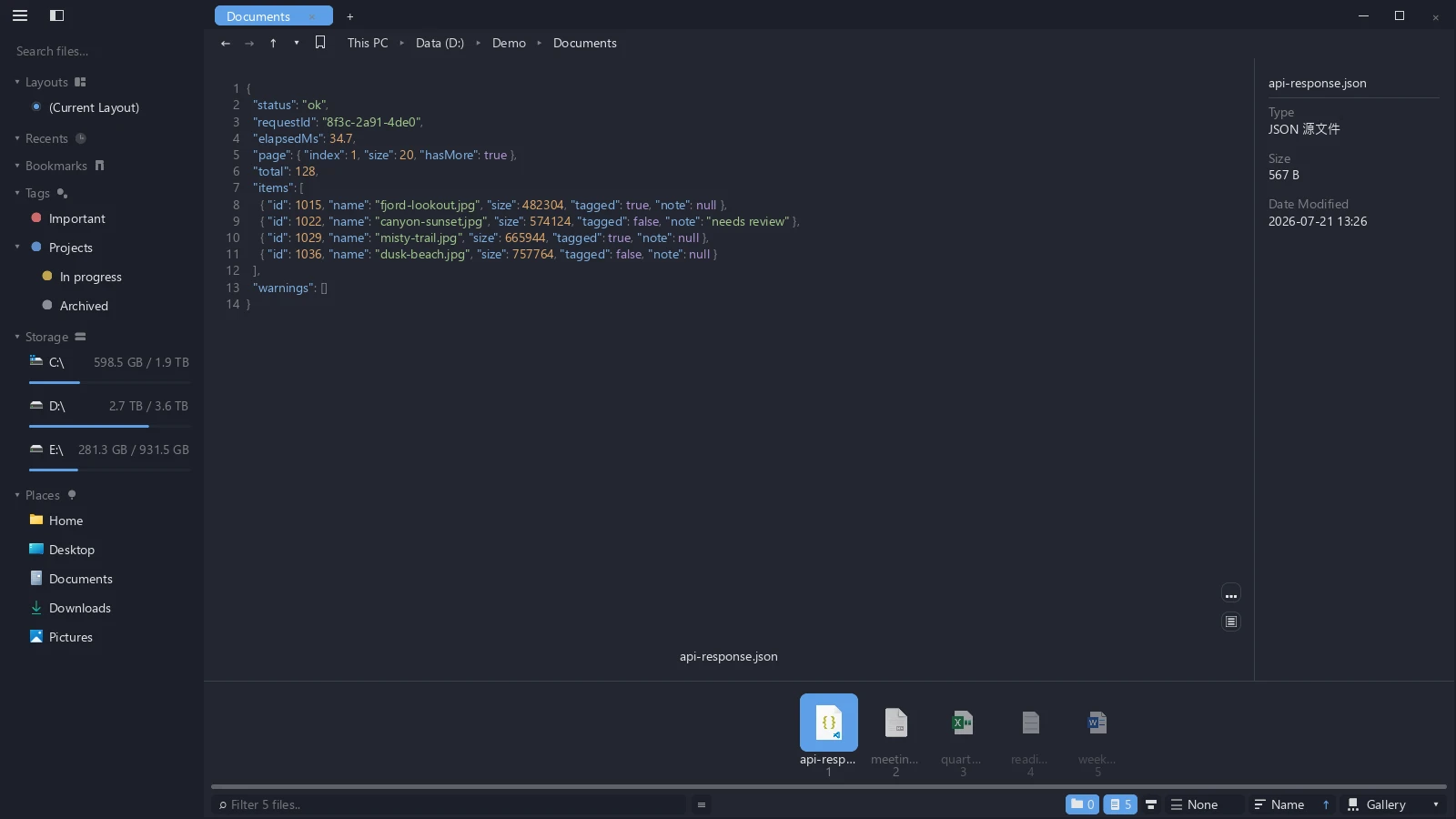
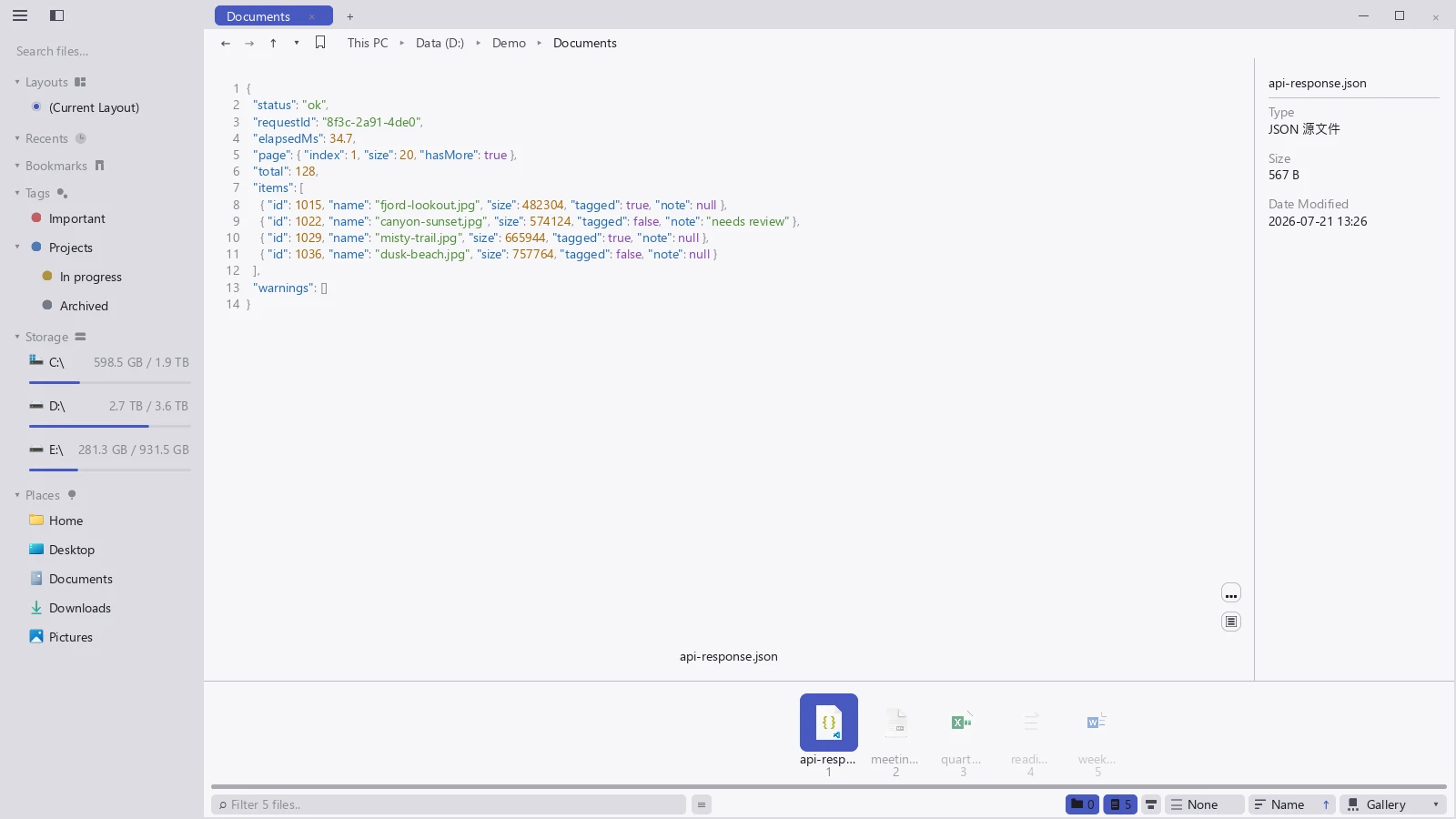
true / false, and null each get their own color, so the nesting reads at a glance.Coloring rules
The coloring follows the format automatically, with nothing to pick: JSON, XML, TOML, INI, YAML, Markdown, CSV / TSV, logs, and diffs each have their own rules. CSV and TSV cycle colors per column and underline the header row.
Working inside the preview
| Action | How |
|---|---|
| Scroll sideways | Hold Shift and scroll the wheel; a trackpad can swipe sideways directly |
| Select text | Drag to select, double-click for a word, triple-click for a line, click the gutter for a whole line |
| Extend from an anchor | Click to drop an anchor, then Shift-click |
| Copy | Ctrl+C |
| Select all | Right-click → Select All |
| Find | Ctrl+F |
Finding within the preview: press Ctrl+F for the find bar. The three small buttons on it are Match case, Match whole word, and Use regular expression. A bad expression shows Invalid where the count would be, and no hits shows No results. Press Enter or F3 for the next match, Shift+Enter for the previous one, and Esc to close the bar.
Which find box Ctrl+F opens depends on where the focus is: on the file list it opens the filter box in the footer, and on the preview contents it opens the in-preview find. Click once on the text in the preview to hand focus over.
The load limit for large files
For very large files tessoa only reads the beginning, and a line reading — Preview load limit reached — marks where it stopped. Hover it to see how much was read. Find, select all, and copy only cover the part that was loaded.
The limit is 64 MB or one million lines, whichever comes first. Files under it are read as you scroll rather than slurped whole, which is why opening a several-hundred-megabyte log does not stall tessoa.