
Image preview
Image preview decodes a bitmap file and draws it straight into the preview area. This page covers which formats are supported, how to zoom and rotate, and which images tessoa deliberately does not show.
Supported formats
| Format | Extensions |
|---|---|
| PNG | .png |
| JPEG | .jpg, .jpeg |
| GIF | .gif (first frame only, animation is not played) |
| BMP | .bmp |
| WebP | .webp |
| Icons | .ico (the largest frame in the container is picked automatically) |
This is also the range used for list thumbnails and folder peek images — if it can be previewed, it gets a thumbnail.
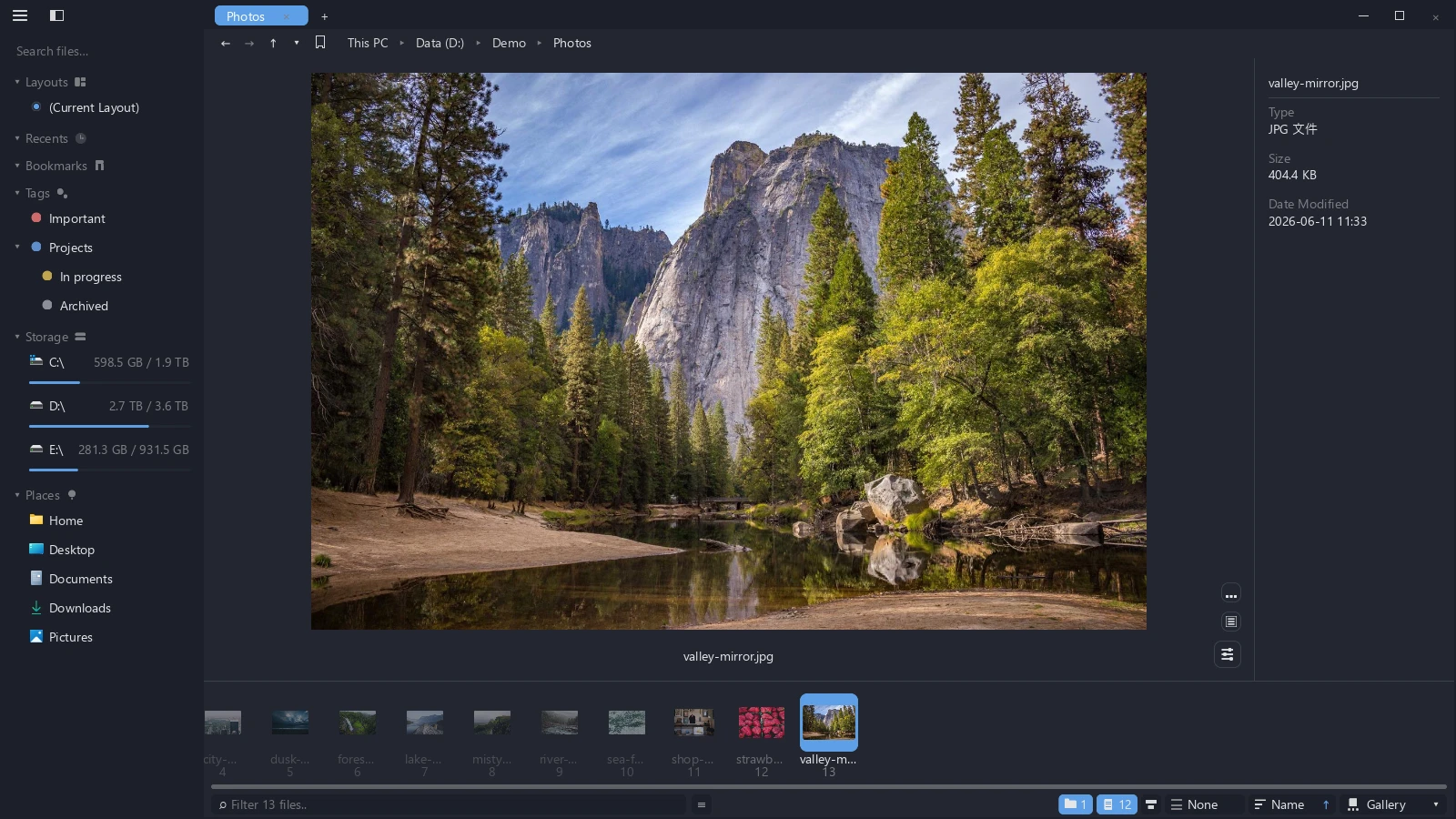
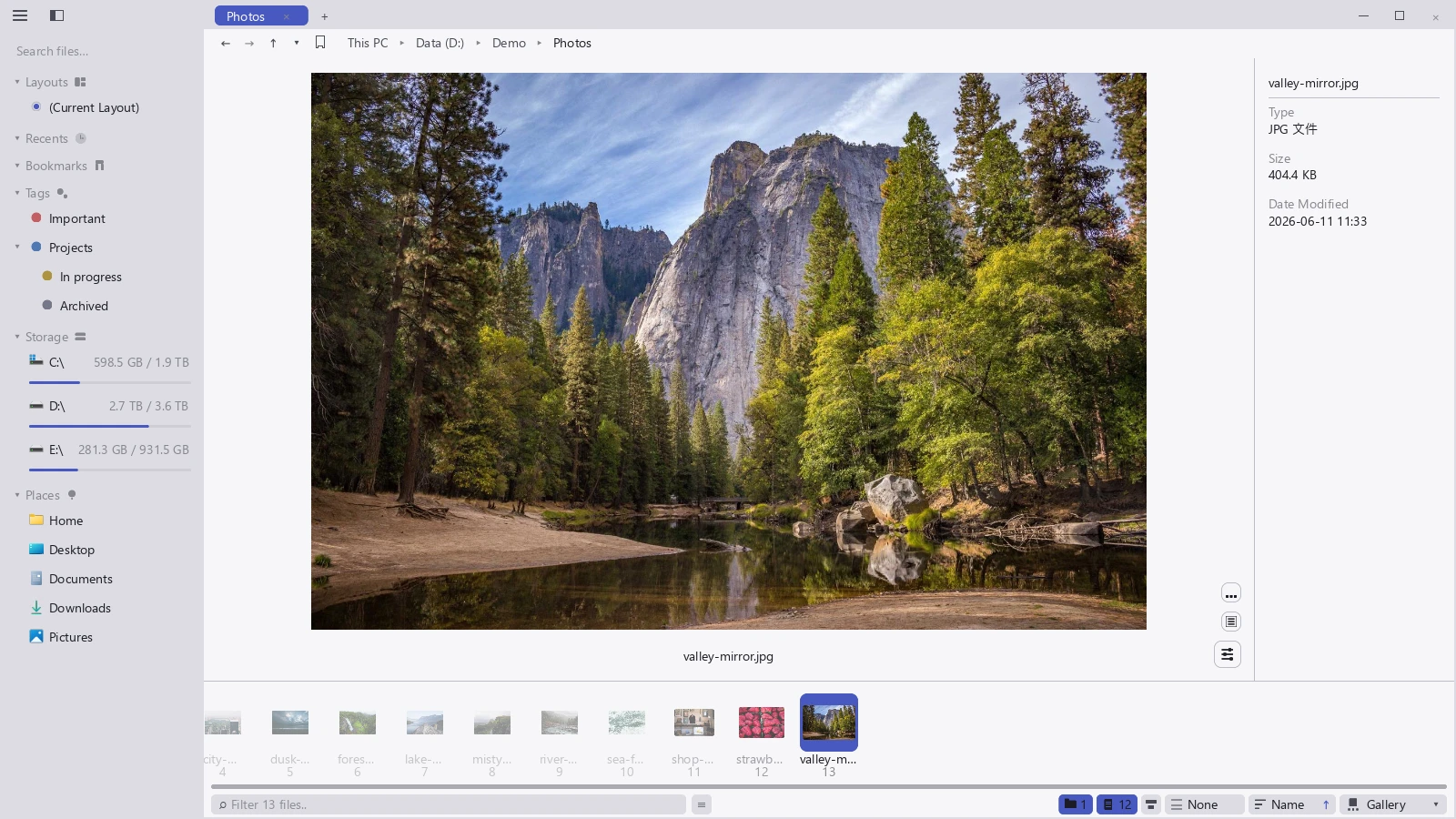
The large image in the gallery is scaled to fit its frame; the three stacked buttons at the bottom right control the info bar, which side the filmstrip sits on, and the zoom and rotate tools.
Zoom and rotate
| Action | How |
|---|---|
| Zoom in / Zoom out | Click the matching button on the preview |
| Move around after zooming | Drag on the image |
| Rotate left / Rotate right | Click the matching button; only the preview turns |
Note
Zooming and rotating are never written back to the file. Move to another file and back and the orientation is as it was — tessoa does not touch your photos.
Which images are not shown
These fall back to a file icon on purpose, not because something went wrong:
- SVG and other vector formats: vector rendering is a separate pipeline the preview does not carry. SVG is previewed as text instead, showing its source.
- HEIC: the format iPhones shoot in; decoding it needs an extra system component, so it is not supported yet.
- TIFF: the decoder is not compiled in.
- Images with too many pixels: past 128 megapixels of width × height tessoa falls back to an icon rather than paying for that decode.
See also