
Search and filtering
Filtering narrows the file list in the current tab, while sidebar search finds files and folders across directories. Both match names using fuzzy matching, wildcards or regular expressions; sidebar search can also use Everything on Windows or Spotlight on macOS to return results sooner.
Choose a search scope
| Entry point | Default scope | Default shortcut |
|---|---|---|
| Footer filter box | The current tab's list, including expanded subdirectory contents when recursive expansion is on | Ctrl+F |
| Search box at the top of the sidebar | Folders in all open tabs of this window and their subfolders; also matching tag names and their files | Alt+F |
On macOS, filtering uses ⌘+F and sidebar search uses ⌥+F. Use ⌥ for the other Alt combinations on this page.
Filtering does not search file contents or open a separate results page. The default filename scope of sidebar search comes from the open folders and excludes archive contents. Files found through matching tag names are not limited to those folders; see Tags.
Filter the current tab
- Press Ctrl+F to focus the footer filter box.
- Type part of a filename to keep only matching entries in the list.
- Use ↑ and ↓ to select a result, then press Enter to return focus to the list. Press Enter again to open the selection.
- Press Esc to clear the filter and leave the box.
While the filter box has focus, PageUp and PageDown also move the list selection; hold Shift to extend it. ←, →, Home, End, and Ctrl+A edit the text in the box.
Type to Filter is enabled by default: typing a letter or digit in the file area starts filtering. Keys assigned to shortcuts still run their actions; this entry point does not take over while Vim mode is on or the sidebar has focus. Turn it off under Settings → Input.
Focus the filter box before entering Chinese to activate the input method, or begin with pinyin initials and continue in Chinese. Checked items remain checked during filtering and after the filter is cleared.
Match modes and pinyin
The * and .* buttons at the right edge of each box switch match modes. Sidebar search and the footer filter share the same mode, so changing either changes both.
| Mode | Syntax and effect | Toggle key |
|---|---|---|
| Fuzzy | Default; matches characters in name order without requiring them to be adjacent, so rpt can match report.txt | Press the currently active mode's button or shortcut again |
| Wildcards | * means any number of characters and ? means exactly one; for example, report*.pdf | Alt+G |
| Regular expression | Interprets a regular expression; for example, ^report.*\.pdf$ | Alt+R |
The two buttons are mutually exclusive; when neither is lit, matching is fuzzy. Invalid expressions produce Invalid regular expression in the sidebar. Edit the expression or switch back to wildcards.
Fuzzy matching supports pinyin initials in Chinese names: gz finds 工作 and 2026年工作总结.docx. Use Latin letters, optionally mixed with digits and ASCII symbols. Only initials are matched; gongzuo does not replace gz. Wildcard and regular-expression modes do not convert pinyin.
Use sidebar search
- Press Alt+F to focus the search box at the top of the sidebar.
- Type a query. It normally needs at least two characters; one Chinese character is enough.
- Hover a result to check its full path, then click the result you need.
| Operation | Result |
|---|---|
| Click a folder result | Enter that folder in the current tab |
| Click a file result | Open its containing folder in the current tab and select the file |
| Middle-click a result | Perform the corresponding navigation in a new tab |
| Right-click a file result → Open | Open the file with the system's default application |
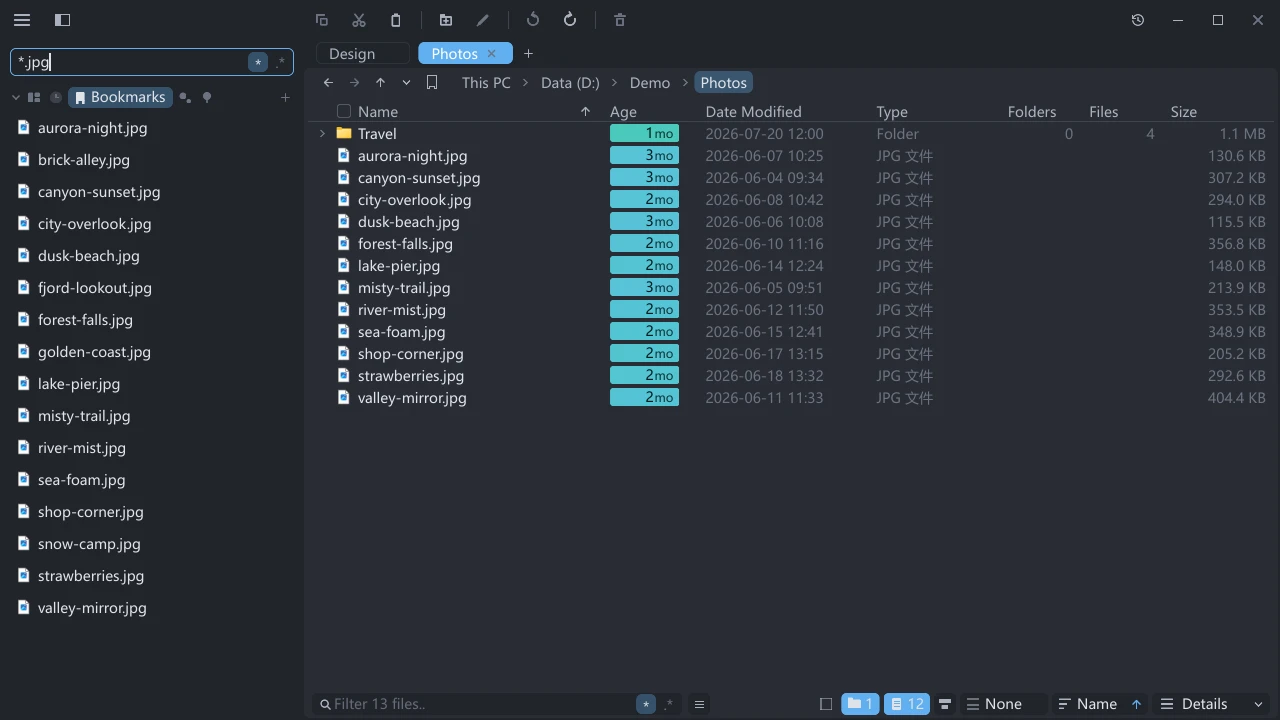
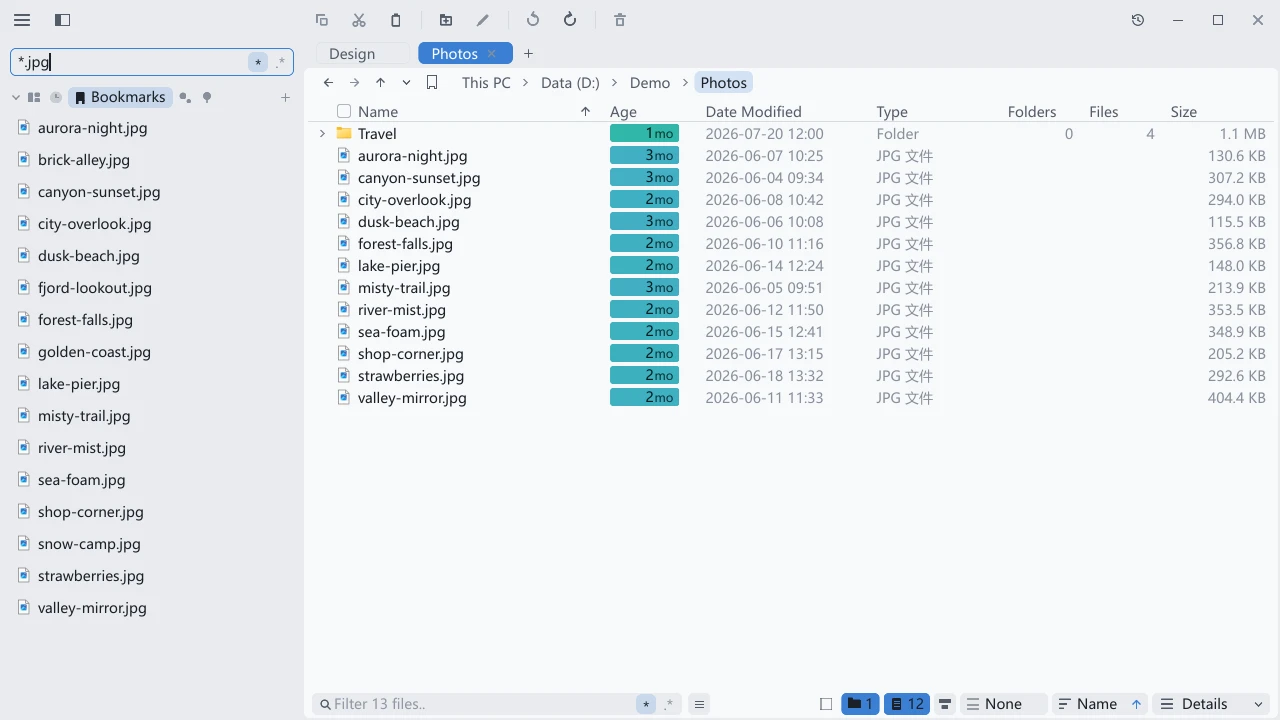
*.jpg lists matches on the left while the current folder remains visible on the right.Results arrive in batches and may be reordered while the search is running. Everything answered · still searching locally… or Spotlight answered · still searching locally… means indexed results have arrived and the search through open folders is continuing.
Enable index acceleration
Index acceleration applies to sidebar search and does not change the footer filter. Open Settings → Input and find the switch for your platform near the end of the group, or search Settings for Everything or Spotlight.
| Platform | Switch | Requirement |
|---|---|---|
| Windows | Speed up search with Everything, on by default | Install and run Everything, then wait for its index to load. A download link is provided below Everything status |
| macOS | Speed up search with Spotlight, on by default | Uses the built-in Spotlight service without an extra installation; the system index must be available |
| Linux | No index-acceleration settings | Searches open folders and matching tags |
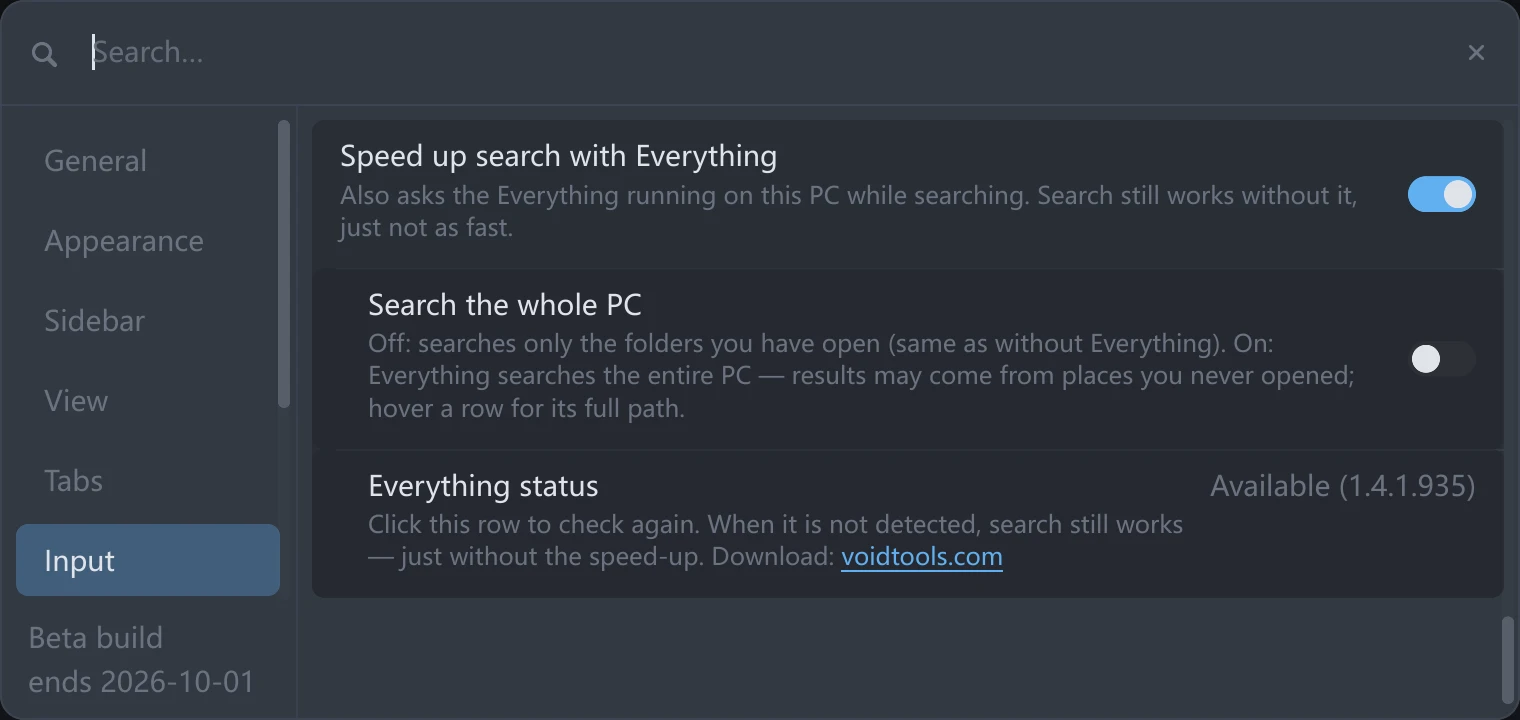
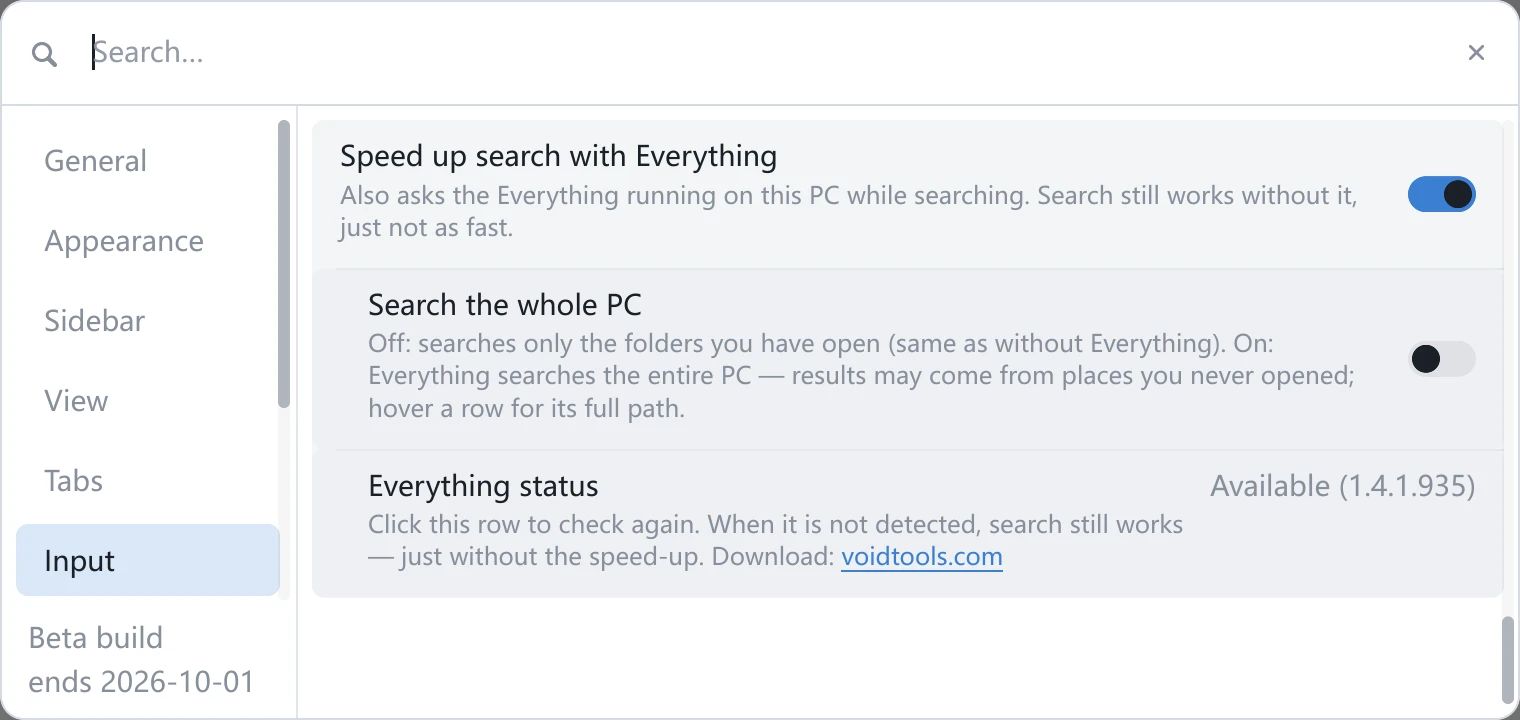
Everything status or Spotlight status shows the current detection result. Click the row to check again; it remains visible even when acceleration is turned off.
If Everything reports Not detected, run it and check again. For Index not loaded yet, wait for indexing to finish. If Spotlight reports Index is empty or No response, acceleration is unavailable and the search through open folders continues.
Search the whole computer
Search the whole PC is off by default and appears only when index acceleration is on.
| Value | Filename search scope |
|---|---|
| Off | Indexed and ordinary search both stay within this window's open folders and their subfolders |
| On | The indexer can return files from other indexed locations; ordinary search still covers only open folders |
When enabled, indexed results are available even with only This PC open. Results can come from folders never opened in tessoa; hover a result to check its full path. Locations outside the system index are not guaranteed to appear in the whole-computer scope. Additional pinyin-initial matches still come from open folders.
If the indexer is unavailable, Search the whole PC temporarily has no effect. tessoa does not switch to scanning entire disks. Open-folder search and tag matching continue; click the status row to check the indexer again.
File operations · Tags · Settings reference · Keyboard shortcuts