
Bookmarks
Bookmarks are the folders you have saved for quick access. You can sort them into folders and give each one a name that means something to you. This page covers how to save one, how to organise them, and how to reach them without opening the sidebar.
A folder has exactly one entry in the bookmark library. Putting it into a different folder moves it; it never gives you a second copy.
Bookmark the current folder
There is a ribbon-shaped star at the right end of the navigation bar. Click it and the bookmark form appears:
- The top line is the name. Leave it empty to use the folder's own name.
- The list below picks which folder it goes in. The first row, Bookmarks (top level), means "not in any folder"; New folder… at the end creates one on the spot.
- Click Add.
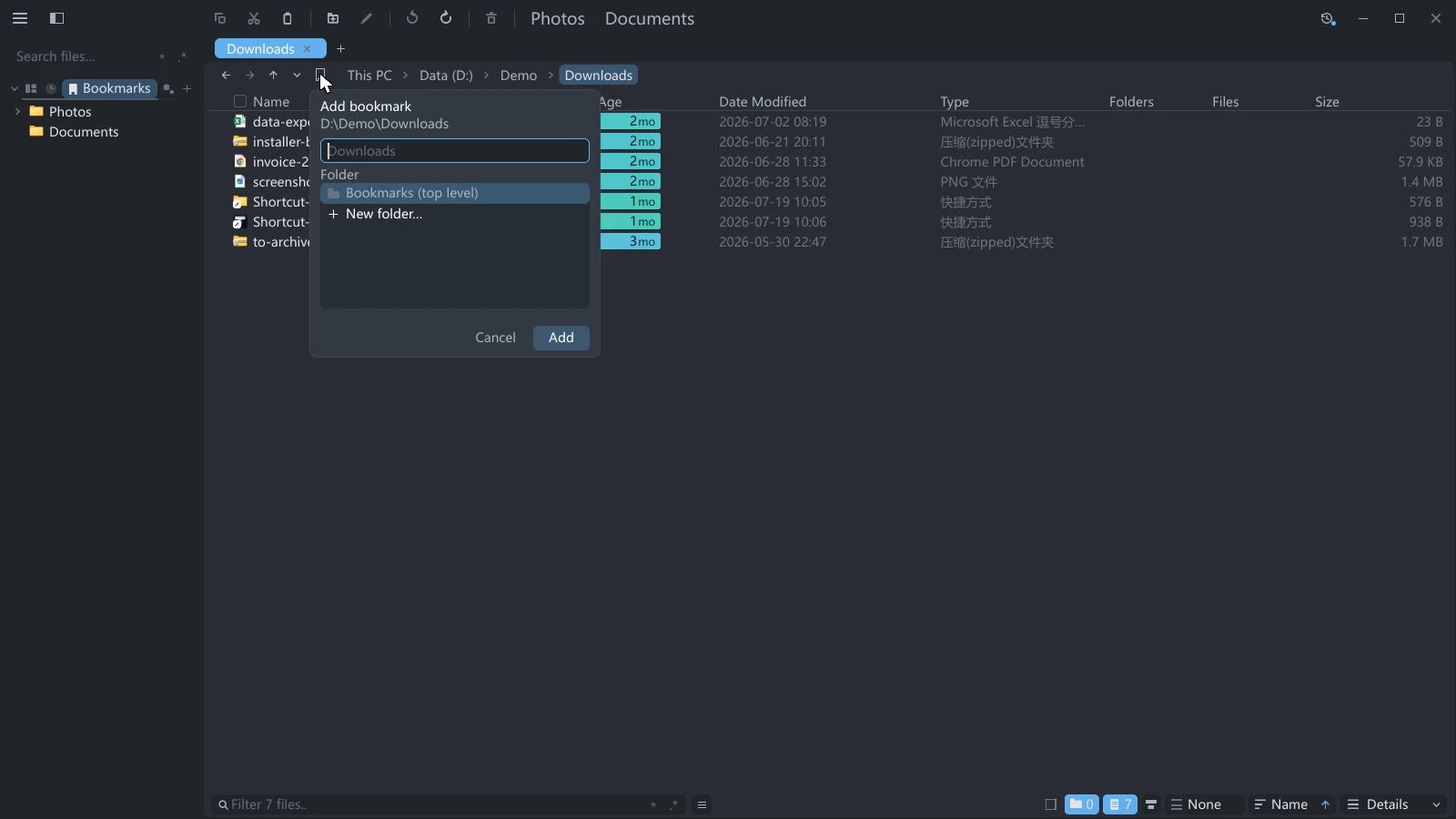
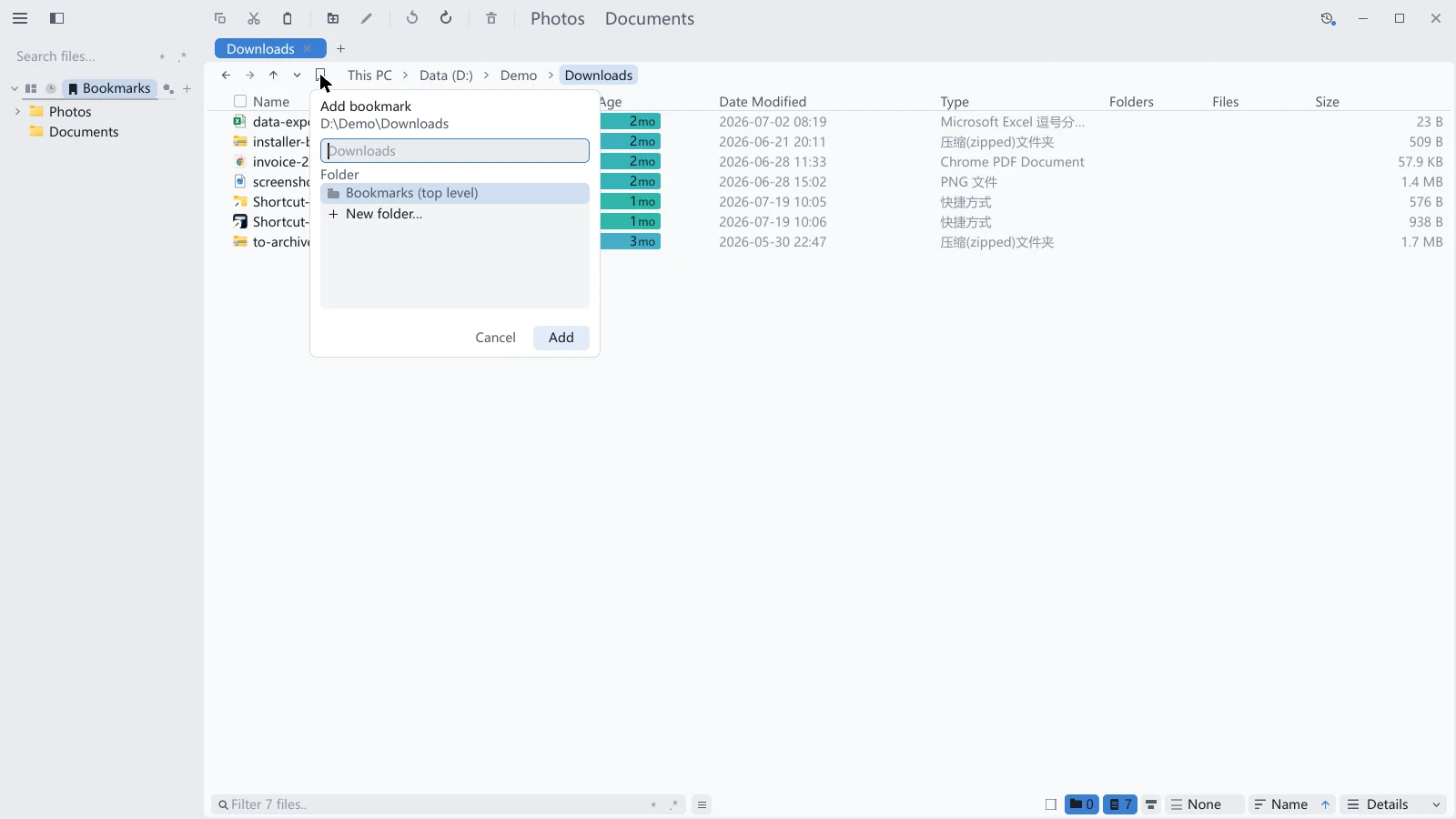
Nothing is saved until you confirm. While the form is open, the target folder is highlighted in the sidebar, so you can see where it will land before you press Add. Press Esc to close the form and nothing happens at all.
Once you have picked a folder, the form defaults to it next time — the structure you set up does not get bypassed on every save. If that folder is later deleted, the default falls back to the top level.
Clicking the star on a folder you have already bookmarked opens the same form in edit mode: the title reads Edit bookmark, you can change the name and the folder, the main button becomes Done, and a Remove button sits next to it.
Select the sidebar's Bookmarks page, then drag folders into it to save them, including several at once. Drop onto a bookmark folder to save them there.
Remove raises a toast with an undo button, so a mistake is one click away from being fixed.
Bookmark a folder you are not in
You do not have to enter a folder to bookmark it. Right-click a folder row in the sidebar, a breadcrumb segment, or a folder in the file list, and the menu offers Bookmark this folder (Edit this bookmark once saved), which opens the same bookmark form as the star, anchored next to the row you right-clicked — the name, the destination folder, and "nothing is saved until you confirm" all work the same way.
In the file list the entry only appears for a single selected folder: the bookmark library holds folders, so right-clicking a file, or having several items selected, leaves no answer to "which one".
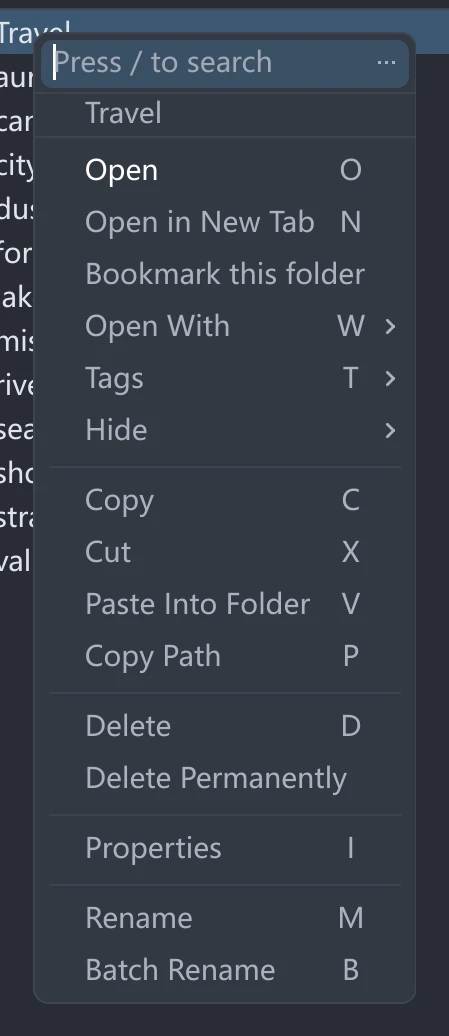
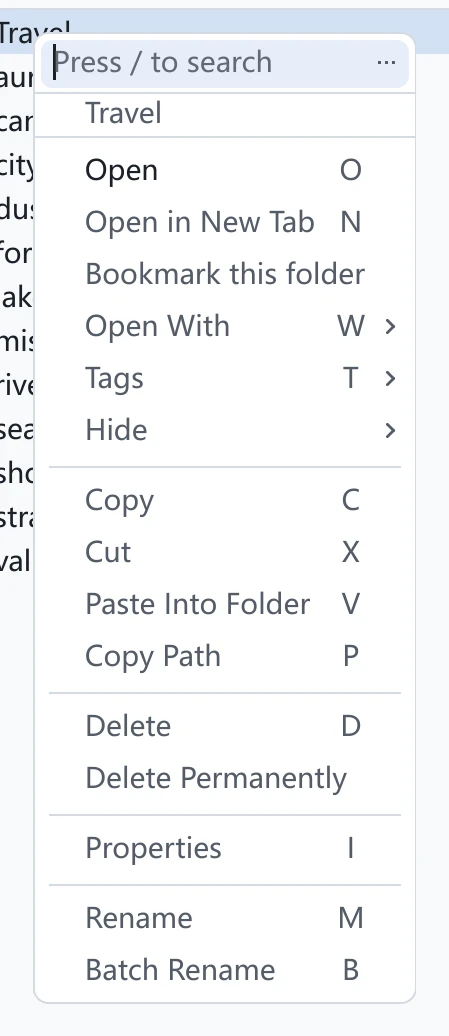
Rows that do not point at a real folder on disk (portable devices, a saved tag view) do not get the entry; neither do bookmark rows themselves — they already are bookmarks, and renaming one goes through Rename in its context menu.
Reach them without the sidebar
Right-click the star to open the bookmark panel: the whole bookmark tree on a single card, with a Search bookmarks box at the top. Use it when the sidebar is closed, or when every pane of a split needs to reach the same bookmarks.
Clicking a row does one of three things:
| How you click | Result |
|---|---|
| Click | The current tab goes there and the panel closes |
| Middle-click | Opens a new tab in the background, and the panel stays open |
| Ctrl+click (macOS: ⌘+click) | Opens a new tab and switches to it |
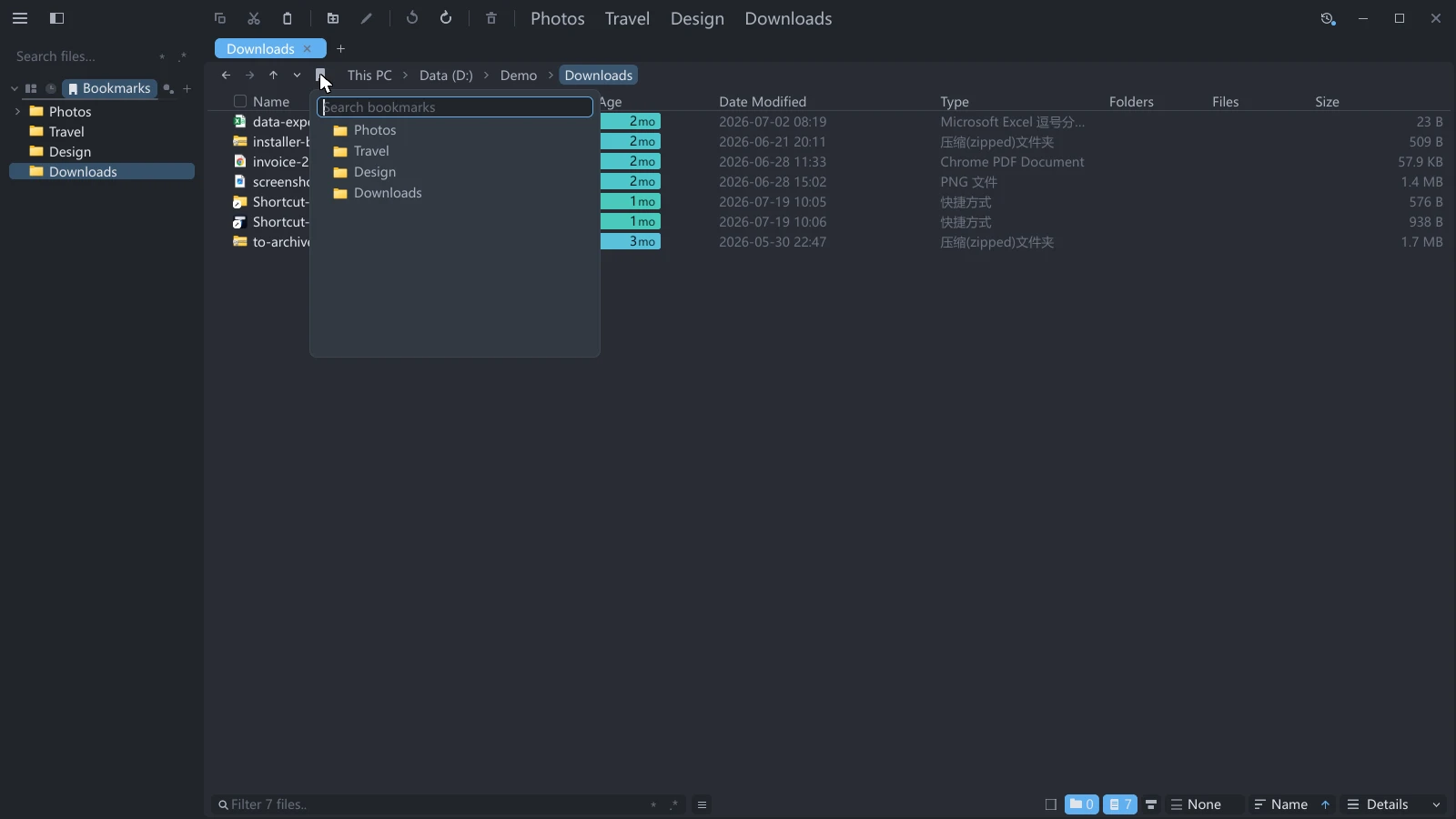
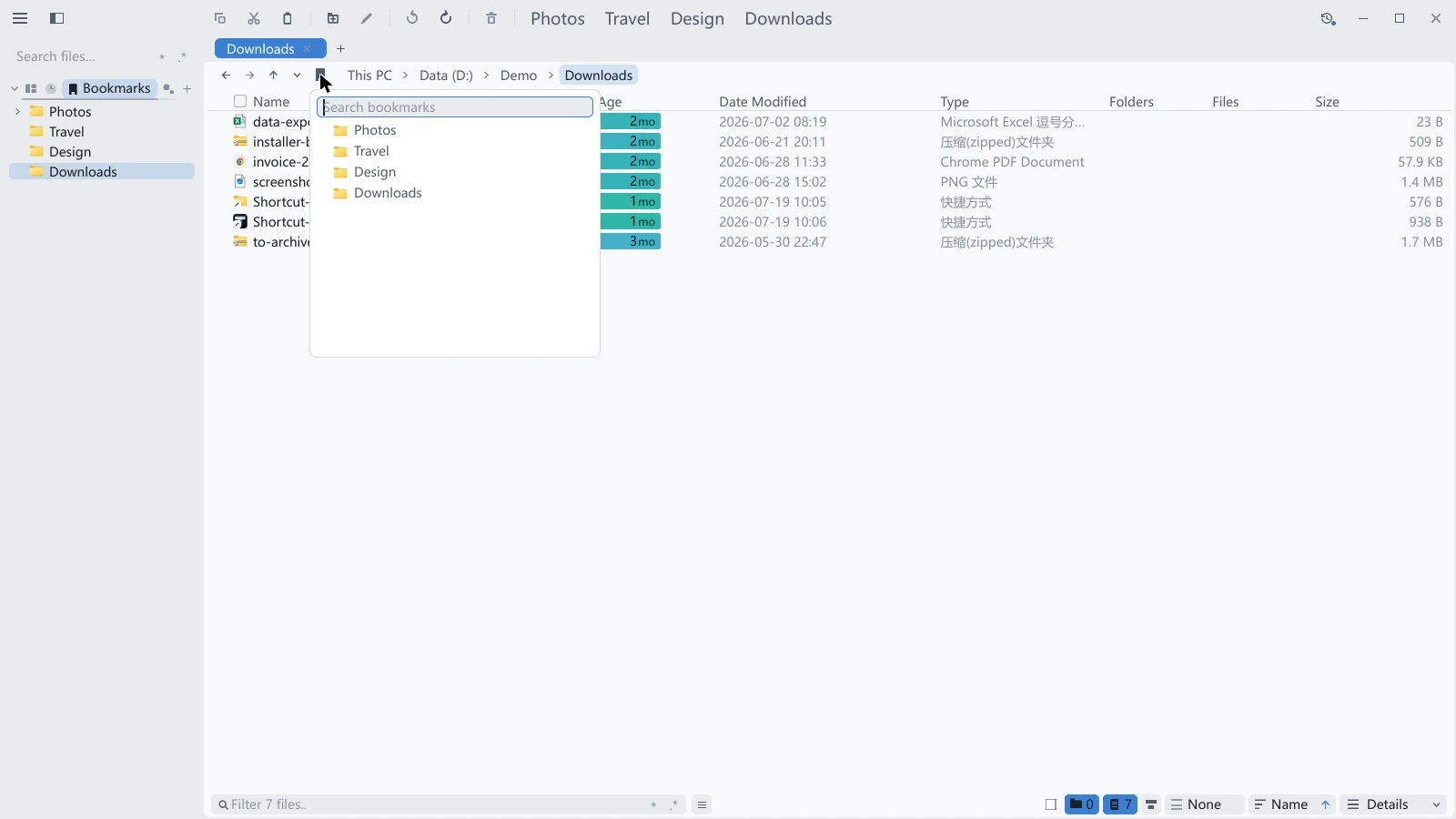
Middle-click behaves that way so you can click several rows in a row to open a set of working folders without ever looking away from the list.
The search box searches full paths, not just the part the row has room to display. While you are searching the tree is flattened, and dragging to reorganise is off — there is no "same level" to speak of in a flat list.
The panel and the sidebar draw the same tree: fold a folder on one side and it is folded on the other.
Organise bookmarks
Select Bookmarks in the sidebar tab strip to organise its rows. The bookmark panel can arrange the same tree. For more display space, drag the component page into the main area; see Sidebar & component pages.
| What you want | How |
|---|---|
| Reorder | Drag between two rows and release when the insertion line appears |
| File into a folder | Drag onto the middle of that row |
| Expand a folded folder | Hold a drag over it for about half a second and it opens |
| New folder | Select the sidebar's Bookmarks page and click + at the right end of its tab strip |
| Rename | Right-click → Rename; folders also take a double-click or F2 |
| Delete one bookmark | Click the × at the end of the row |
| Delete a folder | Right-click → Delete |
Within a level, folders always come before loose bookmarks; the two never interleave.
Deleting a folder does not delete the bookmarks inside it — they move up a level. That is also why deleting a folder goes through the context menu while deleting a bookmark is one click on the row's ×: the consequences of the first are less obvious.
Give a bookmark a name
When three different paths are all called Downloads, the name is the only thing that tells them apart.
Right-click a bookmark row → Rename to edit it in place. Submitting an empty name clears the name, and the row goes back to showing the folder name. A folder has no name to fall back to, so submitting an empty name on a folder cancels the rename instead.
Bookmark a whole tab
Right-click a tab and the menu offers two items:
| Menu item | What it does |
|---|---|
| Bookmark this tab | Saves the folder open in the tab you right-clicked, not the one that is currently active |
| Bookmark all tabs… | Creates a folder holding every tab in this pane, called Tab group by default |
For a tab you have already bookmarked, the first item reads Edit this tab's bookmark and opens the form in edit mode.
Both sit above the closing items, separated by a divider — constructive actions and destructive ones are kept apart.
Bookmarks elsewhere
| Where | What you get |
|---|---|
| Sidebar Bookmarks page | The whole tree; hide it under Settings → Sidebar. See Sidebar & component pages |
| Bookmark row context menu | Open, Open in New Tab, Rename, Copy Path, Tags ▸ |
| Quick bar | The right half of the strip at the top of the window is a horizontal projection of the top level of the bookmark tree, the same data. Click to go to that folder; right-click gives the menu in the row above |
| Vim mode | Press g then b in the sidebar to select Bookmarks; see Vim mode |
When the folder a bookmark points at is deleted or moved by another program, the row is not cleared automatically — from this side, a network location that is briefly unreachable and a folder that is really gone look the same. Clicking it tells you the folder does not exist.
Interface tour · File operations · Tags · Layouts & workspaces