
Arrange the interface
tessoa hands three interface orderings over to you: the sidebar sections, the items in a context menu, and the columns in the details list. This page covers how each one is changed, where the change is kept, and how to get the factory order back.
What the three have in common
- Dragging is the only way to reorder. In all three places you hold the item you want to move, drag it up or down (or sideways), and let go — no setting has to be turned on first.
- Changes apply at once and are remembered. The order is written to your configuration, so the next launch looks the way you left it; other open windows follow along immediately.
- Only what differs from the default is stored. Items you never touched keep their factory position, so if a future version changes the default order, the parts you left alone follow it.
The order of sidebar sections
Top to bottom, the sidebar holds six collapsible sections: Layouts, Recents, Bookmarks, Tags, Storage, and Places.
- Move the pointer onto a section header, say Tags.
- Hold it and drag up or down. The section you are dragging collapses to just its header and follows the pointer, while the others move aside.
- Drag it to the position you want and let go.
The dragged section collapses so you can see which two sections it is about to land between — it expands again once you let go.
Holding and letting go without moving much counts as a click, which collapses or expands that section. So a section that will not move usually just needs a few more pixels of travel before the drag kicks in.
The order of context menus
There are two ways in: drag inside the menu itself, or arrange everything in the settings page.
Dragging inside the menu
Right-click to open a menu, hold one of its items, drag it up or down, and let go — it has moved. This is the quickest way to change things: to put Delete further from Open, one right-click is all it takes.
If you would rather not move things by accident, turn on Lock in-menu drag reorder in the settings and the menu stops responding to drags; the settings page is then the only way in.
Arranging in the settings page
- Press Ctrl+Shift+P (macOS: ⌘+Shift+P) to open Settings.
- Find the Input group and click Context Menu Order.
- Drag the rows on that page to change their order.
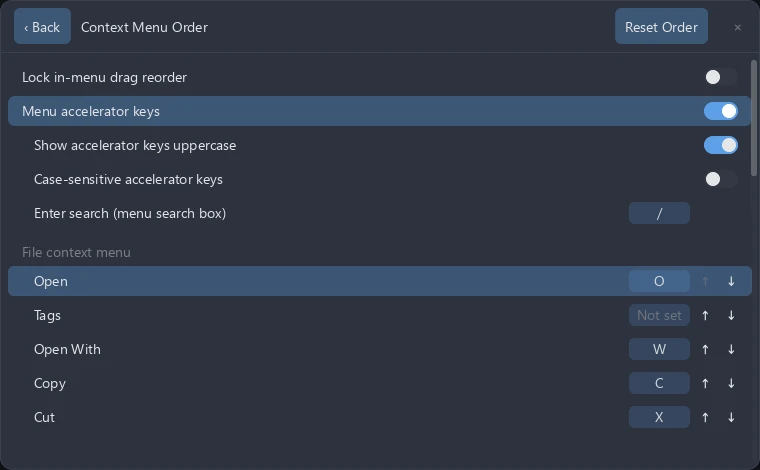
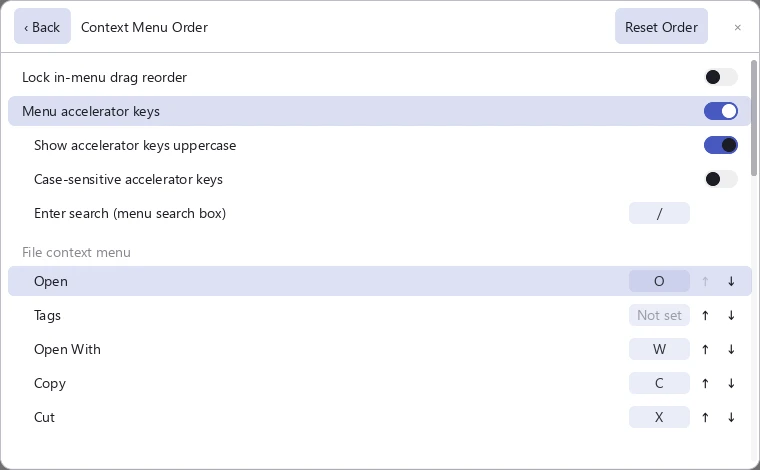
The page splits menus into five groups, each ordered separately:
| Group | Which menu |
|---|---|
| File context menu | The one from right-clicking a file or folder |
| Background context menu | The one from right-clicking empty space in the list |
| Sidebar · Tag menu | The one behind ⋯ on a sidebar tag row |
| Sidebar · Layout menu | The one behind ⋯ on a sidebar layout row |
| Sidebar · Bookmark menu | The one behind ⋯ on a sidebar bookmark row |
Reset Order puts everything back at once — it clears the order and the accelerator keys of all five groups.
The settings page only lists menu items you have opened at least once. A menu's contents change with what you right-clicked — one file, one folder, a multiple selection, or empty space each produce a slightly different set — so tessoa records them as it sees them. When a group reads (items appear here after you open that menu), right-click the matching target once and come back.
Menu accelerator keys
The same page also handles the letter accelerators. With Menu accelerator keys on, every item in a menu is assigned a letter; while the menu is open, pressing that letter runs the item, and / switches back to typing a search.
| Setting | What it does |
|---|---|
| Menu accelerator keys | The master switch |
| Show accelerator keys uppercase | Changes how they are drawn, not which key to press |
| Case-sensitive accelerator keys | With this on, an uppercase press no longer matches a lowercase accelerator |
| Enter search (menu search box) | The key that switches from accelerators back to typing a search; / by default |
A row that has no accelerator yet reads Not set in its key cell.
Changing the interface language means reordering the file and background menus once. tessoa identifies a menu item by the text it displays, and that text changes with the language — so after a switch the old arrangement no longer matches and the entries fall back to their default positions. The three sidebar menus are unaffected: they identify the action itself, independently of its wording. Switch back to the original language and your old order returns with it.
The columns of the details list
The details list has six columns: Name, Date Modified, Type, Folders, Files, and Size.
Reordering columns
Hold a column header and drag it left or right, then let go. The other columns move aside and slide into their new positions once you release.
Name does not take part in reordering — it stays pinned to the left as the first column.
Resizing columns
Move the pointer onto the divider between two columns, then hold and drag sideways. Dividers only respond in the header row, so nothing in the list area can trigger one by accident.
When you drag a column's right divider, that column's right edge follows the pointer: everything to the right shifts along keeping its own width, and everything to the left is untouched — the same feel as resizing columns in Excel.
Column order and widths are kept per pane, not as a global setting. After a split the two panes can carry different columns — sizes on the left, dates modified on the right — without affecting each other.
Interface tour · View modes · Settings overview · Keyboard shortcuts