
Dragging files in
Dragging in is how you move files into tessoa straight from another program: pick them up in File Explorer, a chat window or a browser, drag them onto the tessoa window and let go, and they land in whatever folder you dropped them on. This page covers how the drop target is worked out, when a drop copies and when it moves, and what else you can drag in besides files.
Dragging in is complete on Windows. Other systems support part of it; the differences are in the last section.
Where you let go decides where files land
While you drag, the area under the cursor lights up, and a label next to the cursor usually says what the drop will do — Copy to Pictures, for example. That label is handed to the program you dragged from to draw, so it looks different from one program to the next, and some programs do not draw it at all; the highlight is tessoa's own and is always there.
The highlighted area is the drop target:
| Let go on | Files land in |
|---|---|
| A folder in the list | That folder |
| Empty space in the list, or an item that isn't a folder | The current folder |
| A tab | The folder that tab has open |
| A column in the columns view | That column's folder, not the leftmost one |
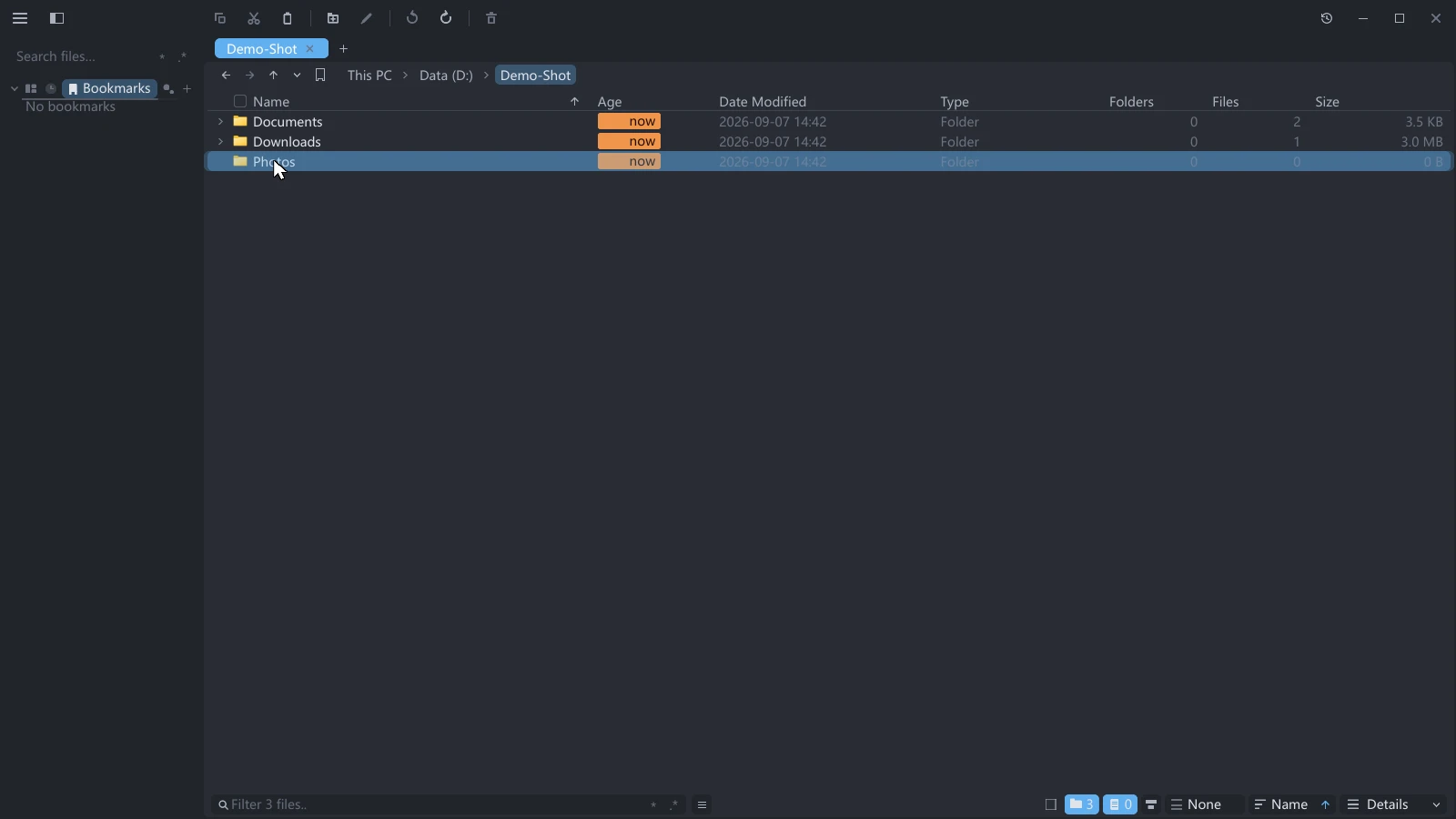
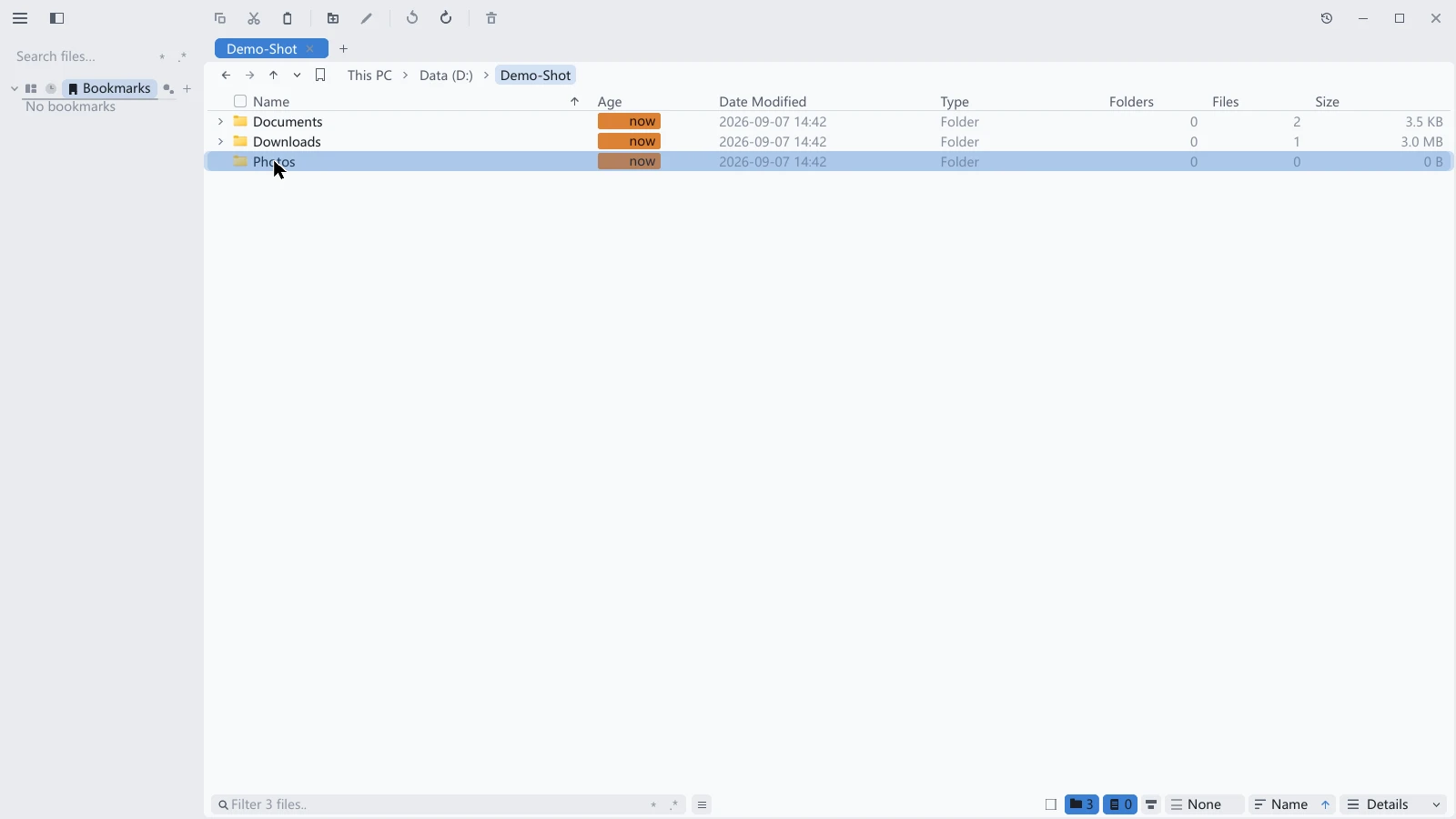
A few places refuse the drop and show a "no entry" cursor: This PC, the start page, the inside of an archive, the preview area, and the sidebar. Dragging files back into the folder they already live in is refused too — nothing happens.
If the folder you want isn't on screen, drag the cursor to the top or bottom edge of the list and hold it there: the list scrolls on its own, faster the longer you stay, and stops when you leave the edge. This auto-scrolling also works for drags inside the window and for rubber-band selection.
Copy or move
The rules match File Explorer, and depend on what you hold while dragging:
| How you drag | Result |
|---|---|
| Plain drag | Move when source and target are on the same drive, copy across drives |
| Holding Ctrl | Copy |
| Holding Shift | Move |
| Holding Alt or Ctrl+Shift | Create a shortcut in the target folder |
| Holding the right mouse button | A menu opens on drop, where you pick copy, move or shortcut |
The transfer itself takes the same route as pasting: progress appears on the island in the lower-right corner and can be cancelled, name clashes open the same conflict dialog, and the finished transfer is written to Activity, where you can undo it.
Once it is done, the items that landed in that folder are checked and scrolled into view, with their positions marked on the scrollbar; when the destination is not in front of you, that becomes a dot on the tab or a Go to button on the toast instead. The whole of it is written up in File operations: Where things landed.
Drag and Ctrl + drag in the Input group of Settings apply to drags inside the window. They do not affect files dragged in from another program, which follow the table above so that tessoa behaves like File Explorer. There is one exception: with Drag set to Ask, dropping files from outside opens the menu as well.
Things that aren't files yet
Some of what you drag has no file on disk behind it. It can still be dropped:
| What you drag | What tessoa does |
|---|---|
| A mail attachment, an image from a chat window or from a browser | Writes a real file, always as a copy — modifier keys have no effect |
| Text you selected on a web page | Saves it as .txt, named after the first line of the text |
| A link | Saves it as .url, named after the host in the address |
| An image | Saves it in the format it already is: .png, .jpg or .gif |
The last three are never written silently: dropping them opens a two-item menu first, and only Save here writes the file. File Explorer refuses all three outright, so tessoa asks once before going ahead.
When no name can be taken from the content, a fixed one is used: Dropped text, Dropped link, Dropped image.
The window freezes for a few seconds when you drag in a large attachment. Content like a mail attachment has to be handed over by the other program first, and neither side can do anything until that finishes — File Explorer behaves the same way here. Ordinary drops of files that already exist on disk are not affected.
Differences between systems
| System | What you can drag in |
|---|---|
| Windows | Everything on this page |
| macOS, Linux (X11) | Real files and folders only. They always land in the focused tab, always as a copy, with no drop highlight, and modifier keys have no effect |
| Linux (Wayland) | Not supported; the cursor shows "no entry" while you drag over the window |