
Browsing archives
Archive browsing lets you step into an archive as if it were a folder, with nothing extracted first. This page covers the supported formats, what you can do once inside, and why the contents are read-only.
Stepping into an archive
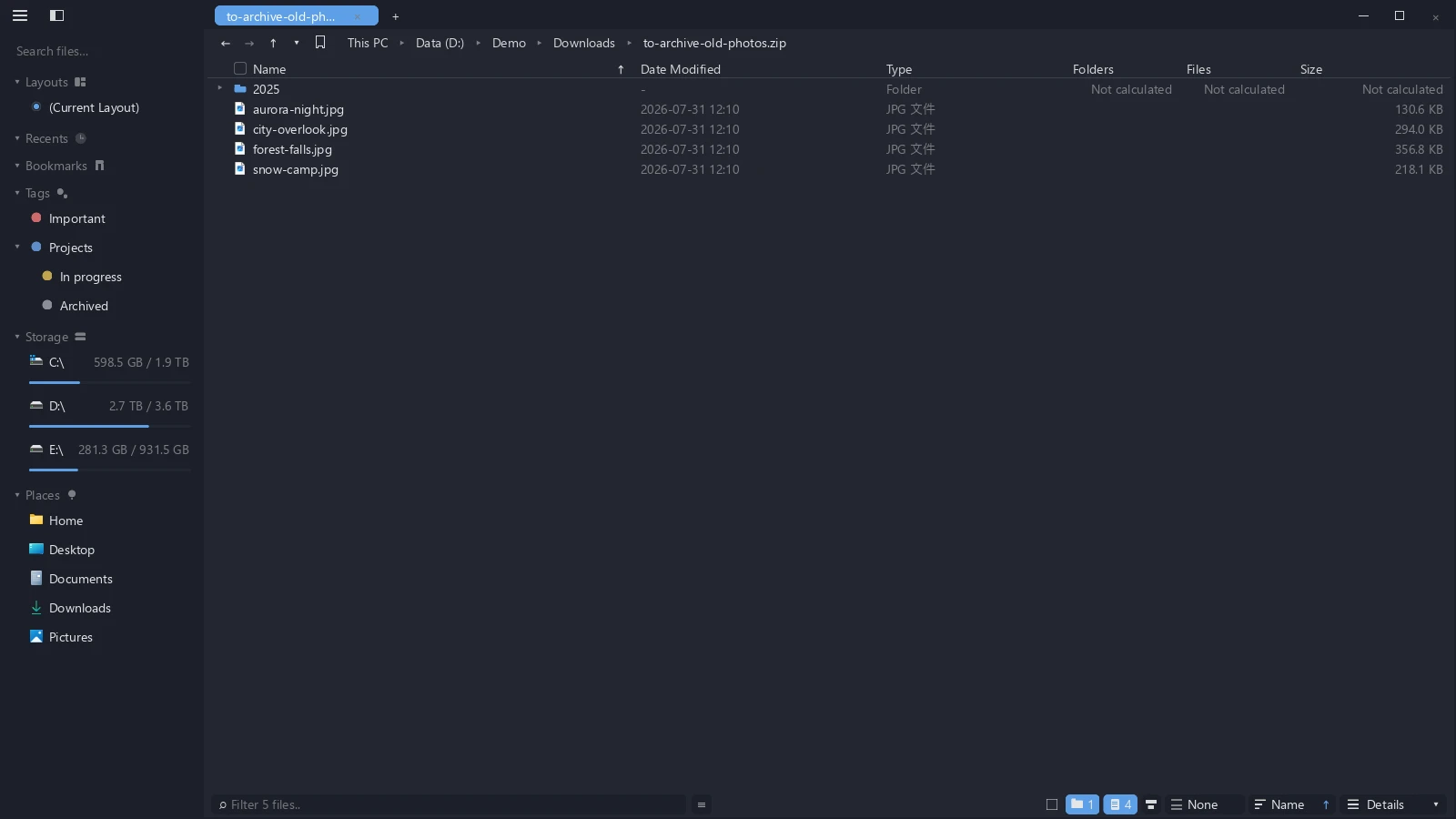
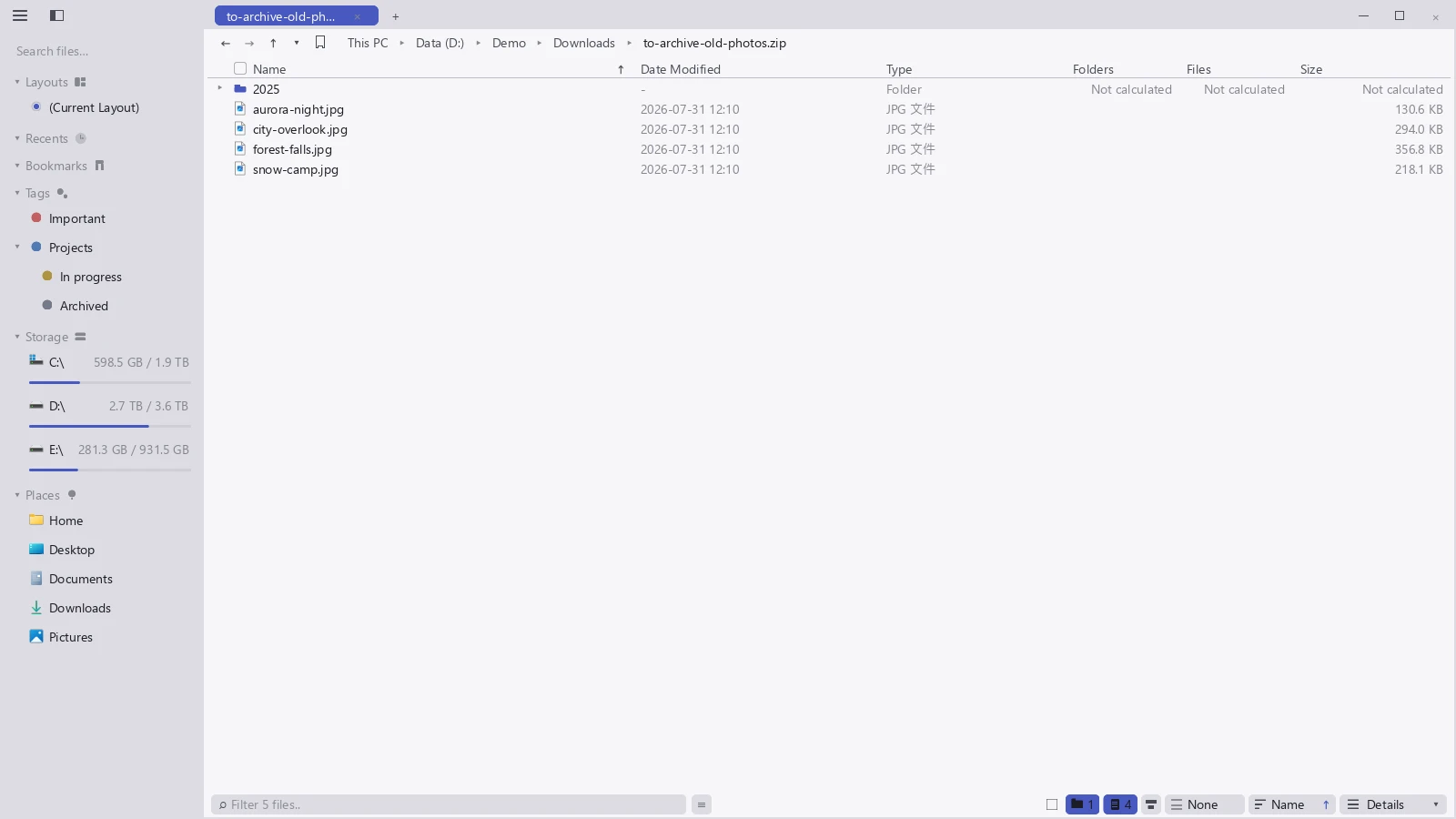
Double-click an archive, or select it and press Enter, and tessoa steps into it the way it steps into a folder, listing what is inside. A ▸ after the name marks the ones you can enter.
Press Alt+↑ to go back out to the folder holding the archive.
Supported formats
| Category | Extensions |
|---|---|
| zip | .zip, including .jar and .apk |
| 7z | .7z |
| tar | .tar |
| Compressed tars | .tar.gz / .tgz, .tar.xz / .txz, .tar.zst / .tzst, .tar.bz2 / .tbz / .tbz2 |
| Single-file compression | .gz, .xz, .zst, .bz2 (one file inside) |
What you can do inside
- Navigate, sort, and switch views exactly as in an ordinary folder.
- Select images, text, spreadsheets, and PDFs in there and preview them — an entry is extracted to memory first and then handed to the preview.
- Encrypted archives ask for a password before you can browse.
Images inside an archive do not get thumbnails; the list shows generic file icons. Every thumbnail would mean extracting that entry first, and doing it for a whole archive at once costs too much — so tessoa only extracts when you open a single file.
The contents are read-only
Nothing inside an archive can be changed. You cannot rename, delete, create, or paste inside one, and you cannot drag files out of it. tessoa browses and previews archives; it does not extract them. Use your usual archiver to get files out.