
Settings overview
Settings is where tessoa keeps every preference: language, theme, keyboard shortcuts, view defaults, and system integration. This page walks the eight groups in the settings panel and says what each entry does, so you can use it as a reference list.
Opening Settings
Settings floats over the main window rather than living in a corner of it. A group rail runs down the left side; click a group name to jump to it. The box at the top reads Search settings… — type and it filters across every group, and shows No matching settings when nothing matches.
Changes take effect immediately and save themselves. There is no OK button, and everything still applies after a restart.
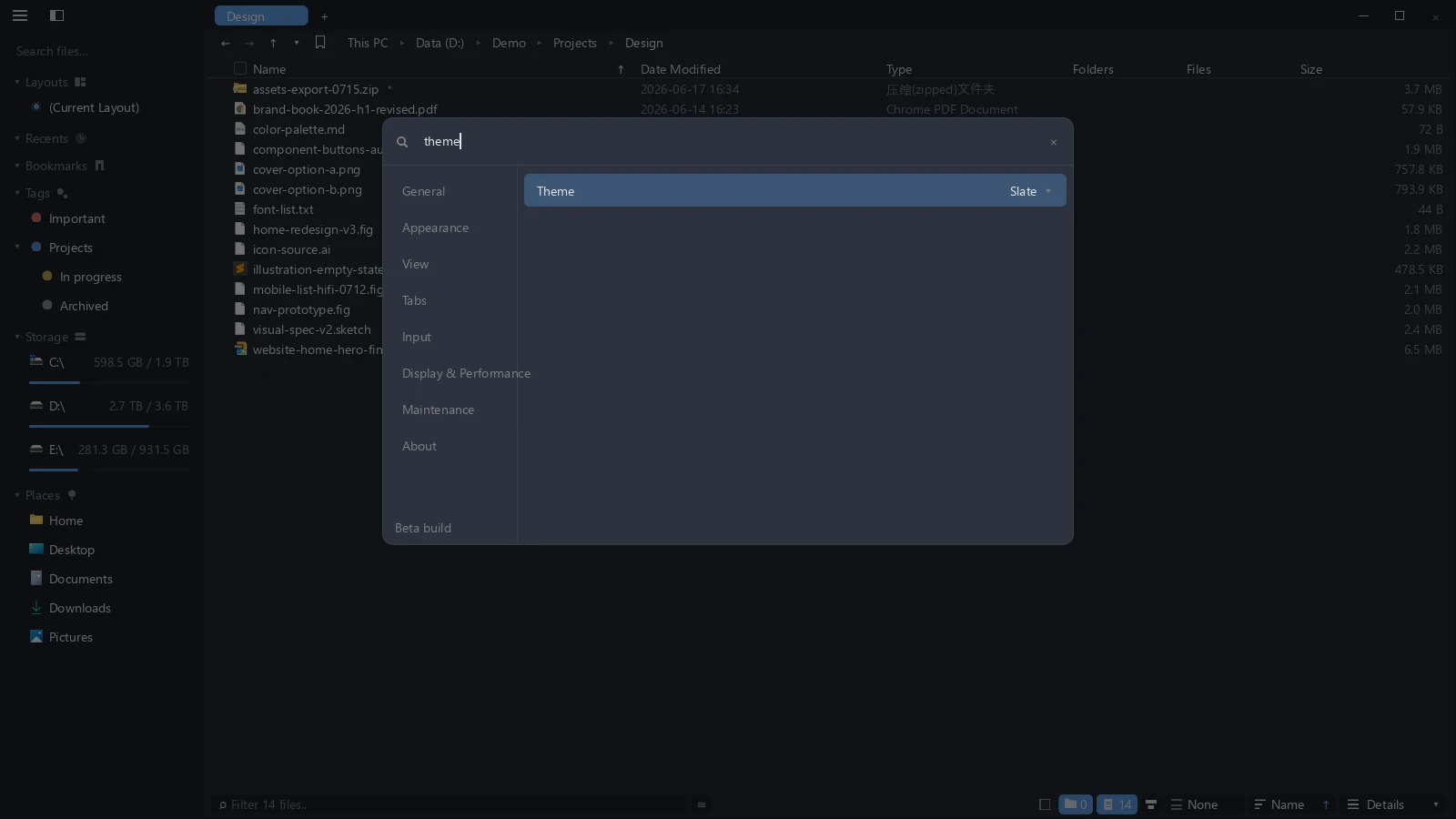
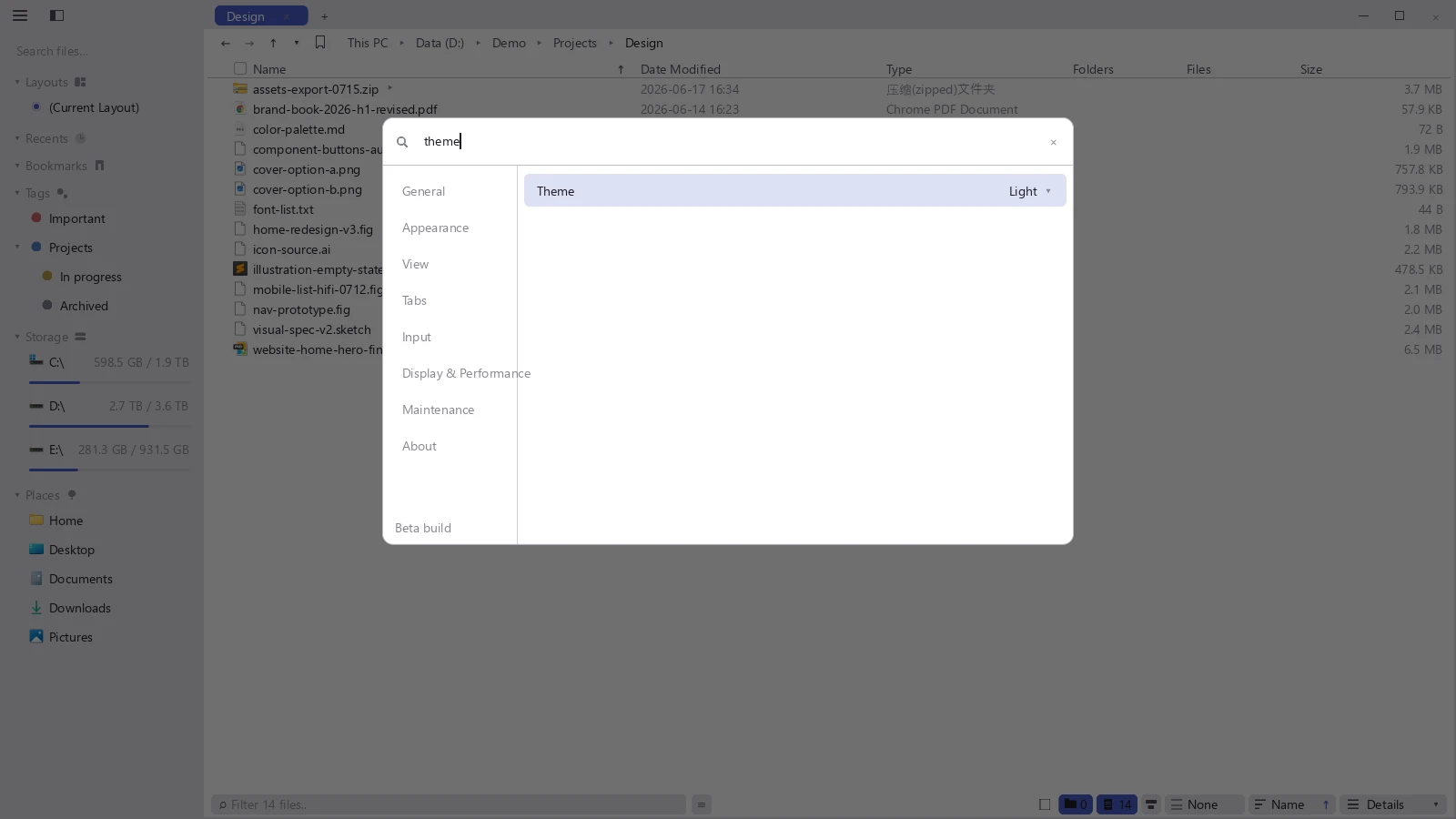
Some entries have child rows that only appear once the parent has a particular value — picking Follow System for the theme, for example, adds two rows for the light and dark mappings. Child rows come and go as a set with the parent's value; nothing is broken.
General
| Setting | What it does |
|---|---|
| Language | Interface language. Each language is listed in its own script (Deutsch, 日本語) so you can find yours whatever the interface is currently set to |
| UI Scale | Scales the whole interface, from 50% to 300%. It only affects tessoa, not other programs |
| Show Hidden Items | Whether system-hidden files and folders appear |
| Calculate Folder Sizes Automatically | Whether entering a folder kicks off a background scan of its subfolders to total up their sizes |
Adding an interface language yourself
Besides the languages that ship with tessoa, you can drop in a translation of your own without waiting for a release.
- Open Settings and click Export Language Template in the Maintenance group. tessoa writes every string of the current build out as a TOML file and shows a message; click Open Folder on it to get to that directory.
- Copy the template and rename it to the language tag plus
.toml—ko.tomlfor Korean, for instance. - Translate the text to the right of each
=in a text editor. Leave the names on the left, and placeholders like{name}inside braces, exactly as they are. - Save it in the same folder and restart tessoa. The new language now appears under Language.
Translating only part of it is fine; anything you skip falls back to English. If you name the file after a language that already exists (en.toml, say), you are not adding a language — you are overriding that one's strings.
Getting the file wrong will not stop tessoa from starting: a TOML syntax error means the whole file is ignored, and a file with no recognizable strings is not registered as a language. Delete the file and the interface goes back to its default.
Deciding by storage medium
Totalling a folder's size costs almost nothing but reading its children one by one. The same ten thousand files take a fraction of a second on an SSD, several seconds on a spinning disk, and possibly tens of seconds over a network share while eating bandwidth. So on Windows, turning Calculate Folder Sizes Automatically on adds four child switches, one per medium:
| Child switch | Suggestion |
|---|---|
| Solid-State Drives | Leave it on. Random reads are effectively free here, so the numbers cost you nothing |
| Hard Disk Drives | Large folders make the drive audibly seek. Turn it off if that bothers you |
| Removable Media | USB sticks, SD cards, optical drives. Slow, and they can be unplugged mid-scan |
| Network Locations | Mapped drives and shares. The slowest tier; usually worth turning off |
The tier names describe how expensive a scan is, not the hardware: a RAM disk counts as a solid-state drive, an optical drive as removable media.
Also on Windows, volumes whose medium cannot be determined — virtual disks, volumes mounted into a folder, unusual filesystems — are never scanned automatically, and the four switches do not apply to them. Their three statistics columns read Not calculated.
Turning automatic scanning off does not make the numbers unavailable.When you see Not calculated, click that cell and tessoa scans that one folder regardless of the switches. Numbers already computed do not disappear when you turn a switch off either.
macOS and Linux have the master switch but not the four child ones: neither system offers a reliable way to ask what a volume costs to read. The tiers above, and the rule about undetermined volumes, are Windows-only too — on these two systems the master switch being on means every location is scanned as usual, and off means none of them are.
Appearance
| Setting | What it does |
|---|---|
| Theme | Follow the system, or pick one of the built-in themes. Choosing Custom opens the color editor |
| When system is light / When system is dark | Only shown when the theme is Follow System: which theme to use on each side |
| Appearance | A full page of its own, see below |
| Zebra Striping | Tints every other row so long lists are easier to read across |
| Flat Folder Icons | Draws folder icons flat instead of using the system's |
There are ten built-in themes: Dark, Light, Atlas, Rouge, Teal, Slate, Latte, Obsidian, Dusk, and Clear.
The Appearance page tunes layout details, and the window behind it updates as you drag:
| Entry | What it does |
|---|---|
| Font | Interface typeface, System Default to start; the box above filters the font list |
| Font Size | Interface text size |
| Spacing | How tightly rows are packed |
| Corner Roundness | Corner radius on controls |
| Animations | How strong the motion is, or off entirely |
| Reset to Defaults | Puts all five back |
A theme you build yourself can travel to another machine. The color editor has Export and Import at the top: Export copies the whole palette to the clipboard, and opening this page on the other machine offers to import what it finds there.
View
| Setting | What it does |
|---|---|
| View | A page of its own: View Scope, plus the zoom-step tables for each of the four views |
| Folder hover spread | How a folder's stack of thumbnails fans out under the pointer: Arc, Deal, Row, Stair, or Off |
| New Tab View | Which view a tab opened with Ctrl+T starts in; Match Current reuses whatever you are looking at |
| New Tab Icon Size | Only shown when the entry above is set to Icons: the starting icon size |
View Scope decides how far a view change reaches, including zooming with the modifier key and the scroll wheel:
| Value | Reaches |
|---|---|
| Current Tab | Only the tab you are looking at |
| Group Tabs | Every tab in the same pane |
| All Groups | Every tab in every pane |
The zoom-step tables define where each notch of the wheel lands. Percentage steps run from 50% to 200%, up to 5 of them; icon steps run from 16 to 256 px, up to 15. Reset Tables puts them back.
Tabs
| Setting | Values |
|---|---|
| Tab Width | Shrink: tabs narrow so more fit. Full Name: tabs stay wide enough to show the folder name |
| Tab Overflow | What happens once a row is full. Wrap Rows: the tab bar grows to several rows. Scroll: it stays one row and scrolls sideways |
Input
| Setting | What it does |
|---|---|
| Keyboard Shortcuts | A page of its own for rebinding keys, see Keyboard shortcuts |
| Context Menu Order | A page of its own: drag menu entries into the order you want, and configure accelerator keys |
| Drag | What dropping a file inside the window does by default: Copy, Move, or Ask |
| Ctrl + drag | Which of those holding Ctrl switches to |
| Vim Mode (j/k navigation) | Turns on full keyboard control, see Vim mode |
Drag and Ctrl + drag only cover drags inside the tessoa window. If you drop a file outside it — into a mail client or a chat window, for example — the receiving program decides what happens.
Besides ordering, the Context Menu Order page handles the letter accelerators in menus:
| Entry | What it does |
|---|---|
| Menu accelerator keys | The master switch. Each menu row gets a letter; press it while the menu is open to run that row |
| Show accelerator keys uppercase | Changes only how they are drawn, not which key works |
| Case-sensitive accelerator keys | With this on, an uppercase keystroke no longer matches a lowercase accelerator |
| Enter search (menu search box) | The key that switches from accelerators back to typing a search, / by default |
| Lock in-menu drag reorder | Stops you from dragging rows out of order by accident, see Arrange the interface |
| Reset Order | Puts every menu back in its default order |
A row that has no accelerator yet reads Not set in the key column.
Display & Performance
| Setting | What it does |
|---|---|
| Graphics | Which card renders. The list marks each one iGPU, dGPU, or vGPU; the window reopens once after a change |
| Frame Rate Cap | Follow Display (with the measured refresh rate in parentheses), 30 FPS, 60 FPS, 120 FPS, or Custom |
| Custom Frame Rate | Only shown when the entry above is Custom; adjustable from 10 to 360 FPS |
| Window Size | Sets the client area to an exact pixel size: 1280×720, 1600×900, 1920×1080, or 2560×1440. Useful for screen recording and screenshots |
| Show Frame Rate | Puts a translucent frame rate readout in the bottom-left corner, for diagnosing stutter |
The frame rate cap saves power; it does not add speed.Vertical sync is always on, so the frame rate cannot exceed your display's refresh rate anyway — picking 120 on a 60 Hz screen changes nothing. The cap only applies while frames are actually being produced, during animation, scrolling, and dragging. When the picture is still tessoa draws nothing at all, and the readout says idle rather than 0.
Maintenance
| Setting | What it does |
|---|---|
| Install / Integrate | Windows only. A page of its own: install location, desktop shortcut, right-click entries. See Install & download |
| Auto-check for Updates (daily) | Whether to check for a new version once a day in the background |
| Check for Updates | Check right now |
| Clean Up Stale Tag References | Clears tag records pointing at files that no longer exist, see Tags |
| Import Tags from Finder | macOS only. Reads Finder's tags into tessoa, once and one way; nothing is written back to Finder |
| Export Language Template | Writes out every string of the current build, for adding a language or rewording one |
About
| Setting | What it does |
|---|---|
| Version | Read-only, shows the version you are running |
| Documentation | Opens this site in your default browser |
| License | A page of its own: license status, activating a key, releasing a device |
| Beta Feedback | Beta builds only; opens the feedback form |
| Third-Party Licenses | Opens the full third-party license list in your browser |
| Terms & Privacy Policy | A page of its own, scrollable in full |
On a beta build, the bottom of the group rail on the left is marked Beta build.
Where settings live
Preferences are written to disk as you change them, independently of which windows you have open. Tags and layouts work the same way. Which folders are open is a different matter — that belongs to the session.
Which folders you had open is recorded when you quit normally, so a crash or a force-quit can lose that one session and you start again from the last clean exit. Tags and layouts are saved as you go and are generally unaffected.
Keyboard shortcuts · Vim mode · Install & download · View modes