
PDF preview
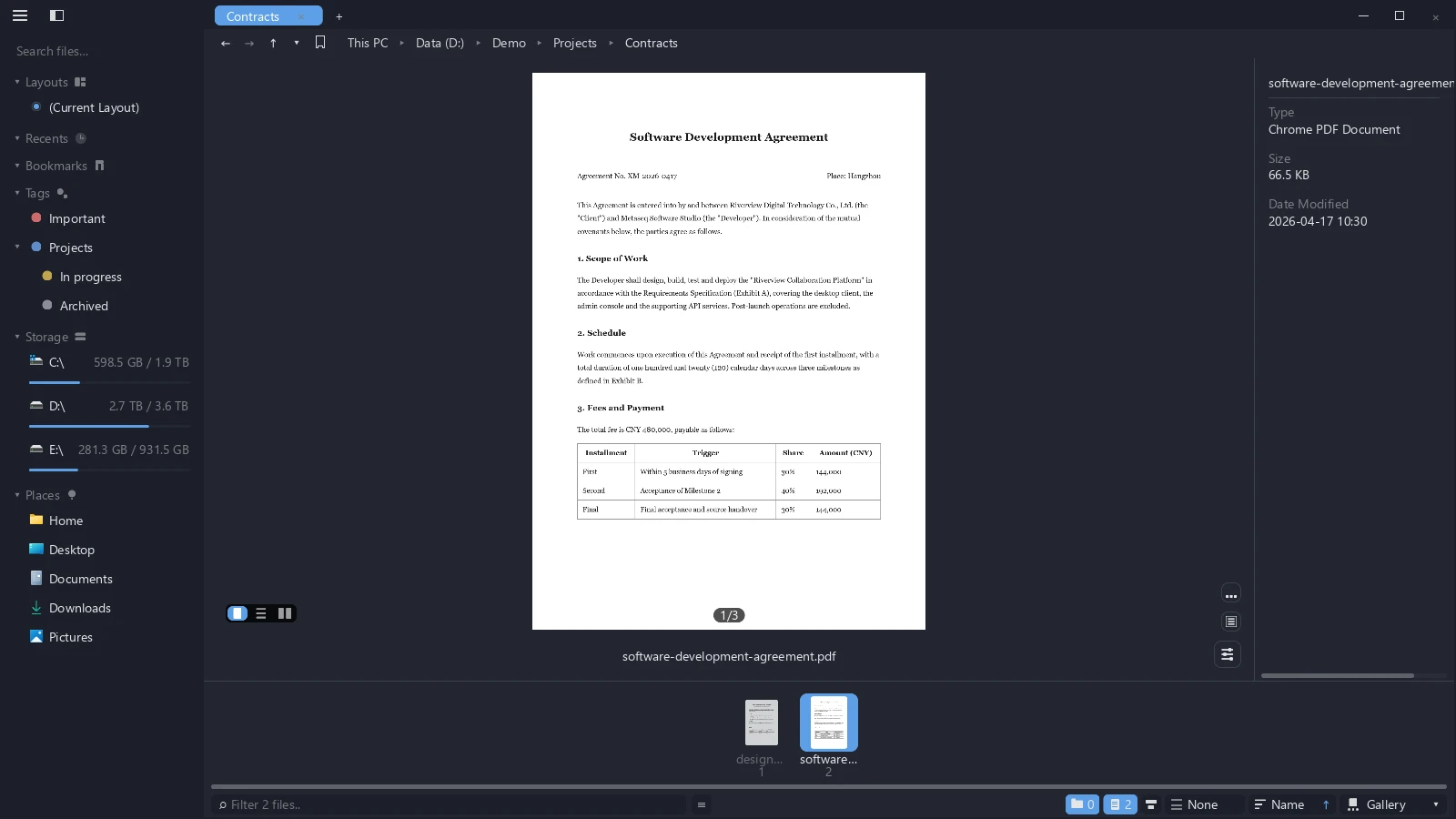
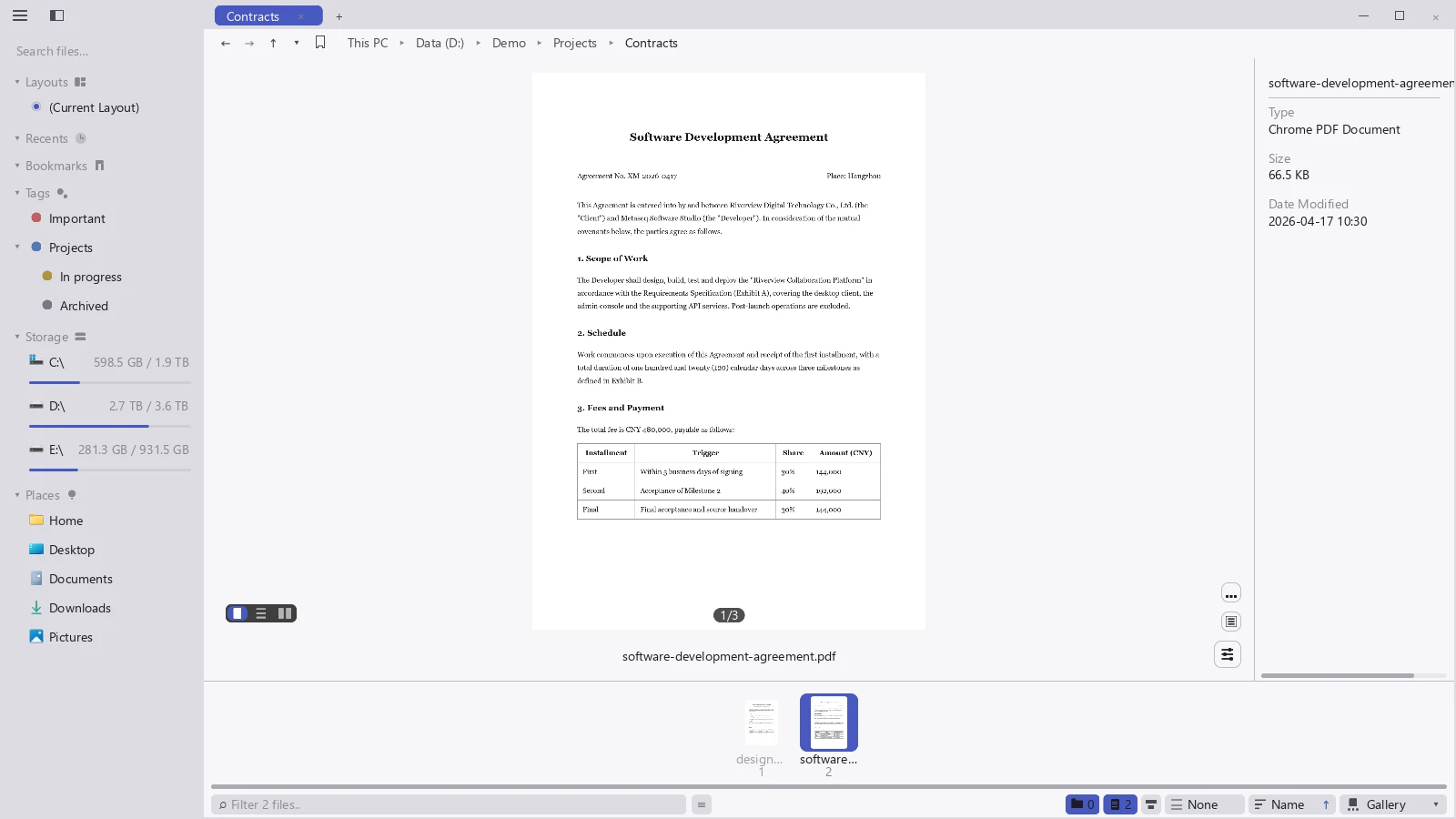
PDF preview renders each page of a PDF into the preview area, with page turning, layout switching, and password entry. This page covers all three, and what the PDF preview cannot do.
Pages and layout
| Action | How |
|---|---|
| Turn pages | Scroll the wheel on the large view |
| Jump to a page | Click the page number below it (for example, 1/3) and type the page |
| Change layout | Switch between Single page, Continuous scroll, and Two-page in the preview area |
| Zoom in / out | Click the matching button on the preview; once zoomed in you can drag to move around |
| Rotate | Rotate left / Rotate right |
The layout buttons tuck away when the window is narrow, but your choice still applies.
Password-protected PDFs
Opening a password-protected PDF puts a password box in the preview area. Type the password, press Enter, and the contents appear.
The password is only remembered for this session — close tessoa and reopen the same file and you will be asked again. tessoa never writes the password to disk.
What the PDF preview cannot do
The PDF preview is for reading. You cannot select text, click links, fill in forms, or edit annotations — those need a dedicated PDF application.
A few PDFs carry no embedded fonts and only reference system font names, so some characters may not show up. The file itself is fine and opens normally in another PDF reader.
The PDF preview is a Supporter tier feature. Below that tier the preview area draws a PDF icon with a line reading Upgrade to Supporter to preview PDFs, and double-clicking still hands the file to your system's default PDF application.