
Sidebar & component pages
The sidebar provides folder shortcuts, bookmarks, tags and layouts, with each category shown in its own component tab. This page covers switching pages, stacking sidebar panes, adjusting their space and placing component pages in the main area.
Component pages and sidebar panes
Each sidebar pane has a tab strip and displays one of its pages at a time. To see two pages together, place them in vertically stacked panes. Sidebar panes and main-area split panes are arranged separately.
| Component page | Contents |
|---|---|
| Layouts | Saved workspaces; see Layouts & workspaces |
| Recents | Folders ranked by visit frequency and time; see Interface tour |
| Bookmarks | Saved folders and bookmark folders; see Bookmarks |
| Tags | Colored tags and their file counts; see Tags |
| Storage | Drives, network drives and portable devices; see Storage locations |
| Places | Home, common system folders and added network locations; see Network shares |
| Open Tabs | Tabs open in every pane of this window; hidden by default |
The first six pages are visible by default. Open Settings → Sidebar to control each page's visibility. Hiding a page does not delete its bookmarks, tags or layouts; its contents return when you enable it again.
Switch component pages
- If the sidebar is hidden, click the sidebar button at the top-left of the window to open it.
- Click an icon or name in a pane's tab strip to switch to that page.
- Scroll to the position you need within the page.
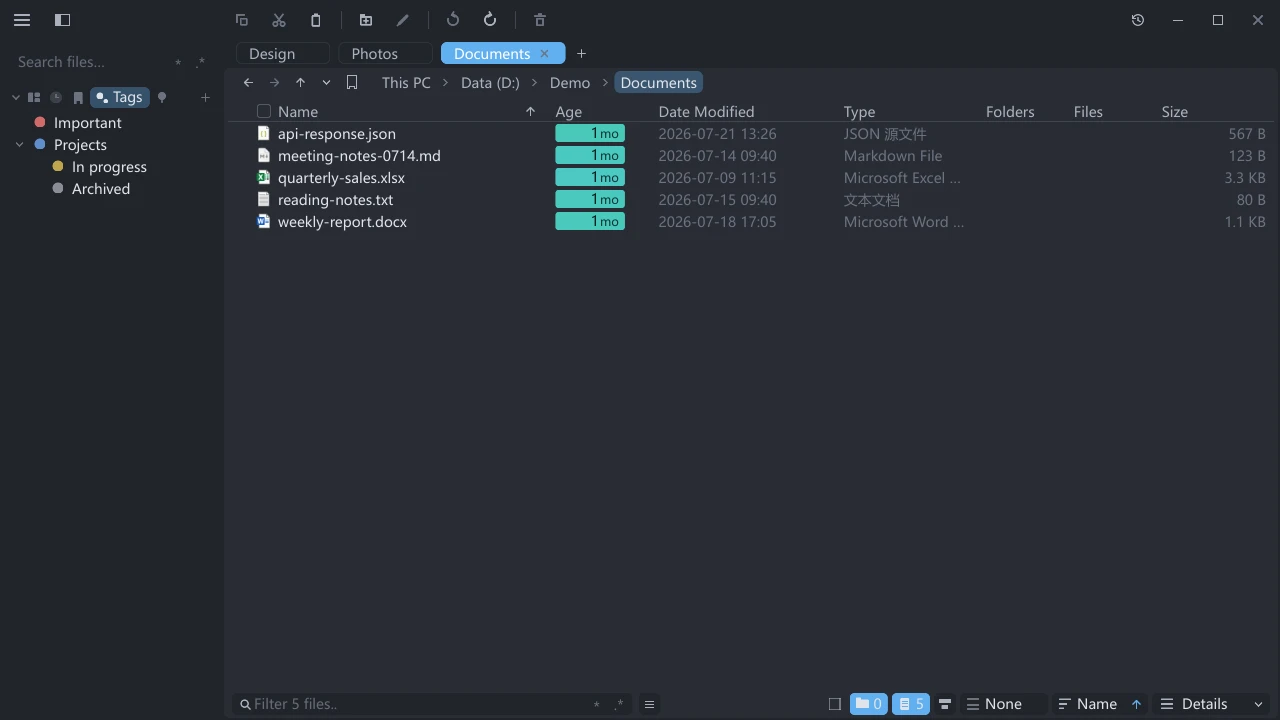
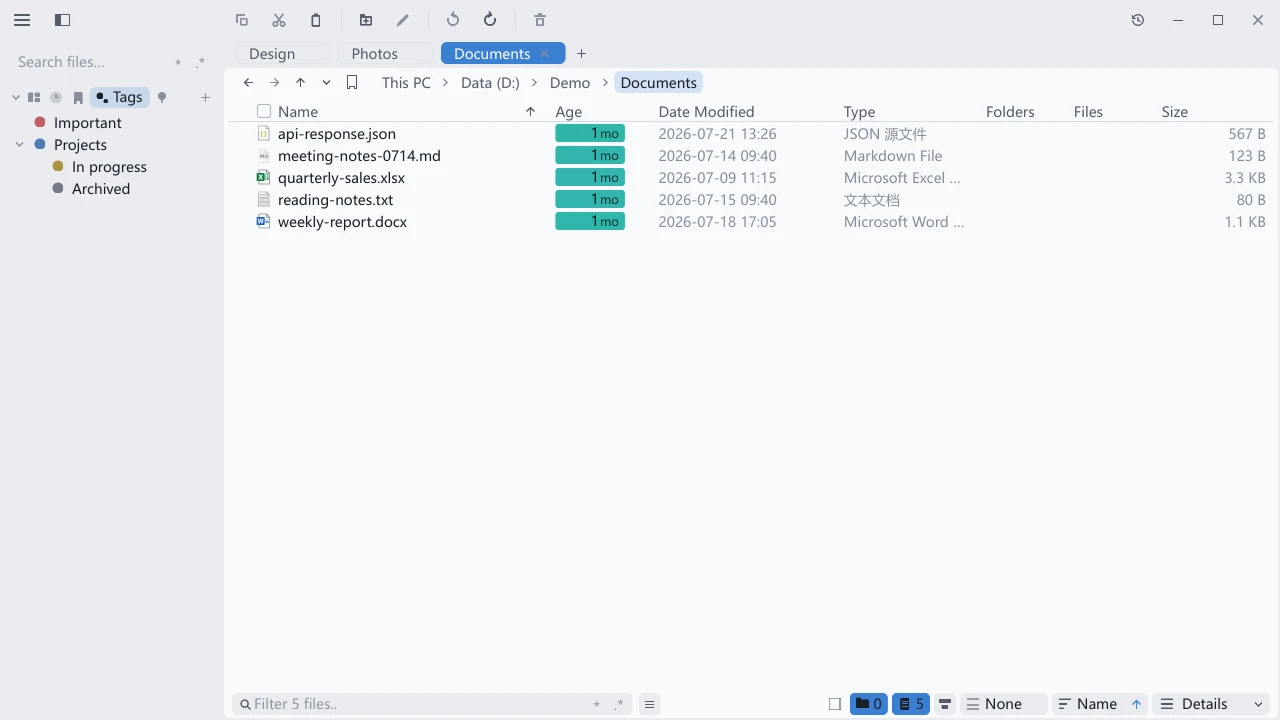
Each page remembers its vertical and horizontal scroll positions during the current run. Switch to another page and back to return to the same position. When the tab strip cannot fit all icons, scroll over the strip to reach the others; the current tab is automatically brought into view.
The button at the right end of the strip follows its current page. Bookmarks, Tags, Layouts and Places offer + for their creation actions; Recents offers × to clear its records when it is not empty. These buttons are visible without hovering.
The Search files… box sits above all sidebar panes. It uses the sidebar search scope, regardless of the current component page. While results are displayed, the sidebar temporarily shows a single result list; clearing the search restores its panes.
Stack panes and reorder tabs
- Hold the component tab you want to move, such as Bookmarks.
- Drag it to the upper or lower edge of a target pane's content area.
- Wait for the split target to highlight, then release to create a pane.
There is no fixed three-pane limit. A split target is offered only when the target pane has enough height for both resulting panes. In a short window, first resize a divider to give the target more height, or merge tabs into one pane.
| Drop target | Result |
|---|---|
| Between tabs in a tab strip | Reorder pages at the insertion point, or move one from another pane |
| The middle of another pane's content area | Join that pane |
| The upper or lower content edge, with enough height | Create a pane above or below the target |
Moving a pane's last component tab elsewhere removes the empty pane.
Adjust width and height
| Action | Result |
|---|---|
| Drag the sidebar's right edge | Resize the sidebar, up to half the window width |
| Drag the divider between stacked panes | Resize the adjacent panes; other panes keep their heights |
| Hover a divider and click its fit button | Fit the pane with less content to its content height and give the remaining space to the other pane, subject to the minimum pane height |
| Click the same button again | Restore the proportions from before fitting; manually resizing the divider or changing the pane structure clears this restore point |
The fit button adjusts the heights once. After the content or window size changes, adjust again as needed. Both adjacent panes must be expanded to drag their divider or use its fit button.
Collapse sidebar panes
Click the triangle at the far left of a pane's tab strip to collapse or expand the pane. Collapsing leaves its tab strip visible and gives the content space to other expanded panes. All panes can be collapsed.
Clicking any component tab in a collapsed pane expands that pane and selects the page. Clicking the current tab in an expanded pane does not collapse it; use the left-hand triangle.
The triangle before a folder row controls that folder's subtree separately. See The folder tree in the sidebar.
Open Tabs
- Open Settings → Sidebar.
- Enable Open Tabs.
- Switch to the sidebar's Open Tabs page.
- Click a row to focus its tab in the corresponding pane.
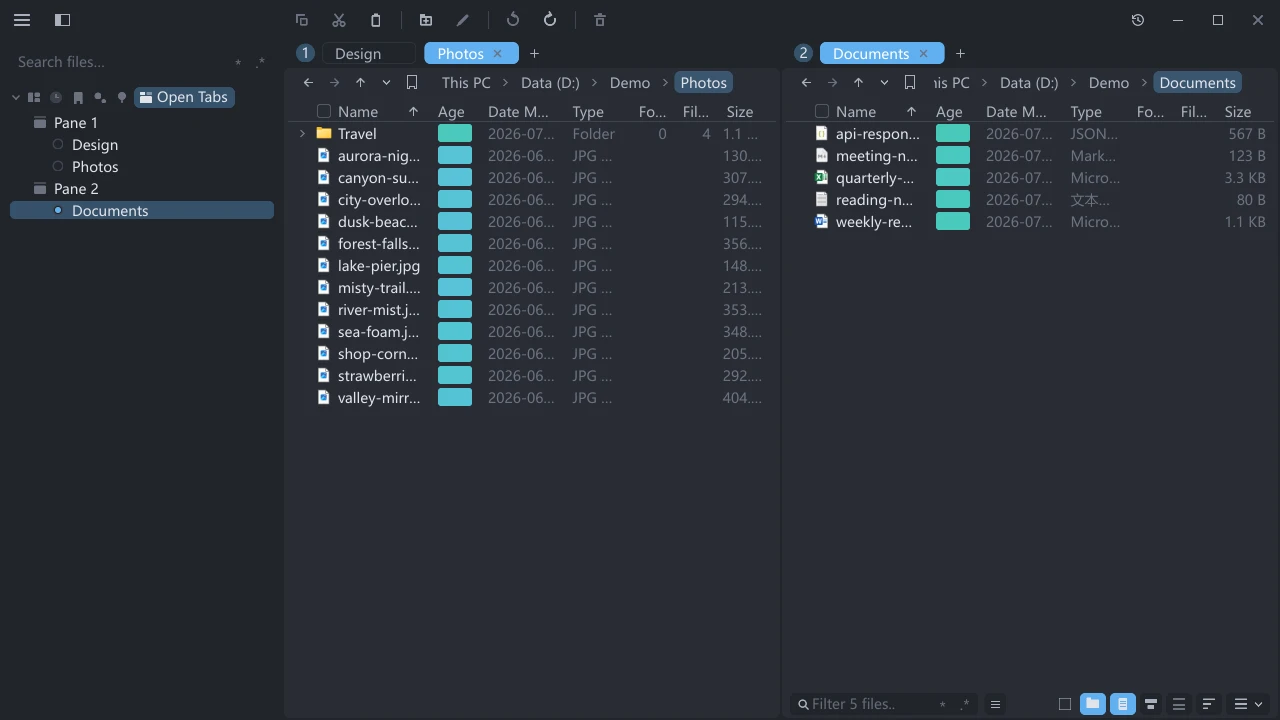
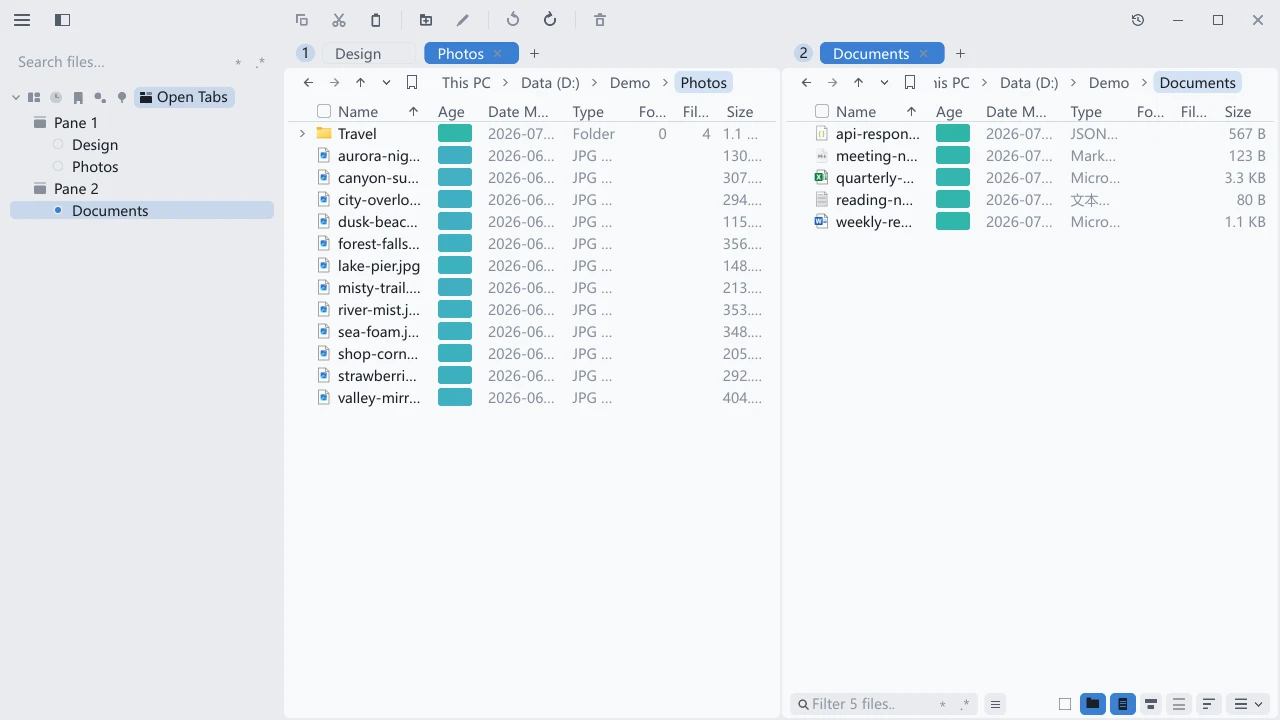
This page lists tabs in the current window only. After splitting the main area, each pane has a group whose number matches its tab group badge. Pane group rows are labels only. The list updates as tabs open or close.
Place a component page in the main area
- Hold a component tab in the sidebar.
- Drag it over a main-area tab strip or pane and wait for the drop target to highlight.
- Release to create a component tab alongside the file tabs in that pane.
The page keeps its contents and actions in the main area. Bookmarks still opens saved folders, and Tags still manages colored tags. While the page is in the main area, its tab is absent from the sidebar strip.
| Action | Result |
|---|---|
| Drag the component tab back to a sidebar tab strip | Insert it at the drop position in that pane |
| Close the component tab or its containing pane | Return the page to the sidebar |
| Open a folder from a main-area component page | Open it in another available file pane; without another available file pane, create a file tab in the current pane |
Ordinary file, terminal and preview tabs cannot currently be dragged into the sidebar. Sidebar component pages also cannot move to another window or become a separate window.
Use Vim keyboard controls
With Vim mode enabled, press e to focus the sidebar. These are the default bindings. A “section header” means keyboard focus is on the current component page's title in its tab strip.
| Action | Default key |
|---|---|
| Focus the current page header in the previous / next pane | [ / ] |
| On a header, switch to the previous / next page in this pane | h / l |
| On a header, collapse / expand this pane | Space |
| On a folder row, collapse / expand its tree | h / l |
| Enter sidebar search | / |
Switching pages with the keyboard leaves a collapsed pane collapsed; press Space to expand it. Switching panes or pages stops at either end without wrapping.
Saved state and version compatibility
Sidebar width, page order, stacked panes, the current page in each pane and collapsed state are saved with the window session. Reopening the app restores each window's sidebar. Page scroll positions last only for the current run.
Named layouts save main-area panes and their tabs, including sidebar component pages placed there. The sidebar's own arrangement belongs to the window; switching named layouts does not switch to another sidebar arrangement.
When upgrading from 0.23.x, the sections in existing windows become one pane per section, retaining their collapsed state. Use the steps above to merge them into the page groups you need.
Saving configuration after downgrading to 0.23.x discards the sidebar panes and new component settings that the older version does not recognize. Upgrading again may require rearranging the sidebar. Back up the current configuration first using the configuration backup instructions in the FAQ if you need to preserve it.
Interface tour · Tabs & split panes · Layouts & workspaces · Vim mode