
File operations
This page covers the operations you use most day to day: selecting and checking, moving between folders, copying and deleting, renaming, and filtering and finding. For what each part of the window is called, see the Interface tour.
Selecting & checking
tessoa keeps these two apart: selecting is where the cursor sits, checking is how you gather up a batch of files to act on together.
- Click a file or folder to select it; the arrow keys move up and down.
- Press Space to check or uncheck the current one.
- Copying, deleting and the like apply to whatever you have checked. With nothing checked, they apply to the one that is selected.
- Press Esc to clear all checks.
- Press and drag from anywhere nothing is drawn to rubber-band a group of items and check them together.
While anything is checked, the footer shows how many.
"Anywhere nothing is drawn" is more than the empty area below the list: in the details view the space after a name, the part of each column outside its text, the gaps between columns, and the margin to the right of the last column all count as empty space, and a drag can start from any of them. Correspondingly, to drag a file away you have to press on its name, its icon, or the text in one of the columns; pressing on the blank part of a row will not move it.
Shift+click on a checkbox checks the whole range from the last one you checked down to this one.
Shift+click on a name checks a range too, and it can be taken back: after extending a run, Shift+clicking somewhere further back unchecks the rows you overshot, matching Shift+↑ on the keyboard. It also moves the cursor to the row you clicked, so a following Shift+↓ continues from there. The columns view deliberately leaves its cursor where it was — there the cursor also decides which column to drill into, and moving it would tear down the columns you opened; shrinking a range still works.
Ctrl+click (⌘+click on macOS) adds items one at a time rather than in a run.
Gathering a batch from the keyboard
| Key | What it does |
|---|---|
| PageUp / PageDown | Moves the cursor a screenful and selects whatever it lands on |
| Home / End | Jumps to the first / last item |
| Shift+↑ / ↓ | Extends the selection up or down from where you are, checking every row it passes |
| Shift+PageUp / PageDown | Extends by a screenful at a time |
| Shift+Home / End | Extends all the way to the first / last item |
| Ctrl+A | Selects every visible item |
| Ctrl+Shift+A | Inverts: what was checked is cleared, what was not is checked |
Extending works from one anchor — the row the cursor was on before you held Shift. Coming back the other way clears what you overshot, and crossing the anchor starts a run in the opposite direction, the same as in Explorer. Release Shift and move once on its own, and the next extension anchors at the new position.
Select All and Invert Selection are also in the menu you get by right-clicking empty space in the list.
How far a screenful goes is worked out per view: details and icons use the height actually visible, columns use the active column, and gallery moves a fixed ten places. In a grouped list the group headings take up room too, and paging counts them — so it will not creep a few rows further with every page.
Opening with Enter
Enter opens, and it is the same thing a double-click does: a folder is entered, an archive is entered, a shortcut resolves to whatever it points at, and everything else goes to the system's default app. Vim mode's l takes the same path.
The set it acts on matches copying and deleting: with items checked it acts on all of them, and with nothing checked on the one that is selected. Several files open in list order; several folders each get a new tab — the current tab can only sit in one folder, so "enter three folders at once" has no meaning. Ctrl+Enter always opens in a new tab.
Opening more than 20 files at once asks first: Open these N files?, with Each file opens in its default app. below it. This is not there in case you regret it — those windows close again — but to tell you how many processes the keystroke is about to start. Choosing Cancel opens none of them.
Moving between folders
- Double-click a folder to enter it. With Single-Click to Open Folders turned on in Settings, one click is enough — see Settings overview.
- The three buttons at the left of the nav bar are back, forward, and up, matching Alt+←, Alt+→, and Alt+↑; the mouse side buttons do back and forward too.
- Click a segment of the path in the nav bar to jump straight back to that level.
- The ▸ after each segment lists the subfolders at that level, and clicking one takes you there. With more subfolders than fit on one screen, a scrollbar appears at the right of the panel; carry on with the wheel or the arrow keys.
- With Double-Click Empty Space to Go Up turned on in Settings, double-clicking empty space in the file area takes you up a level. Column view is unaffected by it.
Going back puts the cursor where you left it. Enter a subfolder, come back out, and the item you had selected before is still selected — no hunting for it again. Going up a level selects the subfolder you just came out of.
Middle-clicking back, forward, or up opens that location in a new tab instead, leaving the current one where it is. See Tabs & split panes.
Typing a path directly
When you already know the path, there is no need to click your way down to it:
- Press Ctrl+L (⌘+L on macOS), click the empty space to the right of the path in the nav bar, or click the current folder's own segment in the breadcrumb.
- Type the new path. The box is pre-filled with the current folder and fully selected, so the first character replaces all of it.
- Press Tab part-way through to complete the level you are on — the candidates are the subfolders of the level above whose names match. Press Tab again to carry on into the next level.
- Enter goes there, Alt+Enter opens it in a new tab, Esc gives up.
Forms like ~ and %VARIABLE% expand to the real path. If what you typed does not exist, the box stays open so you can correct it and press Enter again.
When a path is long enough to fill the whole nav bar, a small clickable strip is still kept at its right end.
Shortcuts and symbolic links
- A Windows shortcut (
.lnk) shows the icon of the program or folder it points at, with a small arrow badge in the bottom-left corner, so you can tell a shortcut from the real thing at a glance. An.exeshows its own icon. - A shortcut to a folder opens inside tessoa when you double-click it, exactly like entering a real folder, with no second window. A shortcut to a file still goes to the system to open in its default program.
- Symbolic links are presented as whatever they point at: a link to a folder counts as a folder — the type column says folder, it sorts with the folders, and you can double-click into it — and a link to an image still gets a thumbnail.
When the target is gone (the USB stick was pulled, the network location dropped, the file was deleted), the icon falls back to the generic shortcut icon, the arrow badge is still drawn, and a double-click is handed back to the system.
Size scans and search do not follow symbolic links.Folder sizes and item counts describe what actually sits there, and the sidebar's quick search does not descend into linked folders either — otherwise one link pointing back up its own tree would be enough to trap the scan.
Copy, move & delete
| Action | Shortcut (Windows / Linux) | Notes |
|---|---|---|
| Copy | Ctrl+C | |
| Cut | Ctrl+X | Becomes a move when you paste |
| Paste | Ctrl+V | Into the current folder |
| Undo | Ctrl+Z | Undoes the paste, move, delete or rename you just did |
| Delete | Delete | To the system Recycle Bin; can be undone |
| Delete permanently | Shift+Delete | Skips the Recycle Bin; cannot be undone |
On macOS these all use ⌘ instead of Ctrl; delete is ⌘+Backspace and permanent delete is ⌘+⌥+Backspace, as in Finder.
When pasting is not possible, Paste is greyed out and hovering it tells you why: either the clipboard has no files, or where you are standing is not a real folder on disk.
Every copy, move, delete and rename you make is recorded in Activity, where you can still undo it later.
Copying preserves the source file's modification time. Copying a folder also preserves modification times for files and folders at every level inside it, so sorting by date modified or reading the Age column still shows when the originals were modified.
On Windows, an operation that fails entirely with permission denied can offer Retry as administrator on its toast. Approve the system prompt to retry the original batch in the current window; a partially successful batch does not offer a retry of the whole batch. Creating a folder and undo support this too, as described in Administrator operations.
Name conflicts
When you paste or move something and the destination already holds an item of that name, tessoa stops and asks you once. The card puts the Source and the Existing copy side by side with their size and time, and offers three answers: Replace, Skip and Keep both.
The first one is reworded according to what the two things are, because the consequences are not remotely alike:
| What the two are | The first answer reads | What happens |
|---|---|---|
| File → file | Replace | The source overwrites the contents of the existing file |
| Folder → folder | Merge | The existing folder stays as it is and the source's contents go into it; clashes deeper inside are asked about one at a time |
| File ⇄ folder | Replace | The existing item has to give way entirely — it goes to the system Recycle Bin first, then the source is put there |
Skip keeps what is already there and does nothing with this item. In a move (cut and paste), skipped items stay where they were, source folder included — alive on both sides, as in Explorer. Keep both renames the source as it goes in, and the name it will get is written right on the option, such as Report (3).docx.
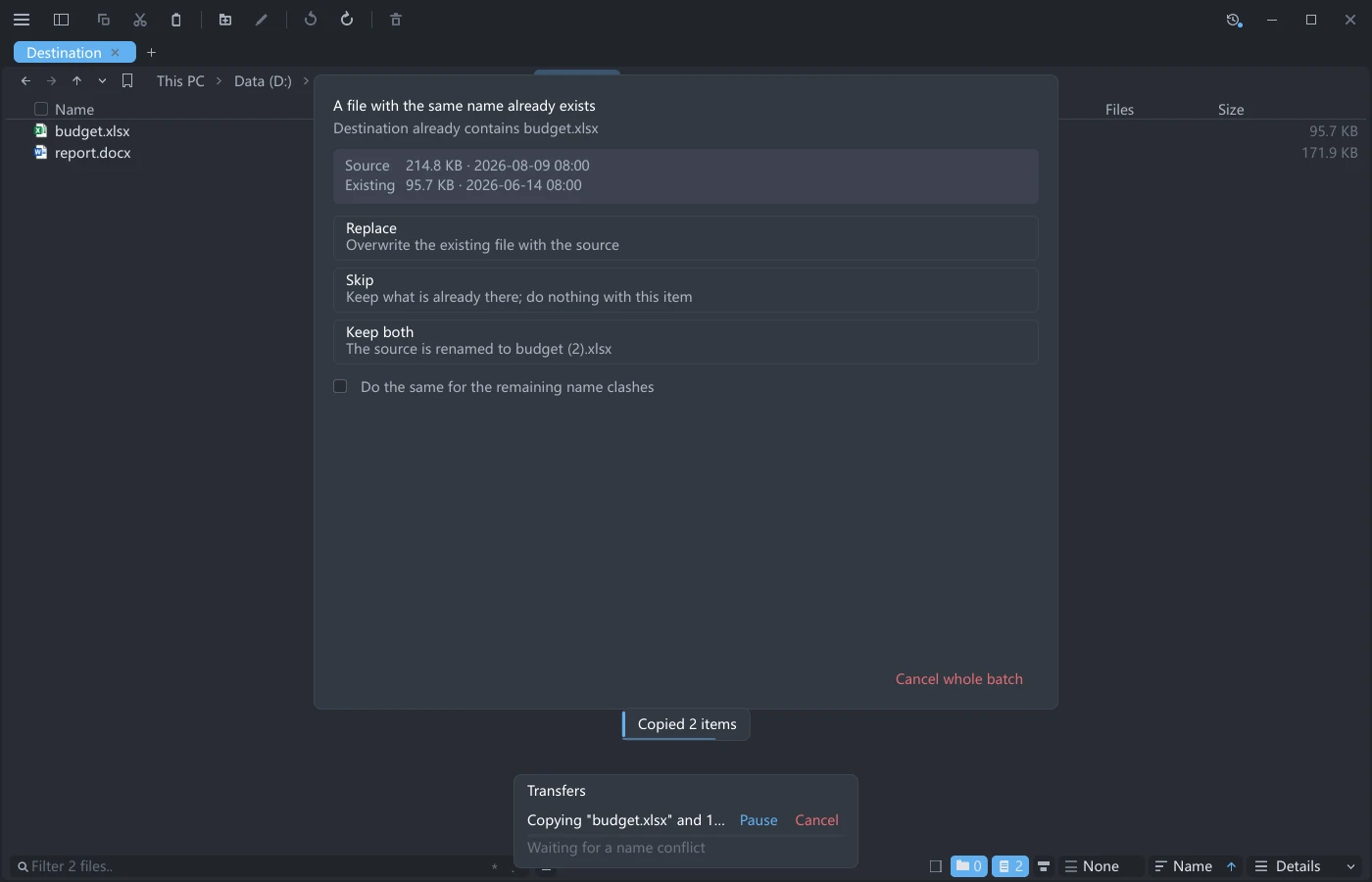
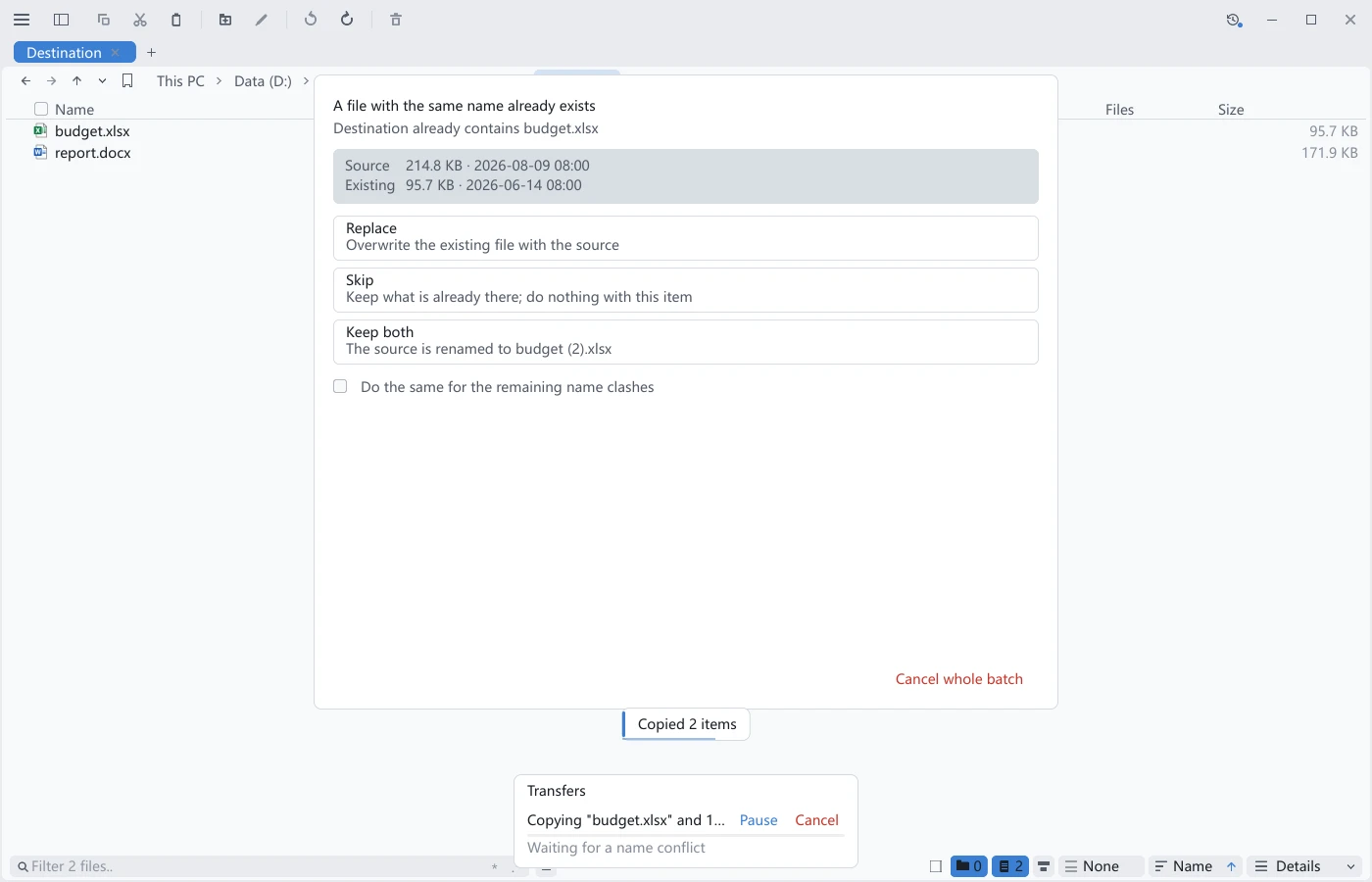
Tick Do the same for the remaining name clashes and this batch stops asking about clashes of the same shape. Files and folders are counted separately: answer Merge on a folder with that box ticked and the following folder clashes all merge, while a clashing file still gets asked about once, because that card says Replace, which is not what you answered. Cancel whole batch stops the operation; whatever already went through stays where it is.
The row in the transfer panel reads Waiting for a name conflict while this is open, and its numbers stop moving until you answer.
Clicking outside this card does not close it; it only makes the card wobble. The card is not asking "do you want to do this": it is an input the operation needs halfway through, with a batch of transfers stalled waiting for it. None of the three answers is preselected either, so pressing Enter straight away picks nothing; arrow onto one first.
If you would rather not be asked, Name conflicts in the General group offers four settings: Ask every time (the default), Always replace, Always skip and Always keep both, see Settings overview. Always keep both is what 0.16 and earlier did: clashes were silently numbered and never interrupted you.
Extracting an archive asks the same question and obeys the same setting, see Extracting archives.
Where deleted files go
Delete requests that files be sent to the system's own Recycle Bin (the Recycle Bin on Windows, the Trash on macOS and Linux). Whether they can be recycled and undone depends on the location and the system's recycle-bin settings.
Ctrl+Z puts them back where they were. If something else has taken that name in the meantime, the restored copy gets a number appended rather than overwriting anything.
When the system returns no usable restore information, the toast may read Deleted N items (they are in the system Recycle Bin) and offer no undo button. Check the system recycle bin; this message alone does not guarantee the files can be recovered. A network location, a disabled recycle bin or a batch exceeding its capacity may leave no recoverable copy.
On Windows and macOS, you can also use tessoa's Recycle Bin page to find and restore items. If access to the home-folder Trash is restricted on macOS, follow that page's Full Disk Access instructions.
A permanent delete cannot be undone. Shift+Delete, or Delete Permanently in the context menu, skips the recycle bin and erases the files outright; neither Ctrl+Z nor Activity will bring them back. It is the one operation in tessoa that destroys data and cannot be reversed, so it asks you to confirm first, and it is given no menu accelerator key. (Extracting cannot be undone either.)
Transfer progress
Copy or move enough and a Transfers panel floats up, listing each job with its speed and estimated time left. Every entry can be paused, resumed, or cancelled; once everything is done, Clear finished puts it away.
For the first moment it says Counting… — that is tessoa working out how many items there are, before anything is moved.
Copying and moving by dragging
When you drag files inside the window, what dropping them does is set by Drag in Settings: Copy, Move, or Ask (which pops up a small menu on drop so you can choose Copy here or Move here). Holding Ctrl while dragging uses whatever Ctrl + drag is set to.
Drop a file outside the tessoa window — into a mail client or a chat window, for example — and the receiving program decides what happens. The other direction works too: files can be dragged into tessoa from File Explorer, a chat window or a browser, under rules of their own, see Dragging files in.
Where things landed
Once a drag has moved a batch of files, tessoa points at the ones that landed in the destination folder, so you do not have to go through two hundred rows looking for them:
- every item that landed is checked;
- the cursor scrolls to whichever of them sits last in display order;
- each of their rows pulses once and fades;
- the scrollbar gets a mark at each of their positions.
Sorting usually leaves them scattered — drag five files over and, sorted by name, one may land at row 1, one at row 44, and the remaining three past row 200. Those marks on the scrollbar are the only thing that shows all of them at once. The gallery view has no row background to pulse, so there the hint is the selection plus the film strip jumping to the last of them.
When the destination is not in front of you, there are two cases:
| Destination | What happens |
|---|---|
| A tab that is open but not the one you are looking at | That tab gets a small dot, and the checking and scrolling happen when you switch to it |
| A folder that is not open at all (files dropped on a folder row or a sidebar bookmark) | The toast in the bottom right gains a Go to button, and only clicking it opens that folder |
tessoa does not open a tab for you: dropping files on a folder says "put them there", not "take me there".
The marks go away once you change the selection yourself, switch away from the tab, or the folder is read again — if you have started working, you have found them.
Only drags point things out this way so far, both inside the window and from another program. Ctrl+V, undo and extraction are not wired up to it yet.
Rename
- One file: press F2. The name turns into an editable box, and Enter commits. The item stays selected afterwards, and Ctrl+Z puts the old name back.
- Batch Rename: press Ctrl+F2. It applies to whatever is checked; with nothing checked, to the selected one.
The box opens with only the stem selected, not the extension. The first character you type no longer replaces .txt along with the name and leaves you a file that will not open on a double-click. Where the cut falls matches Explorer case by case:
| Name | Selected when the box opens |
|---|---|
report.txt | report |
backup.tar.gz | backup.tar — only the last segment counts |
.gitignore | The whole name; a leading dot is not a separator |
readme (no dot at all) | The whole name |
project.backup (a folder) | The whole name; a dot in a folder name is not an extension |
The caret sits at the right end of the selection, so one press of → leaves it at the end of the stem and typing adds in front of the extension. To change the extension along with the name, press F2 again or Ctrl+A to select the whole thing. The per-row boxes in Batch Rename still open fully selected: what they hold is the result your rule produced.
While an input method is composing text, keys such as Backspace act on that composition without deleting characters already committed to the file name. The rename box uses the same font size as file names in the current view.
Leaving the box commits; only Esc cancels. Click empty space in the list, click another file, switch to another window — whatever you typed is saved, the way Explorer and Finder do it.
When a long name does not fit on one line, the box wraps onto the next line and grows taller, so the whole name is visible at once and there is no need to move the caret to see the half you cannot. It wraps to four lines at most; for a name longer than that, whichever line the caret is on is the line you see. Home goes back to the start, End to the finish.
Every other text box scrolls sideways instead, showing whichever stretch the caret is in — the address bar, the filter box in the footer and the search box in the sidebar all work that way.
You can use the mouse in the box: click to put the caret where you clicked, press and drag to select a stretch of text. Every text box in tessoa behaves this way — the rename box, the address bar, the filter box, the search boxes, the password dialogs. Clicking the very name you are editing no longer cancels the rename either.
A name already taken
When the name you typed is already in use in that folder, a card appears: This location already contains a file with the same name., above the question Rename "old name" to "new name (2)"? — the number in the brackets is what tessoa proposes instead.
Click Rename and it lands under that name, leaving the existing file untouched: this card carries no "replace" option. Cancel if you would rather not, and nothing changes.
Changing only the case is not a clash. Renaming note.txt to NOTE.TXT simply works, with no card in the way.
When a rename fails for some other reason — you do not have permission, for instance — a toast says so; the box no longer closes without a word.
Batch rename opens two boxes in the footer, Pattern… on the left and Replace with… on the right:
- Write a regular expression on the left to match the part you want to change.
- Write what it becomes on the right.
- The list previews the new names as you type, and the footer reports how many items there are, how many change, and whether anything collides.
- Click Apply when it looks right, or Cancel to drop it.
A malformed expression shows Bad regex in the footer, and Apply will not run. If two files would end up with the same name the footer reports the collision count; fix the expression before applying.
Filtering & finding
tessoa has two ways to find things, for different jobs:
| Shortcut | What it searches |
|---|---|
| Ctrl+F | Filters the current folder: type a few letters and non-matching rows disappear |
| Alt+F | The sidebar quick search: looks through subfolders too, and can find files by tag name |
Typing in the file list also starts filtering, with no Ctrl+F first: the first letter or digit you press focuses the footer filter box and counts as its first character. Keys already bound to a shortcut still run the shortcut, so Space still checks items; once you rebind a bare key to an action, that key leaves "typing" too. It stands aside while Vim mode is on, or while the sidebar has focus. To do without it, turn off Type to Filter in the Input group in Settings.
Chinese cannot be typed directly in the file area: the input method only starts once the filter box has focus, and before the first character lands the box does not have focus. Use pinyin initials for Chinese names. Once the first character is in, typing Chinese works as usual.
Filtering hides rows in place rather than opening anything: the footer box tells you how many files are left, and Esc clears it. When nothing matches, the middle of the list reads No matching files rather than leaving you a blank area to guess at. Checks you made survive the filter, and the footer shows the checked count alongside the filter state.
Sidebar quick search defaults to matching filenames in folders from every open tab in this window, including their subfolders. Windows and macOS can use index acceleration or enable a whole-computer scope; files found through matching tag names are not limited to open folders. See Search and filtering for entry points and scope settings.
Picking files from the keyboard while the filter box is lit
Once the filter box has focus, you can pick files without handing focus back to the list:
| Key | What it does |
|---|---|
| ↑ ↓ PageUp PageDown | Move the selection through the filtered results; hold Shift to select a range |
| Enter | Returns the keyboard to the list and keeps the filter text; press it again to open the selected item |
| Esc | Clears the filter and leaves |
← →, Home, End and Ctrl+A stay with the box itself: inside it they move the text caret and select the text, and handing them to the list would leave you unable to go back and edit what you just typed.
The whole keyboard path runs: type → ↑↓ to pick → Enter to hand the keyboard back → Enter to open.
Finding Chinese names by pinyin initials
Both the filter and the sidebar search accept pinyin initials. With 「工作 / 生活 / 学习」 in a folder, typing gz leaves only 「工作」; 2026年工作总结.docx is found by gz too, and the two matching characters are highlighted.
- Only initials, not whole-syllable pinyin:
gzfinds 「工作」,gongzuodoes not. - Only in the default Fuzzy mode. Wildcards and regex match the pattern you wrote literally, see below.
- Names with no Chinese characters are unaffected.
Match mode
Both boxes carry two small square buttons at their right edge, which decide how what you type is read:
| Button | Mode | Typing report*.pdf gives you |
|---|---|---|
| Neither lit | Fuzzy (default) | Anything whose name contains those characters in order |
* | Wildcards | * matches any number of characters, ? matches exactly one |
.* | Regex | Read as a regular expression |
The two are mutually exclusive, and pressing the lit one again turns it off, back to fuzzy. From the keyboard they are Alt+G and Alt+R; in Vim mode, \g and \r.
The sidebar search and the footer filter share one mode — switch to wildcards in one and the other follows. A malformed regular expression shows Invalid regular expression in the sidebar, with a link back to wildcards.
When the footer box gets too narrow to hold the two buttons, they are not drawn at all; the mode itself does not change.
The right-click menu
The entries in the upper half of the right-click menu are tessoa's own. Right-clicking a file or folder gives you one set; right-clicking empty space in the list (the background menu) gives you another.
| Where you right-click | Entries on Windows |
|---|---|
| A file or folder | Open, Open in New Tab, Open With ▸, Tags ▸, Hide ▸, Copy, Cut, Paste Into Folder, Copy Path, Delete, Delete Permanently, Properties, Rename, Batch Rename |
| Empty space | Paste, New Folder, Select All, Invert Selection, Open in Explorer, Open in Terminal ▸, Sort by ▸, Group by ▸, Tags for This Folder ▸, Open terminal tab here ▸ |
A row you selected or checked stands for the whole batch. Right-click such a row and you get the file menu, acting on the batch, whether or not the pointer landed on text. On a row that is not part of the selection, the empty space beside the name still follows Right-Click Blank Areas Inside Rows for Folder Menu in Settings, see Settings reference.
When what you right-click is a single archive, three more entries follow Tags ▸: Extract Here, Extract to Subfolder and Extract to…, see Extracting archives.
Open With ▸ is a flyout: hover it and you get the programs that can open this file, see Open With. It is Windows-only, and it does not appear when you right-click a folder.
Hide ▸ holds four entries, each of which writes a rule for you so the item stops being listed. When the item is already hidden by a rule, the same slot reads Unhide instead. See Visibility.
Paste Into Folder only appears when you right-click one folder: with a multiple selection, or on a file, there is no unambiguous place to paste into, so the entry is left out.
Open in New Tab only appears when the selection contains at least one folder; for a selection of files only, the entry is left out entirely. See Tabs & split panes.
Open in Terminal ▸ and Open terminal tab here ▸ are two different things: the first opens a system terminal window outside tessoa, the second opens the terminal as a tab inside it — the word "tab" is the divide. Terminal tabs open on all three systems; Open in Terminal is a flyout on Windows only and stays a plain entry on macOS and Linux. See Terminal tab.
New Folder lives in the background menu: right-click empty space → New Folder. The new folder is selected straight away and drops right into rename mode with its name fully selected — start typing and you replace the default untitled folder, then press Enter. No hunting for it in the list, and no second press of F2.
If creation fails, a toast reports the cause and an Activity entry is recorded. On Windows, a permission failure can be continued with Retry as administrator on the toast.
Delete Permanently differs from Delete in exactly one way: it skips the recycle bin and cannot be undone. Which is why it is deliberately given no menu accelerator key — that would mean one stray keypress while the menu is open is enough to carry it out.
The three platforms differ only where their own conventions do: macOS also has Quick Look, Get Info, Duplicate, Make Alias, Compress, and Reveal in Finder, and on both macOS and Linux deleting reads Move to Trash; the Linux background menu says Open in File Manager.
There is a search box at the top of the menu reading Search actions… — with a long menu, type to filter it, and No matches appears when nothing fits.
A line of grey text below the box says who the menu was opened for: the file name when you right-clicked one file, N items for a multi-selection, and the folder's name for the background menu. After a multi-selection, that line is where you confirm how many items the next action will reach.
A menu taller than the window draws only the rows that fit, with a scrollbar at the right; the wheel carries on down it. When the whole menu fits, the wheel closes it as before.
The menu works from the keyboard alone: ↑↓ move within the current panel, wrapping at either end; → (or Enter on an entry with a ▸) enters the submenu and lands on its first item; ← steps back to the parent and folds that level. With text in the search box, ←→ still move the text cursor.
Reaching a submenu with the mouse does not require moving in a straight line: crossing the rows below a parent entry diagonally on the way to its submenu does not close the open submenu, and to select a row along the way, stop on it and it switches immediately. A submenu with genuinely nothing in it shows an (Empty) row, matching the system's menus.
With Menu accelerator keys turned on, each row gets a letter you can press while the menu is open, and / switches back to typing a search. Those, and the order of the entries themselves, are configured on the Context Menu Order page in Settings, which is also where entries can be kept out of a menu one by one.
Beyond the two tables above, the menu may carry two more sections:
- Commands you added yourself sit at the very bottom, in a section of their own, see Custom commands.
- On Windows, the entries other software installed into the system follow after that — a cloud drive's share, an antivirus scan, the 7-Zip entries. These rows carry a thin bar along their left edge, marking them as not tessoa's own. They have to be fetched from the system, so the first right-click of a session shows a few placeholder rows that fill in once the answer arrives, see Shell extensions.
Third-party entries show their icon before the name when one is provided; entries without an icon reserve no empty space. Hover an entry whose text or target file name is clipped to read the full tooltip.
Closing and reopening keeps everything
When you close a normal window normally, tessoa remembers its tabs, splits, folders and views and brings them back next launch. If a folder has since been deleted, that tab reads This location no longer exists or is inaccessible. Administrator windows do not save session changes; see Administrator operations.
Activity · Extracting archives · Tabs & split panes · Bookmarks · Tags · Preview