
Network shares
A network location is a row you pin yourself into the sidebar's Places component page, pointing at a folder another machine on your network shares. This page covers how to enter a share (a \\server\share path), how to pin it into the sidebar, and what tessoa cannot do here.
On Windows a share path is written \\server\share, and an IP address works just as well: \\192.168.1.119\media. On macOS and Linux a mounted share is an ordinary path (/Volumes/…, /mnt/…), and the pinning below applies to those the same way.
Entering a path directly
- Press Ctrl+L, or click the path area in the navigation bar.
- Type
\\server\share. - Press Enter.
The panel closes at once and the page goes into loading. When the share cannot be reached, the page says the folder does not exist, and the window stays responsive throughout — tessoa never stops to find out whether the path exists.
Path completion offers nothing on a network location. Typing inside a local folder completes the next folder name, and on a share it does not — listing a remote folder means waiting on the network, and that would stall the characters you are typing. Typing the whole path and pressing Enter is unaffected.
Pinning it into the sidebar
- Switch to the sidebar's Places component page and click + at the right end of its tab strip (its tip reads Add Network Location).
- An input box appears at the end of the list; type the share path.
- Press Enter, and the row stays on the Places page from then on.
What the box is pre-filled with depends on where you are:
| Where you are | What the box holds |
|---|---|
| Already on a share | The whole share path, selected — press Enter to pin where you are, or type to replace all of it |
| In a local folder | Just the two \\ characters with the cursor after them, so you carry on with the server name |
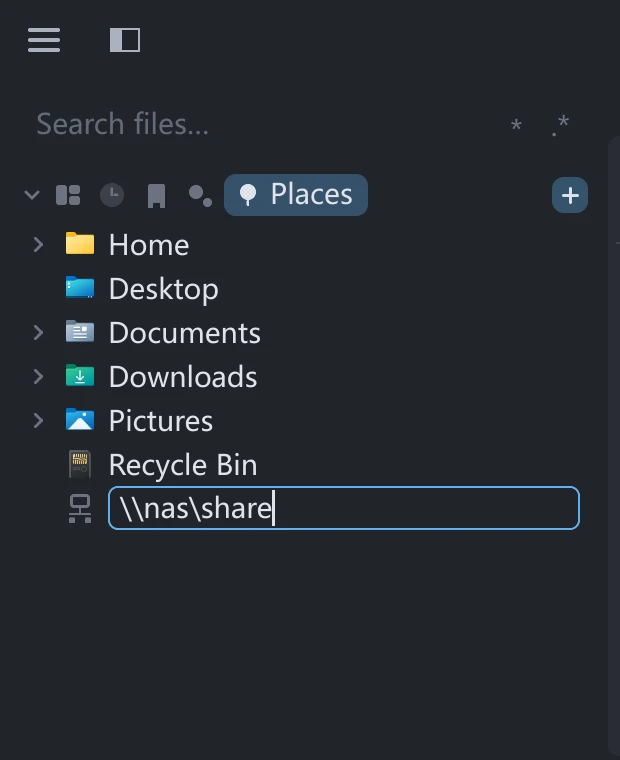
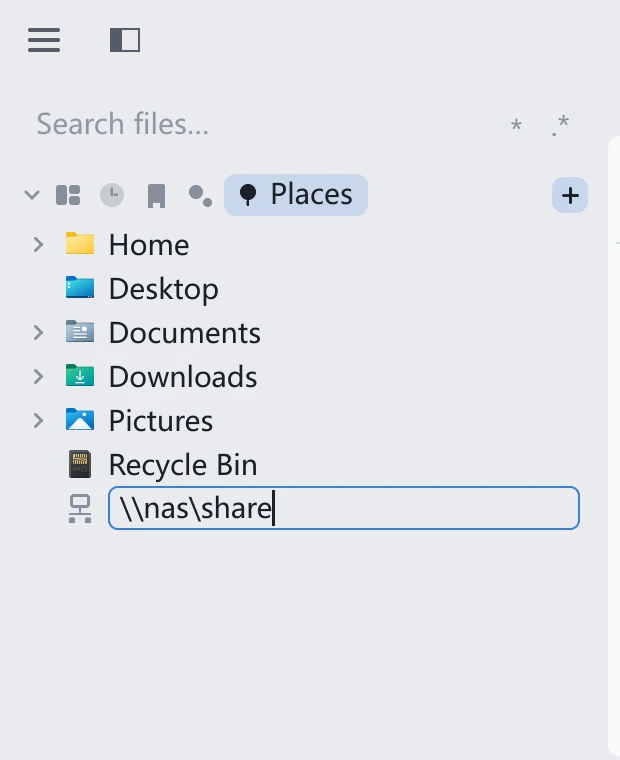
Pressing Esc, emptying the box, or submitting those two \\ unchanged all count as cancelling, and nothing is added.
A pinned row behaves like this:
- It stays, even offline. tessoa does not hide the row because a share is temporarily unreachable; clicking it loads, then reports that the folder does not exist.
- It has an expand arrow and grows into a tree in place, like any other folder row.
- Hovering the row reveals an × at its end; clicking it removes the row. Removal cannot be undone — adding it back means typing the path again.
- The row's label is the path itself. To give it a name, use a bookmark; bookmarks support names and folders.
A shared folder can be bookmarked like any other: click the star in the navigation bar while you are on it.
What is not possible
| Situation | What happens | What to do instead |
|---|---|---|
Typing only the server, \\192.168.1.119 | It does not open, and the page says the folder does not exist. Listing a machine's shares needs a different system interface, which tessoa does not use | Type the share name too: \\192.168.1.119\media |
| The share needs a user name and password | The connection fails in the background and the page says the folder does not exist. tessoa raises no credentials dialog | Connect once in File Explorer; after the credentials land in Windows Credential Manager, tessoa can read the share |
| Wanting to see which machines are on the network | There is no such feature | Get the machine name or IP elsewhere and type the path |
At most 64 network locations can be pinned in the sidebar.
Folder sizes are not calculated automatically on network locations. Under Calculate Folder Sizes Automatically in Settings, the Network Locations sub-toggle is off by default — sizing a folder means reading every file below it, which is both slow and bandwidth-hungry over a share. Clicking a folder's size figure still calculates that one by hand.
Storage locations · Bookmarks · Interface tour · Settings overview