
Spreadsheet preview
Spreadsheet preview shows a workbook as a grid in the preview area, without opening Excel. This page covers the supported formats, selecting and copying cells, and how much of a sheet the preview shows.
Supported formats
Five of them: .xlsx, .xlsm, .xlsb, .xls, and .ods.
Moving around a workbook
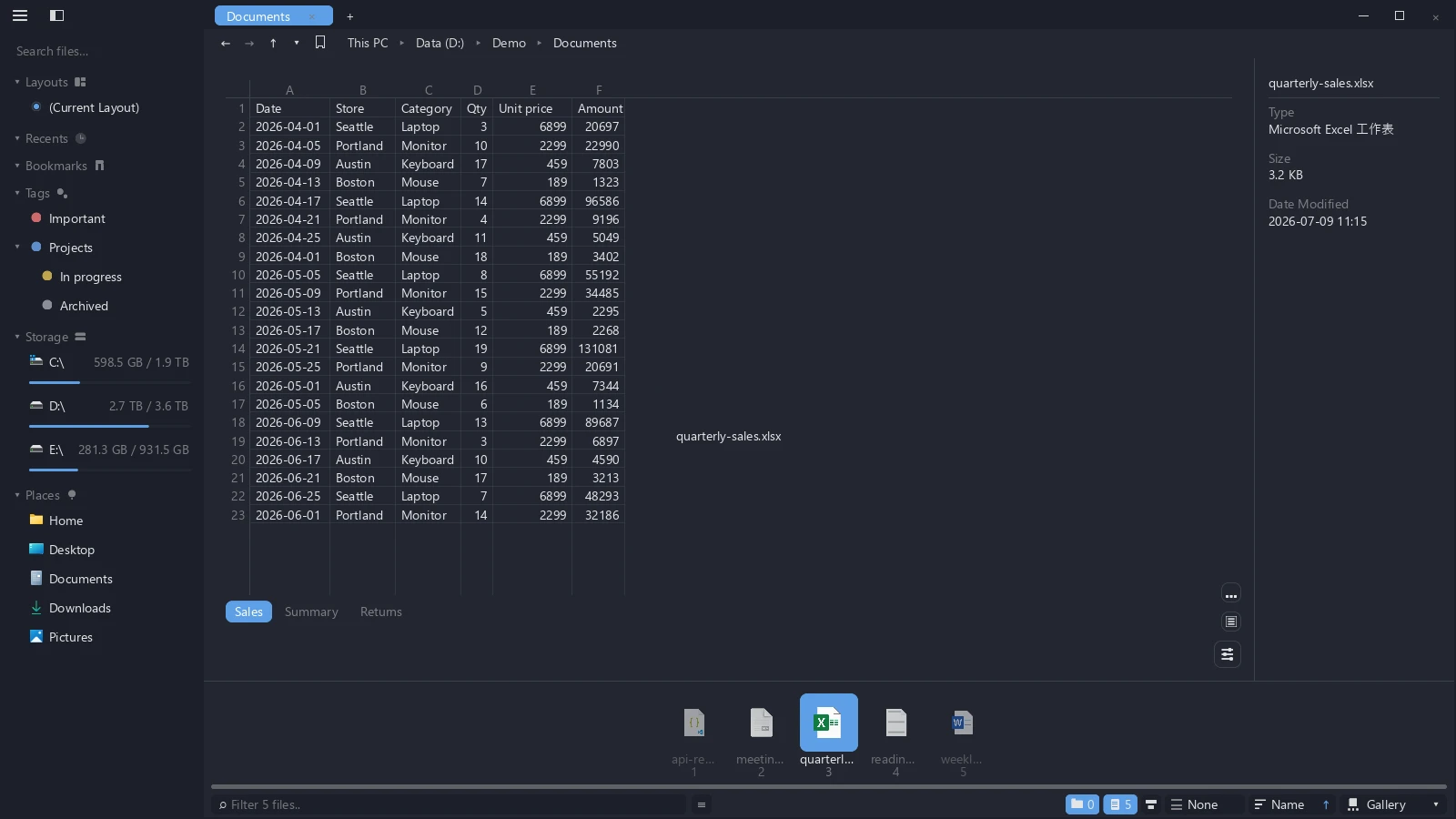
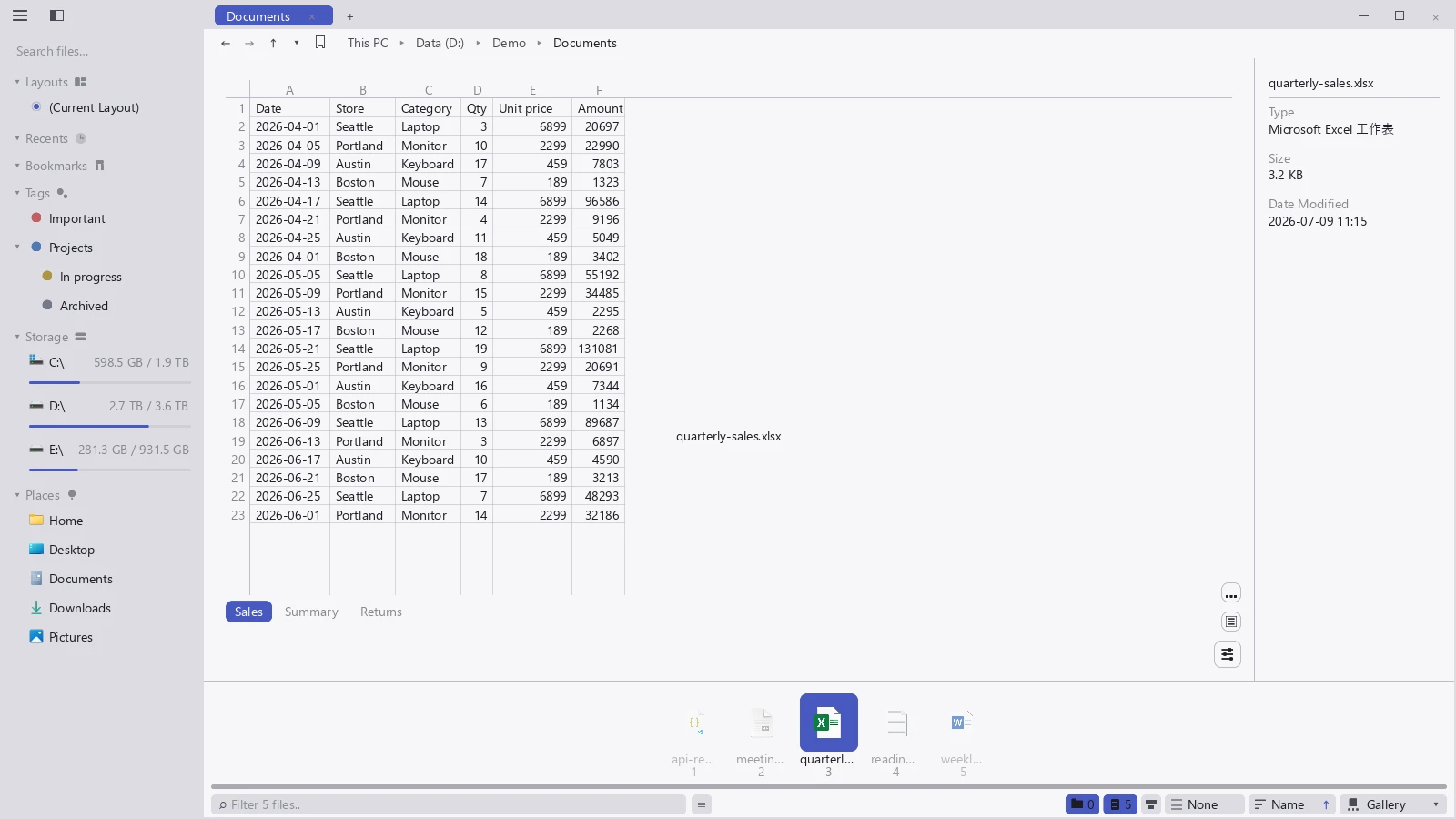
- Opening a workbook shows the grid, with row numbers down the left and column letters across the top; both stay put as you scroll.
- Workbooks with more than one sheet get a row of buttons along the bottom — click to switch sheets. A single-sheet workbook does not get that row.
- Scrolling sideways: hold Shift and scroll the wheel.
Selecting and copying
| Action | How |
|---|---|
| Select one cell | Click |
| Extend to a cell | Shift-click |
| Select a rectangle | Drag |
| Copy | Ctrl+C, or right-click → Copy Cell Contents |
| Find | Ctrl+F |
Once something is selected a formula bar floats in at the top showing the reference (B12, for instance) and the full contents of that cell — which is how you read a value too wide for its column.
What gets copied follows the selection: one cell copies its contents, a range copies as tab-separated text you can paste straight back into Excel.
Find is counted per cell. Select a range before pressing Ctrl+F and the search stays inside it.
How much the preview shows
The preview shows at most 500 rows by 64 columns, with a note at the end when there is more. Cell text longer than 256 characters is cut there and given a trailing ellipsis, and multi-line cells are flattened to one line.
Formulas display their result, not the expression. tessoa reads the value that was calculated and stored when the file was last saved; it never recalculates. A cell edited but not recalculated before saving therefore shows the old value, and errors like #DIV/0! appear exactly as the file stored them.